Tutorials
Procore Model Manager - Beta Access & Feedback
The Model Manager (Beta) tool is exclusively available to registered beta participants. It is not available through Procore Explore. To learn more, see Beta Participant Guide.
The Model Manager (Beta) tool is exclusively available to registered beta participants. It is not available through Procore Explore. To learn more, see Beta Participant Guide.
The Federated Project Model allows you to view multiple 3D models combined into a single, coordinated scene. By viewing your models in the Procore cloud, you ensure your team is always working with the most current information without being limited by local storage capacity or the need to download large files.
Follow these steps to open the federated project model:
Navigate to the Model Manager (Beta) tool.
Go to the Federated Project Model card.
Click Open.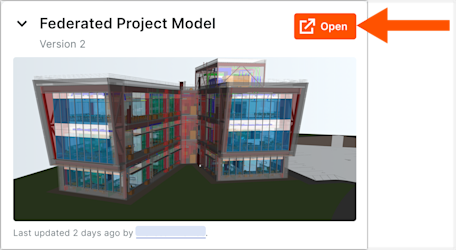
Procore opens the latest federated scene directly in the viewer.
Can I download the federated project model? No. Instead of downloading large files, the system streams optimized data to your device. This cloud-based approach bypasses local storage limits and ensures your team always works with the most current information.