Use the Navigation Sphere

Procore Model Manager - Beta Access & Feedback

The Model Manager (Beta) features and documentation are subject to change without notice. (Note: At the launch of the Beta, only 'Admin' level permissions are available. Additional permissions will be phased in during the product lifecycle).

To access the beta and provide feedback Show/Hide Details

  • How to Access: Participating companies must sign the Procore Beta Agreement. Once signed, your Procore Administrator coordinates with your Procore point of contact to enable Model Manager (Beta) on specific Procore projects.

  • How to Provide Feedback During Beta: Contact your dedicated Beta program lead.

  • How to report critical issues: Report breaking changes to Procore Customer Support. For general feedback or non-critical issues, contact your Beta program lead or Procore point of contact.

The Navigation Sphere allows you to manipulate the 3D orientation of a model by clicking its faces (such as Top, Front, or Right), corners, or edges. This action snaps the camera to a specific perspective. The Navigation Sphere is the primary tool for perspective management and works great with Orthographic mode. You can also click and drag the sphere to reposition it within the viewer.

In the Model Manager tool, the ViewCube in the Model Viewer lets you to manipulate the 3D orientation of the model by clicking on its faces (for example, Top, Front, Right, and so on), corners, or edges.

Things to Consider

  • Required User Permissions (Note: At the launch of the Beta, only 'Admin' level permissions are available. Additional permissions will be phased in during the product lifecycle).

  • Additional Information:

    • The Navigation Sphere is visible by default.

    • You can click and drag the navigation sphere to move it where you want.

Steps

Follow these steps to learn how to use the navigation sphere.

  • Early access content

    Show or hide in viewer Show / Hide Steps

    1. Navigate to the Model Manager (Beta) tool.

    2. Open a model.

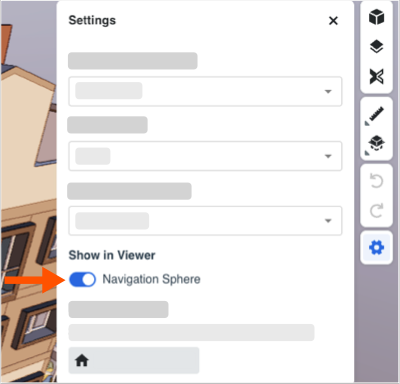
    3. In the right toolbar, click Settings .

    4. In the Settings window under Show in Viewer:

      • Move the element toggle to the Right (ON) to make it visible. This is the default setting.

      • Move it to the Left (OFF) to hide it from the workspace.
        This image shows the Navigation Sphere toggle in the Show in Viewer area of the Settings page which is accessed by clicking the Settings icon in the Right Toolbar of the viewer in the Model Manager tool.

    5. Click X to close the settings window. Changes save automatically.

  • Early access content

    Snap to standard views Show / Hide Steps

    Follow these steps to snap to different views with the navigation sphere:

    1. Navigate to the Model Manager (Beta) tool.

    2. Open a model.

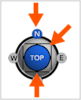
    3. Click a point on the navigation sphere to snap to a view.
      This image shows the click points on the Navigation Sphere in the viewer of the Model Manager tool.

    Snap to...

    Click...

    Best Used When...

    Standard Views

    Top, Bottom, Left, Right, Front, and Back

    You need to see a "flat" elevation or plan view.

    Isometric Views

    The "corners" of the navigation sphere

    You want a clear 3D view that shows three sides at once.

    Cardinal Directions

    North, South, East, West

    You are orienting the model based on site coordinates or "Project North"

  • Early access content

    Use the sphere in orthographic mode Show / Hide Steps

    Follow these steps to switch to orthographic mode and use the navigation sphere.

    1. Click the Perspective icon in the right toolbar to switch Orthographic mode ON.

    2. Choose from these options to snap the camera to a:
      This image shows the click points on the Navigation Sphere in the viewer of the Model Manager tool.

      • Cardinal Direction. Click North, South, East, West to rotate the camera to that orientation.

      • Face. Click Top, Front, Right, Left, or Bottom to snap the camera to a flat elevation or plan view.

      • Isometric View. Click a corner of the sphere to view the model from an angled perspective.

    3. Use your Trackpad or Mouse Wheel to adjust the zoom level.