Add sub-tier information for a subcontractor payment application

  1. Navigate to the Project level Payment Applications tool.

  2. Click the Subcontractor tab to view a list of the project's subcontractor payment applications.

  3. Locate the payment application and click its payment application # link to open it.

  4. In the payment application, click the Lien rights tab.

  5. Scroll to the Sub-tier waiver card for this payment application.

     Note

    The payment application may include one or more sub-tier waiver cards based on the project's configuration setting for waiver collection. See Enable sub-tier waivers on subcontractor payment applications as a payment application administrator.

  6. Choose from these options:

    • Add sub-tiers

    • Certify no sub-tiers

Add sub-tiers

To provide a complete list of everyone working on a project:

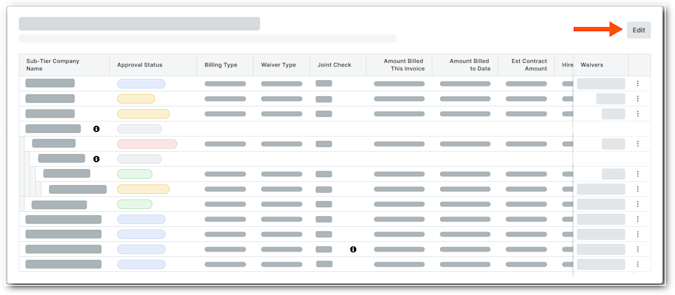
  1. Scroll to the desired sub-tier card in the payment application and click Edit. Edit Invoice Subtiers Card This places the selected card into editing mode.
  2. Click Add sub-tier at the bottom of the data table and click Create new. This opens the Add sub-tier panel.
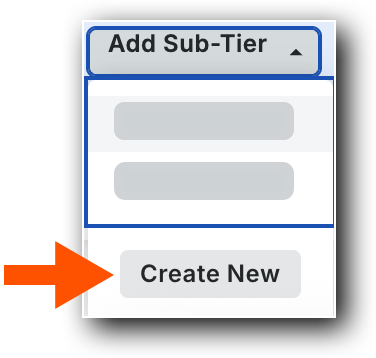
    Create New Sub Tier On Invoice

  3. Enter the following information in the line item:

     Note

    An asterisk (*) below denotes a required field.

    • Sub-tier company name. Type a name for the sub-tier.

    • Kind of work. Enter the type of work for the sub-tier company. This is a free-form text entry.

    • Hired by. Choose the sub-tier's hiring company from the contract company or Sub-Tiers section of the drop-down list.

    • Phone number. Type the primary telephone number for this sub-tier.

    • Sub-tier type. Choose the Supplier or Subcontractor option to indicate the company's business type.

    • Street address. Type the primary address for this sub-tier.

       Note

      To add an apartment, suite or unit number, click the Add apt, suite, unit link to show those entry fields.

    • City. Enter the city for this sub-tier's primary address.

    • State. Enter the state for this sub-tier's primary address.

    • Zip file. Enter the postal code for this sub-tier's primary address.

    • Country. Enter the country for this sub-tier's primary address.

    • Amount billed this payment application. Enter the amount the sub-tier billed you for this payment application.

       Important

      No amount billed for this payment application? If one of the listed sub-tiers didn't bill an amount for this payment application, enter £0.00 in the Amount billed this payment application field. This field cannot be blank.

    • Est. contract amount. Enter the estimated contract amount for the sub-tier.

    • Sub-tier waiver contact email address. Type the email address of the person signing the lien waiver for the sub-tier subcontractor. This person does not need a Procore user account.

    • Billing type. Choose Progress or Final.

    • Click Add sub-tier.

  4. Repeat the step above for each sub-tier subcontractor.

  5. Click Save.

Certify no sub-tiers

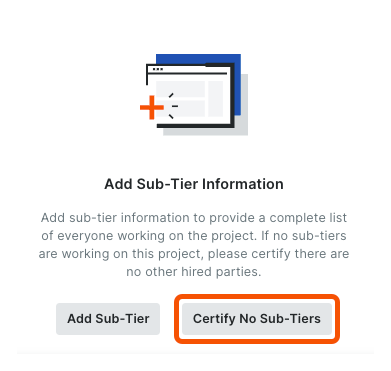
If there are no sub-tier subcontractors for the project payment application, click the Certify no sub-tiers button. The message 'You have certified no sub-tiers are involved in this project' appears.

Certify No Sub Tiers