Upload sub-tier waivers

  1. Navigate to the Project level Payment Applications tool.

  2. Click the Setting Icons Settings Gear icon. This opens the Payment Applications tool's setting page.

  3. Click the Subcontractor tab.

  4. Locate the payment application to open and click the Payment application # link.

  5. Click the lien rights tab.

     Important

    The options that you see on the lien rights tab are dependent on the Payment Applications settings set by the payor. For details, see Enable sub-tier waivers on project payment applications.

  6. Choose the option that corresponds to the card(s) that you see on the lien rights tab:

  • I see one card named 'Unconditional sub-tier waivers for the previous payment application' Show / hide details

    • When you see this card, you must upload signed unconditional sub-tier waiver for the previous valuation period. You must include these in your subcontractor payment application for the current Open valuation period.

      Example

      If you are submitting a subcontractor payment application for the valuation period 1/3/2024 - 31/3/2024, you can:

      • Collect signed unconditional lien waivers from your sub-tier contractors for the previous valuation period (1/2/2023 - 29/2/2024).

      • Upload and submit the signed sub-tier waivers on your subcontractor payment application for 01/03/2024 - 31/03/2024.

      If you need to add sub-tiers to this card, complete the steps in Add sub-tiers to a subcontractor payment application.
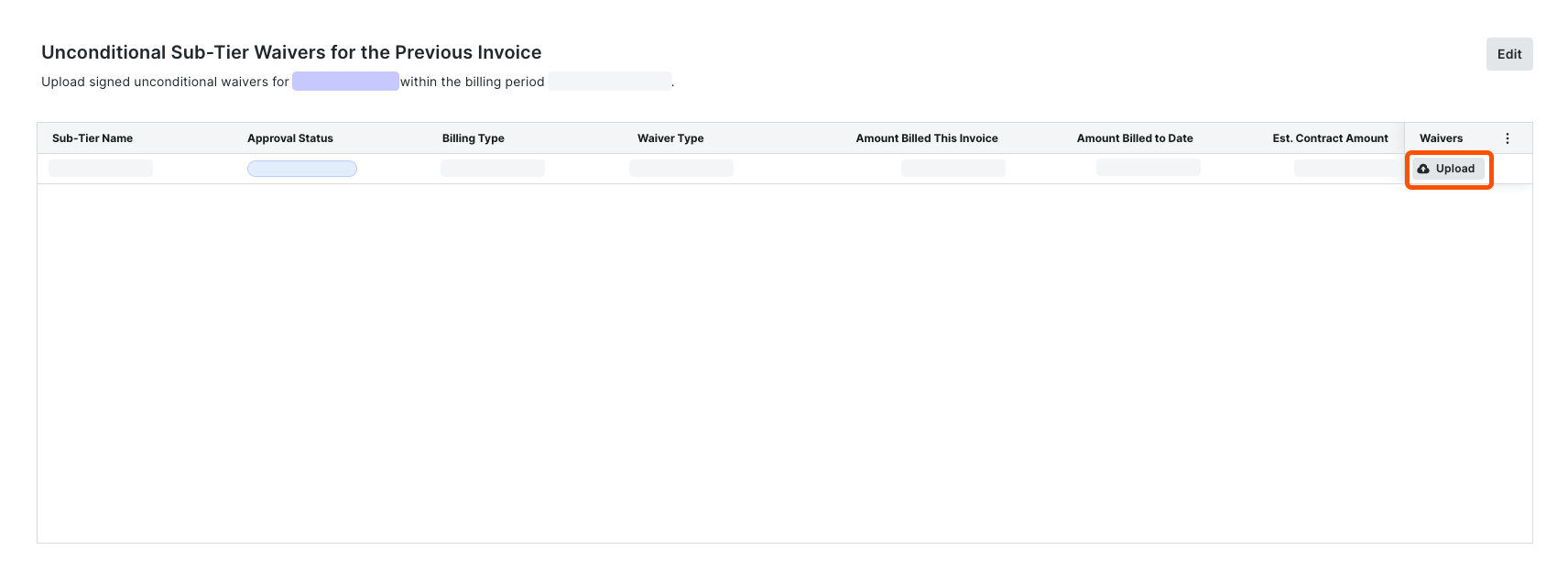
      Upload Unconditional Sub Tier Waivers For The Previous Invoice

    1. Scroll to the Unconditional sub-tier waivers for the previous payment application card.

    2. For each Sub-tier name, do the following:

      1. In the Waiver column, click Upload. This opens an attachment viewer. The Details panel is active.

      2. Under attachment, do one of the following:

        • Click Attach file.

        • Drag and drop a file from your computer or network to the attachment area. The file upload is complete when it appears in the viewer and a Download Icon Download Cloud icon appears in the top-left corner of the page. Until you submit it, the file's status is Not submitted.

    3. Enter an amount in the Amount billed this payment application field.

    4. Choose a billing type option: progress or final.

    5. Click Submit. A GREEN success banner confirms the upload and the file status changes to Review Pending.

    6. Repeat these steps for each sub-tier subcontractor.
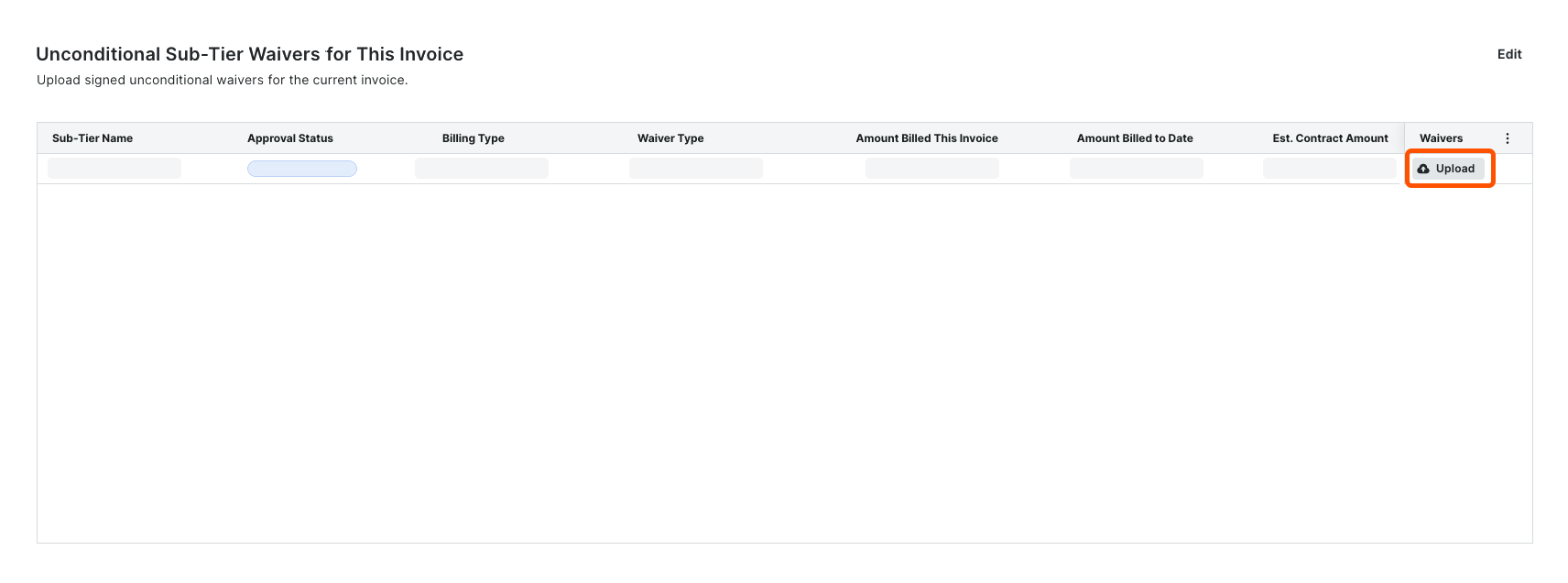
  • I see one card named ‘Unconditional sub-tier waivers for this payment application’ Show / hide details

    • When you see this card, you must upload signed unconditional sub-tier waiver for the current Open valuation period. You must include these in your subcontractor payment application for the current Open valuation period.

      Example

      If you are a payment application contact submitting a subcontractor payment application for the valuation period 1/3/2024 - 31/3/2024, you can:

      • Collect signed unconditional lien waivers from your sub-tier contractors for the current valuation period (1/3/2024 - 31/3/2024).

      • Upload and submit the signed sub-tier waivers on your subcontractor payment application for 01/03/2024 - 31/03/2024.

      If you need to add sub-tiers to this card, complete the steps in Add sub-tiers to a subcontractor payment application.

      Upload Unconditional Sub Tier Waivers For This Invoice

    1. Scroll to the Unconditional sub-tier waiver for this payment application card.

    2. For each Sub-tier name, do the following:

      1. In the Waiver column, click Upload. This opens an attachment viewer. The Details panel is active.

      2. Under attachment, do one of the following:

        1. Click Attach file.

        2. Drag and drop a file from your computer or network to the attachment area. The file upload is complete when it appears in the viewer and a Download Icon Download Cloud icon appears in the top-left corner of the page. Until you submit it, the file's status is Not submitted.

      3. Enter an amount in the Amount billed this payment application field.

      4. Choose a billing type option: progress or final.

    3. Click Submit. A GREEN success banner confirms the upload and the file status changes to Review Pending.

    4. Repeat these steps for each sub-tier subcontractor.
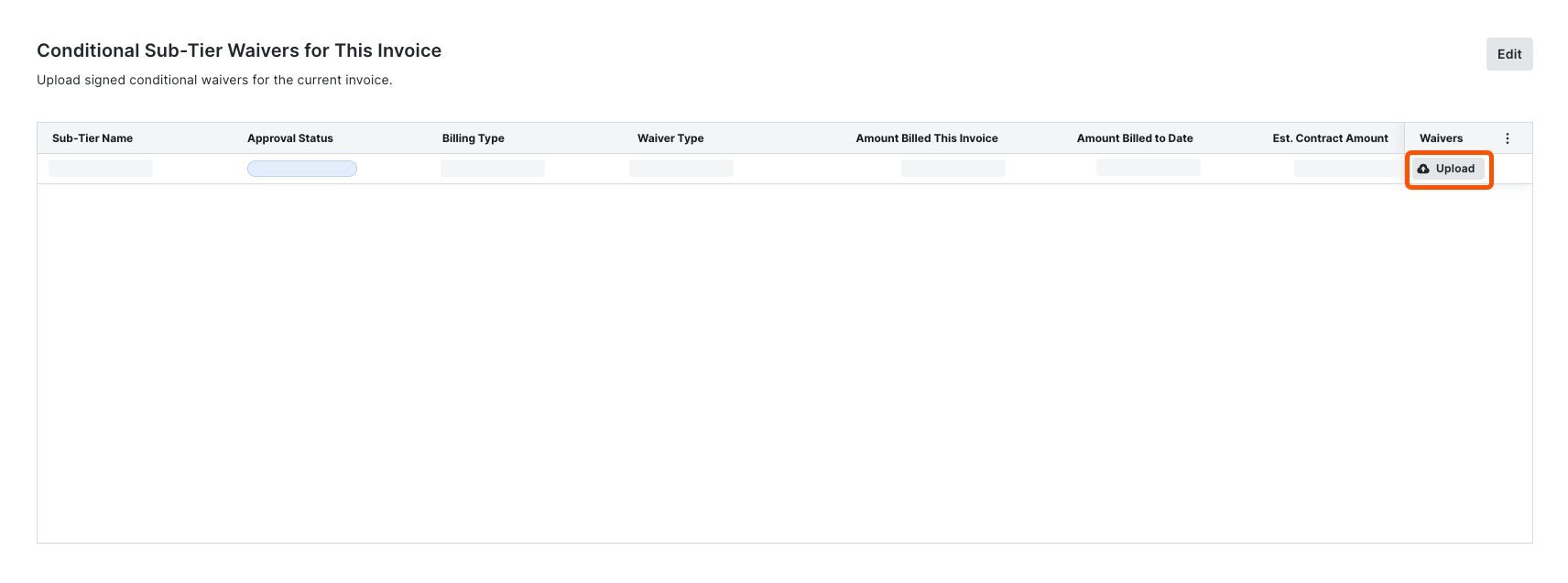
  • I see two cards named ‘Conditional sub-tier waiver for this payment application’ and 'Unconditional sub-tier waiver for the previous payment application' Show / hide details

    • When you see both of these cards, payment application contacts must upload either signed conditional sub-tier waivers for the current Open valuation period or signed unconditional sub-tier waivers for the previous payment application. You must include these in your subcontractor payment application for the current Open valuation period.

      Example

      If you are submitting a subcontractor payment application for the valuation period 1/3/2024 - 31/3/2024, you can:

      • Collect signed unconditional lien waivers from your sub-tier contractors for the Open valuation period (1/3/2024 - 31/3/2024).

      • Collect signed unconditional lien waivers from your sub-tier contractors for the previous valuation period (1/2/2024 - 29/2/2024).

      If you need to add sub-tiers to this card, complete the steps in Add sub-tiers to a subcontractor payment application.

      Upload Conditional Sub Tier Waivers For This Invoice

      Upload Unconditional Sub Tier Waivers For The Previous Invoice

    1. Scroll to the Conditional sub-tier waiver for this payment application card. For each Sub-tier name, do the following:

      1. In the Waiver column, click Upload. This opens an attachment viewer. The Details panel is active.

      2. Under attachment:

        1. Click Attach file.

        2. Drag and drop a file from your computer or network to the attachment area. The file upload is complete when it appears in the viewer and a Download Icon Download Cloud icon appears in the top-left corner of the page. Until you submit it, the file's status is Not submitted.

      3. Enter an amount in the Amount billed this payment application field.

      4. Choose a billing type option: progress or final.

    2. Scroll to the Unconditional sub-tier waiver for the previous payment application card. For each Sub-tier name, do the following:

      1. In the Waiver column, click Upload. This opens an attachment viewer. The Details panel is active.

      2. Under attachment, do one of the following:

        • Click Attach file.

        • Drag and drop a signed waiver into the attachment area. The file upload is complete when it appears in the viewer and a Download Icon Download Cloud icon appears in the top-left corner of the page. Until you submit it, the file's status is Not submitted.

    3. Click Submit. A GREEN success banner confirms the upload and the file status changes to Review Pending.

    4. Repeat these steps for each sub-tier subcontractor.