Assign the budget view to your project
In the 'Procore labour productivity cost' view window, place ticks next to project boxes of your choice in the Assign to projects list.
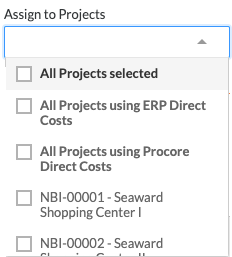
To assign the budget view to all of your company's Procore projects, place a tick in the All projects selected box.
Notes:For companies using the ERP Integrations tool, you will see the 'All project using ERP direct costs' tickbox.
You may also see the 'All projects using Procore direct costs' tickbox. However, it only appears when the direct cost tool is enabled on the project.
To assign the budget view to one (1) or more projects, place a tick next to the desired projects.
Note: Select project templates to carry over the budget view to new projects created using those templates. See Carry over budget view from a project template.
Click Done.

After completing all of the above steps, you can provide your project team with instructions for applying the budget view to their project Budget. For details, see Apply the view, Snapshot, group and filter options on a budget view.