About subcontractor payment applications
Using owner or specialty contractor terminology?
Procore can be configured to use terminology specific to main contractors, owners or specialty contractors. Learn how to apply the dictionary options.
In Procore, a subcontractor payment application originates in the Project commitment tool. Before you can create a payment application, your project team must create a commitment for the project, establish a valuation period and decide which internal users and/or external collaborators will be granted permission to submit new payment applications.
A subcontractor payment application is a request for payment submitted by a business or individual who has entered into a binding agreement with another contracting party. In Procore, a subcontractor payment application is an equivalent term for a payable payment application.
Decide which internal users and/or external collaborators can submit new payment applications in the Procore project. See Create subcontractor payment applications.
Create a commitment for the payment application to bill against. See Create commitment.
Create a valuation period for the Procore project. See Manage valuation periods.
This diagram summarises subcontractor payment application creation.
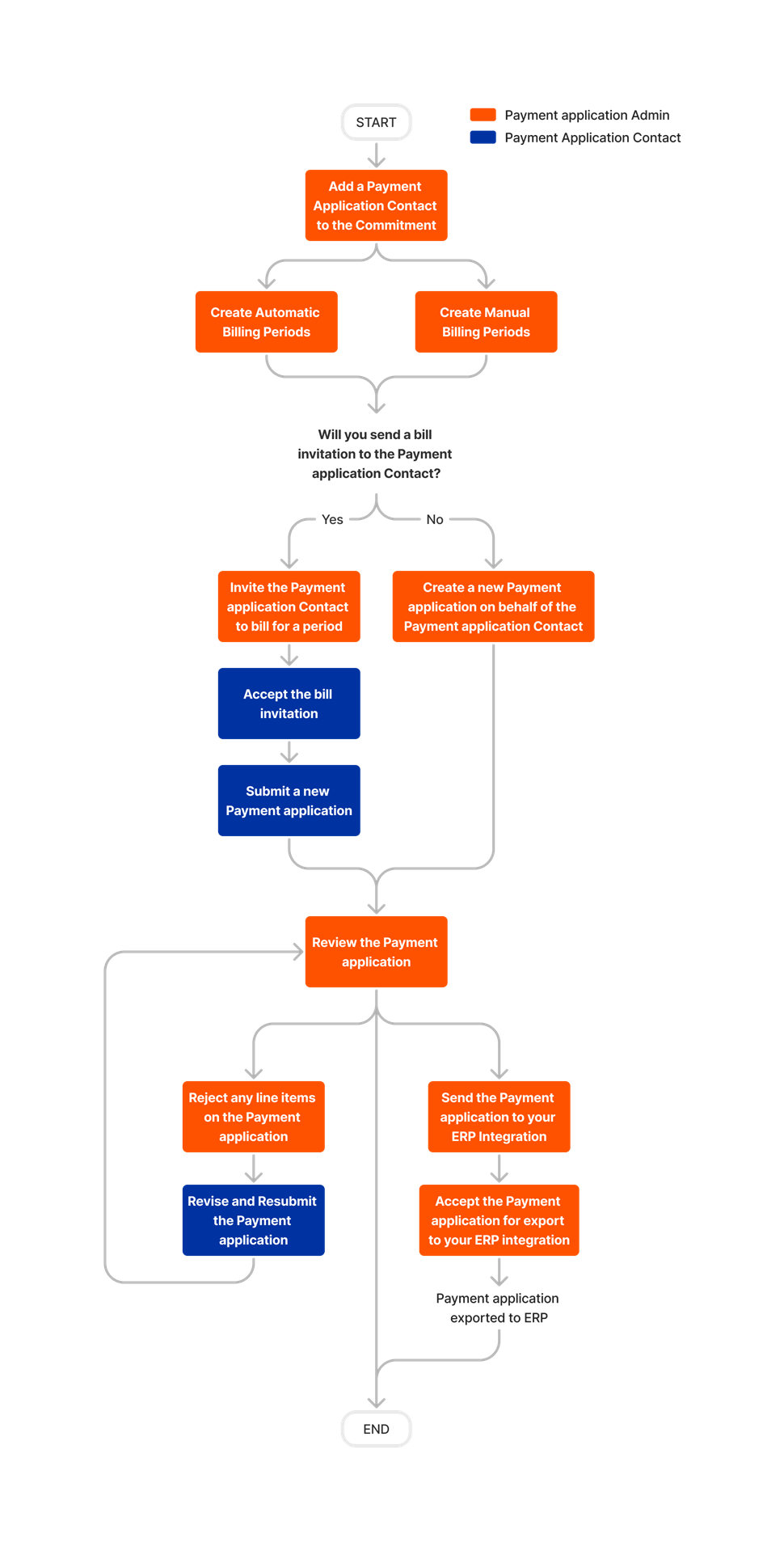
Create your subcontractor payment applications in Procore
Optional: Export your subcontractor payment applications to an integrated ERP system
The steps for creating subcontractor payment applications in Procore include:
Step | Description | Learn More |
|---|---|---|
Decide who will have permission to submit a payment application | You have these choices: | |
Optional. Decide if you want to collect signatures with DocuSign® | There are two (2) ways to collect signatures on commitments and invoices:
| |
Configure the payment application management tools | Configure the Payment Applications setting in the commitment and Payment Applications tools. See Configure settings: Commitments and Configure settings: Payment Applications. | |
Establish a valuation period | Create a valuation period and place it in the Open status. A valuation period defines the start, end and due date for submitting a payment application. | |
Create a commitment | Subcontractor payment applications originate from commitments. You can create multiple commitments for your collaborators in a Procore project. A commitment must be in the 'Approved' status before you can create a payment application. | |
Optional: Grant payment application submission rights to downstream collaborators | Optional: A payment application administrator can grant payment application submission rights to downstream collaborators. | Add payment application contacts to a purchase order or subcontract |
Configure the 'Advanced settings' tab on the commitment | For best results, configure the advanced settings before you add line items to the BOQ and before you create payment applications for the commitment. | |
Create payment applications and submit them before the Open valuation period's 'due date' | Learn the options for creating payment applications with the Commitments tool. Only payment application administrators or payment application contacts on a commitment can create subcontractor payment applications. | |
Review submitted payment applications | Once submitted, a payment application administrator can review each line item on the payment application's Bill of Quantities to approve or reject it. | Review a subcontractor payment application as a payment application administrator |
Revise and resubmit payment applications | If a payment application administrator rejects one (1) or more payment application line items, users can make fixes and corrections until all the line items on the payment application's Bill of Quantities are approved. | Revise & resubmit a subcontractor payment application as a payment application contact |
Optional. Complete the signature process in DocuSign® | Once Approved, you can optionally complete the signature process in DocuSign®. | |
Optional: Sync payment applications with an integrated ERP system | You'll need to determine if your enterprise resource planning connector support subcontractor payment applications. |
Loading related articles...