Set or release retention on a subcontractor payment application

Using owner or specialty contractor terminology?

Procore can be configured to use terminology specific to main contractors, owners or specialty contractors. Learn how to apply the dictionary options.

  • To learn the differences: Show/Hide

    • This table shows the differences in tool names (bold) and terms across the point-of-view dictionaries for Project Financials.

      Main Contractors
      English (United States) - Default

      Owners
      English (Owner Terminology V2)

      Speciality Contractors
      English (Speciality Contractor Terminology)

      Payment applications

      Payment applications

      Progress Billings

      Owner

      Funding

      Owner

      Owner/Client

      Owner/Client

      MC/Client

      Main Contract Variation

      Funding Variation

      Client Contract Variation

      Main Contracts

      Funding

      Client Contracts

      Revenue

      Funding

      Revenue

      Subcontract

      Contract

      Subcontract

      Subcontractor

      Contractor

      Subcontractor

      Subcontractor Bill of Quantities (SBOQ)

      Contractor Bill of Quantities (CBOQ)

      Subcontractor Bill of Quantities (SBOQ)

      About these dictionaries
      • Default setting: The 'main contractor' dictionary is enabled by default for all accounts.

      • Availability: These alternate dictionaries in italics are available in US English only.

      How to switch your dictionary

      To change your company's terminology to the owner or specialty contractor dictionary, contact your company's . They will work with your Procore point of contact to make the change.

Background

In Procore, the term retention refers to the practice of withholding a portion of a contract amount until the work is deemed satisfactorily complete. The withheld amount is specified in an agreement between the contracting party (the party paying for the work) and a contracted party (the person or company performing the work). A common practice is to withhold 5–10% of a contract’s total value until a milestone has been reached. Then, the withheld amount can be released as a progress payment. When work is substantially complete, the withheld amount can be released as a final payment.

Things to Consider

  • Required User Permissions:

    • To set and release retention when editing the most recent payment application before, during or after the valuation period's 'due date':

    • To release retention when editing the most recent payment application during the current valuation period:

      • Ensure the payment application type includes retention. To know more, Configure setting: Payment Applications

      • You must have 'Standard' level permission on the Project level commitment tool.
        AND

      • You must be added to the 'Private' drop-down list on the commitment.

    • Read about required user permissions for downstream collaborators: Show /Hide

      • Some Procore customers choose to provide their downstream collaborators with access to the Project level commitments tool:

      • To modify retention amounts on the most recent payment application before the valuation period's 'due date':

        • You must be a payment application contact on the commitment.
          AND

        • You must have 'Read Only' level permission on the Project level commitment tool.

  • Additional Information:

    • If there are multiple payment applications for a single valuation period, you can only edit the billed amounts on the most recent payment application.

    • If you are adding a Payment Programme after the payment application is approved, enter the amount for the work you are claiming this period in the 'Proposed Amount' column of the payment application detail. To learn more, see Create a payment programme.

    • You can also manage withholding using the sliding scale retention feature. To learn more, see What is sliding scale retention?

Prerequisites

Steps

Edit the bill of quantities

  1. Navigate to the project's commitment tool.

  2. Go to commitment for the payment application you want to distribute.

  3. Click the Payment Applications tab

  4. In the table, locate the payment application to edit.

  5. Click the payment application # link to open it.

  6. Scroll to the bill of quantities.

  7. Click Edit.

Set retention on line items

To set retention on payment application line items:

  1. In the General tab of the payment application, scroll to the Bill of quantities.

  2. In the Bill of Quantities, locate the line item(s) to modify and scroll to the right of the page to view the retention columns.

  3. Choose one (1) of these options:

    • Enter an amount to withhold for the line item the Work retention this period (£) column. Procore automatically calculates the entry in the Work retention (%) column.
      OR

    • Enter a percentage amount to withhold for the line item in the Work retention (%) column. Procore automatically calculates the entry in the Work retention (£) column.

      Examples
      • When you enter a currency amount in the Work retention this period (£) column, Procore calculates the entry in the Work retention (%) column. For example, if you enter £1,250.00 on line item 1, Procore calculates the Work retention this period (%) as 5%.

      • When you enter a percentage amount in the Work retention this period (%) column, Procore calculates the entry in the Work retention this period (£) column. For example, if you enter 5% on line item 2, Procore calculates the work retention this period as £625.00.

      Data Entry Set Retainage

  4. Update the amount of retention to release in each line item on the payment application as needed.

  5. Click Save.

Release retention on line items

To release retention on payment application line item:

  1. In the General tab of the payment application, scroll to the Bill of quantities.

  2. In the Bill of Quantities, locate the line item(s) to modify and scroll to the right of the page to view the retention columns.

  3. Enter the amount to release in the Total retention released column.

    Example

    Before data entry, the cumulative total amount withheld for each line item is shown in the Total retention column. In line item 1, the Total retention is £2,500.00. In line item 2, it is £1,250.00.
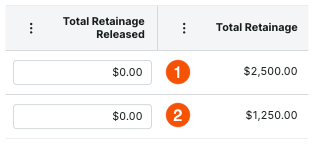
    Retainage Before Data Entry

    Enter the amount of retention to release:

    • To release all of the amount withheld, enter 100% of the total retention value. In line item 1, enter £2,500.00 to release the entire amount.

    • To release half of the amount withheld, enter 50% of the total retention value. In line item 2, enter £625.00 to release 50% of the £1250.00 amount.

    After data entry, Procore reduces the total retention value by the amount of your data entry:
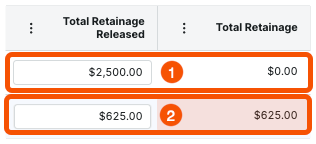
    Retainage After Data Entry

  4. Update the amount of retention to release in each line item on the payment application as needed.

  5. Click Save.
    Procore saves the payment application in its current status. A banner appears at the top of the screen to show the total amount of retention being released on the payment application.

See Also

Loading related articles...
