Gérer les contrôles en masse
Accédez à l’outil Paiements au niveau entreprise.
Cliquez sur l’icône
 Paramètres de paiement. La page Paramètres de paiement s’ouvre. La page Comptes bancaires externes est active par défaut.
Cliquez sur Contrôles du projet. Ceci ouvre la page Contrôles des projets.
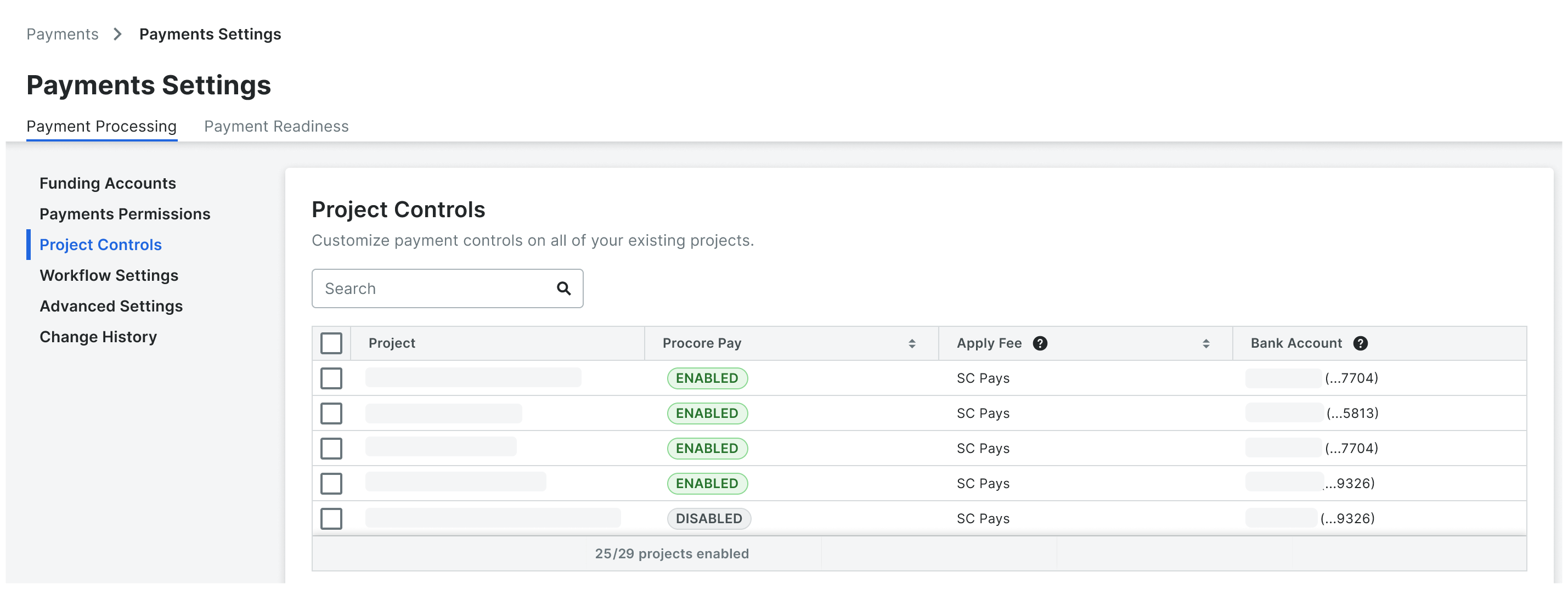
Facultatif. Commencez à saisir un nom de projet dans la zone de recherche pour affiner les projets dans la liste.
Dans le tableau, sélectionnez un ou plusieurs projets :
Pour sélectionner un ou plusieurs projets, cochez la ou les cases correspondant aux projets souhaités.
Pour sélectionner tous les projets, cochez la case dans l’en-tête de la colonne Projet .
Choisissez parmi ces options :
Facultatif. Pour modifier les paramètres des fonctionnalités de Procore Pay sur les projets sélectionnés, cliquez sur Modifier Pay. Choisissez ensuite le paramètre Activé ou Désactivé dans la liste déroulante.
Facultatif. Pour modifier le paramètre de compte bancaire par défaut sur les projets sélectionnés, cliquez sur Modifier le compte bancaire. Choisissez ensuite l’un des comptes externes liés à votre entreprise ou l’option Sélectionner au décaissement.
PointePuis-je modifier le paramètre Appliquer les frais par lot ? Non. Les paramètres de frais doivent être configurés individuellement sur chaque projet. Voir Configurer la collecte des frais de paiement Procore pour un projet Procore.

Les modifications sont enregistrées automatiquement. Une bannière verte de réussite confirme l’action.