Ajouter une étape de condition
Configurez une « étape de condition » dans le générateur de flux de travail en lui attribuant un nom, en définissant des conditions avec des instructions spécifiques à l’outil et en définissant les étapes suivantes du flux de travail en fonction du respect ou non des conditions.
Escalier
Ajouter une étape de condition
Accédez au générateur de flux de travail. Suivez ces étapes lors de la configuration d’une étape de flux de travail dans un flux de travail nouveau ou existant.
Sous Informations générales , dans la liste Type , choisissez : Étape de condition
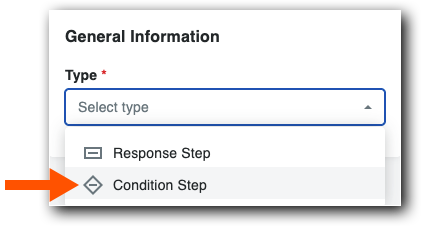

Ajouter des informations générales
Nommez votre flux de travail dans Nom de l’étape.
Vérifiez que l’étape de condition est définie dans la liste Type .
Dans la liste Quand , sélectionnez une instruction spécifique à l’outil.
PourboireIl vous manque un champ ? Les types de champs personnalisés à sélection unique et multiple doivent être définis sur Obligatoire et visible dans l’ensemble de champs personnalisés pour être utilisés dans une condition.
Choisissez un opérateur disponible dans la zone Est . Chaque énoncé de condition a des options différentes. en savoir plus, voir Instructions et conditions spécifiques à l’outil.

Dans la liste Alors, choisissez l’étape suivante ou créez une nouvelle étape pour le modèle de flux de travail.
Dans la liste Autrement, choisissez l’étape suivante ou créez une nouvelle étape pour le modèle de flux de travail.
L’étape du flux de travail passe toujours à l’étape Sinon que vous définissez lorsqu’une condition n’est pas remplie ou si l’élément est vide.