Ce site Web n'est pas encore complètement disponible dans votre langue
La seule page du site de support V2 disponible dans vos paramètres régionaux est celle de la bibliothèque vidéo. Le lancement complet du site Web arrivera prochainement.
Vous recherchez d'autres contenus ? Retournez sur le site de support V1.
Manuels de produits populaires
Les manuels de produits les plus utilisés sur le chantier
Meilleures pratiques pour la création d’une facture au maître d'ouvrage flux de travail (Bêta)
En version bêta
Cette page décrit en détail la modernisation de l’expérience de facturation au maître d’ouvrage.
En version bêta
Cette page détaille les fonctionnalités qui ne sont pas disponibles dans l’environnement de production de Procore. L’accès aux fonctionnalités documentées ici est limité aux clients Procore spécifiques qui ont signé le accord requis pour participer au programme bêta de l’outil Niveau entreprise Flux de travail de Procore. Le contenu de cette page est fourni à titre informatif uniquement et toutes les informations et le contenu de cette page sont susceptibles d’être modifiés sans avis préalable. Pour en savoir plus, consultez À propos du programme bêta Flux de travail.
facture au maître d'ouvrage + Flux de travail
Lorsque les clients Procore activent l’outil Niveau entreprise Flux de travail, un membre autorisé de l’équipe peut créer un modèle de personnalisé flux de travail pour approuver/rejeter votre factures au maître d’ouvrage. Votre entreprise peut créer autant de modèles facture au maître d'ouvrage flux de travail que vous le souhaitez. Cependant, un seul peut être affecté à un projet.
1. Créez et configurez vos modèles
Qui sera le gestionnaire de flux de travail de votre entreprise et qui devra effectuer les étapes du flux de travail ?
Comment gérez-vous les autorisations des utilisateurs finaux pour les factures au maître d’ouvrage + les flux de travail ?
Comment créer un modèle de flux de travail de facture au maître d'ouvrage ?
Comment configurer le modèle de flux de travail de facture au maître d'ouvrage ?
Un flux de travail de facture au maître d'ouvrage a toujours besoin d’un flux de travail Manager. Les flux de travail exigent également que les personnes assignées soumettent des réponses aux étapes. Il est utile de faire un croquis du flux de travail et des participants souhaités avant de commencer. Prêt à en savoir plus ? Voir Planifier un modèle de Personnalisé Flux de travail. Vous pouvez également consulter notre exemple facture au maître d'ouvrage flux de travail.
Utilisez l’outil niveau Entreprise flux de travail pour créer un modèle personnalisé flux de travail pour factures au maître d'ouvrage. Vous pouvez créer plusieurs modèles, mais vous ne pouvez en assigner qu’un (1) comme flux de travail de facture au maître d'ouvrage par défaut. Prêt à en savoir plus ? Consultez l’exemple facture au maître d'ouvrage flux de travail pour connaître les étapes recommandées. Vous pouvez également consulter le Guide de Flux de travail Utilisateur libre-service.
Ensuite, configurer un modèle de flux de travail personnalisé sur un projet C’est ici que vous ajoutez le gestionnaire de flux de travail de votre entreprise et les personnes assignées aux étapes de votre flux de travail personnalisé de facture au maître d'ouvrage.
2. Commencez à utiliser votre flux de travail de facture au maître d'ouvrage
Comment démarrer le flux de travail facture au maître d'ouvrage ?
Besoin de soumettre une réponse d’approbation/rejet à un flux de travail ?
Besoin de commencer, de redémarrer ou de revenir à une étape précédente d’un flux de travail ?
Si vous êtes chargé de réviser une facture au maître d’ouvrage, vous devez envoyer une réponse avant la date d’échéance. Voir Répondre à un Personnalisé Flux de travail.
Exemple facture au maître d'ouvrage Flux de travail
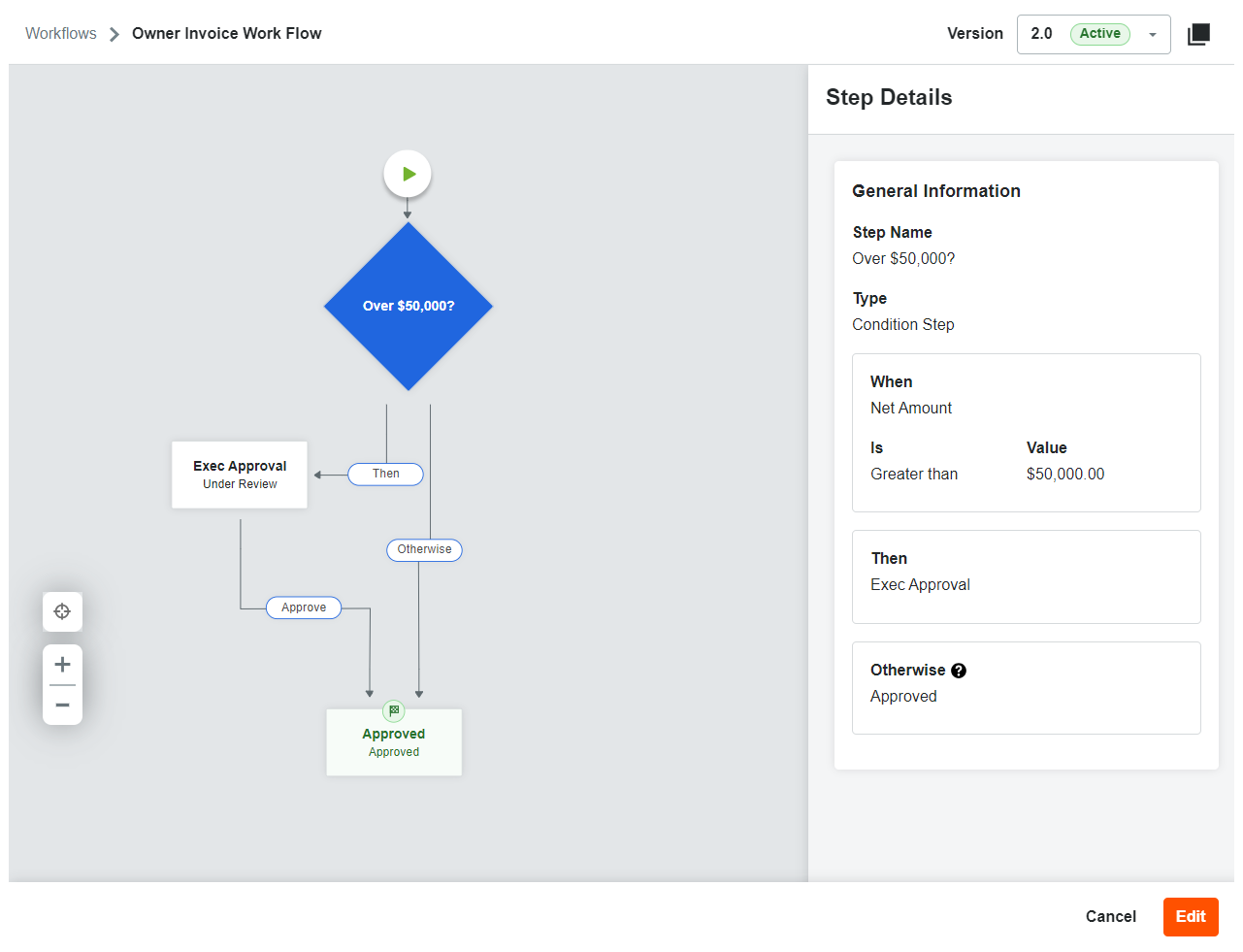
Voici un exemple de facture au maître d'ouvrage flux de travail que vous pouvez lancer lorsque vous êtes prêt à envoyer facture au maître d'ouvrage via le flux de travail pour approbation. Vous pouvez utiliser cet exemple pour créer le flux de travail de facture au maître d'ouvrage de votre entreprise ou créer votre propre flux de travail personnalisé adapté aux besoins spécifiques de votre entreprise. Pour obtenir des directives détaillées, voir Créer un modèle de Personnalisé Flux de travail.
Lorsque le montant d’une facture est supérieur à 50 000,00 USD et que l’ébauche est prête à être envoyée à la personne assignée (exécutif) pour approbation, l’utilisateur clique sur le bouton Démarrer le flux de travail. Ceci place le facture dans le statut En cours de révision et envoie un e-mail au Personne assignée (Exécutif), au Gestionnaire Flux de travail, Élément Créateur. Pour en en savoir plus sur les étapes de condition, voir Quels sont les différents types d’étapes dans un personnalisé flux de travail ?
Approbation de l’exécutif
Nom de l’étape: Approbation de l’exécutif
Type: Étape de réponse
Statut de l’élément: En cours de révision
Personne assignée rôle: Entreprise Directeur
Envoyer des e-mails aux personnes assignées et : Gestionnaire de flux de travail et créateur d’élément
Jours pour terminer: 5 jours calendaires
Réponses:
Si la réponse est Rejeter, passez à l’étape Rejeté .
Si la réponse est Approuver, passez à l’étape Approuvé .
Lorsque le Personne assignée approuve un facture, le facture passe à l’étape Approuvé. Si la personne assignée rejette la facture, celle-ci est replacée à la première étape jusqu’à ce que la raison du rejet de la facture soit résolue et que le flux de travail fonctionne. Une fois le problème résolu, l’utilisateur clique sur le bouton Démarrer le flux de travail pour le redémarrer.
Approuvé
Nom de l’étape : Approuvé
Type d’étape: Étape de fin (réussie)
Statut de l’élément: Approuvé
Envoyer des e-mails aux personnes assignées et : Gestionnaire de flux de travail et créateur d’élément
Lorsque l’approbation du directeur est reçue, une réponse « Approuver » met à jour le statut de la facture sur Approuvé. E-mails sont envoyées aux personnes assignées (Exec), au responsable Flux de travail et Élément Créateur.