Saisir par lot des entrées de pointage sur une feuille horaire

Arrière-plan

La saisie des heures par lot vous permet d’ajouter rapidement les mêmes informations à tous les pointages des employés sur une seule feuille horaire.

Éléments à prendre en compte

  • Employees and workers can have multiple timecard entries on a daily timesheet.

  • Zero hour timecard entries are supported to provide flexibility to enter time off and per diem.

  • 'Approved' timecard entries cannot be deleted.

  • Additional edits cannot be made after a timecard entry has been marked as 'Completed.'

  • Équipement. Afficher/Masquer

    In Beta

    Company Administrators can enable the Improved Equipment Time Tracking in Procore Explore. (US 2 | UK)


    This beta allows you to define custom fields for equipment time entries and automatically sync them to the daily log.


    To sync Equipment Timesheets with Daily Log entries, the following must be true:

    • The configurable fieldset for Daily Log Equipment Entries must match the Equipment fieldset for Timesheets.

    • The Daily Log must be open and not marked as 'Complete'.

    • Users must have permissions to create a timecard entry.

    • Users must have permissions to create an Equipment Daily Log Entry.

  • Planification des ressources. Afficher/Masquer

    • Les utilisateurs sous le sous-en-tête « Affecté au projet » ont des affectations correspondantes dans l’outil Planification des ressources. Leurs heures de début et de fin sont automatiquement renseignées en fonction de leur affectation dans la planification des ressources.

    • Les utilisateurs doivent être ajoutés au projet dans Procore pour que leurs heures d’affectation de planification des ressources soient automatiquement renseignées dans les feuilles horaires. Voir Ajouter un utilisateur existant aux projets dans le compte Procore de votre entreprise.

  • Exigences à ajouter à une feuille horaire. Afficher/Masquer

Steps

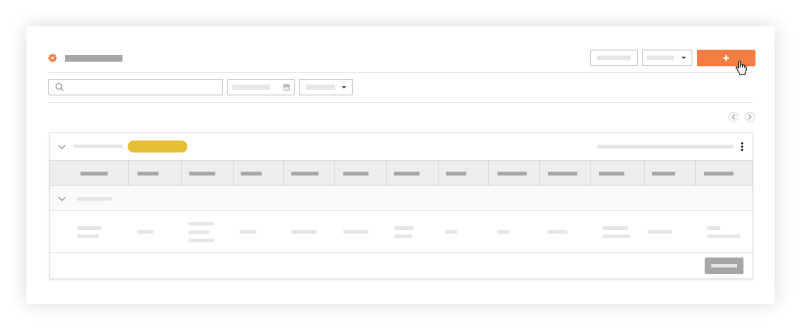
  1. Navigate to the project's Timesheets tool.

  2. Click Create and select New Daily Timesheet.
    create-timesheet.png

  3. Mark the checkboxes next to the employees and crew members you want to bulk enter time for.add-employees-to-timesheet.png

  4. Click Add.

  5. Mark the checkboxes next to the employees you would like to enter the same time information for.
    select-multiple-employees-on-timesheet.png

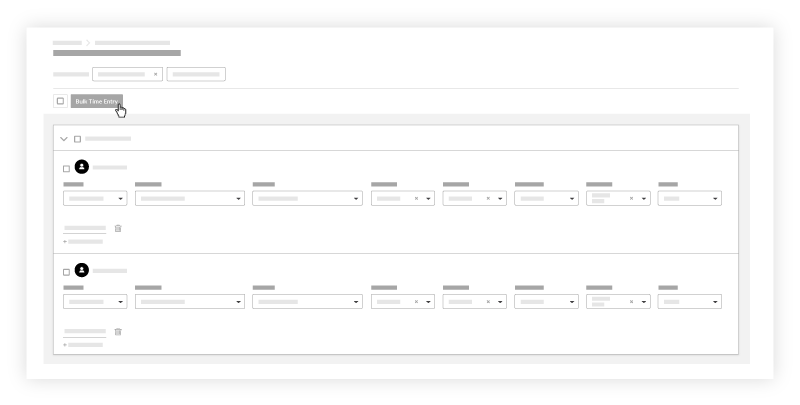
  6. Click the Bulk Time Entry button.
    bulk-enter-time.png

  7. Enter the time entry information.
    timesheets-bulk-entry-fields.png

  8. Mark the checkboxes of the timecard entries that you want to update with that information.

  9. Click any the editable fields on the timesheet to update the information.

  10. In the 'Bulk Entry' section, click Apply.

  11. Repeat steps 6-10 to make additional bulk updates to the timecards.

See Also

Loading related articles...