Release holds
What tool are you using?
Depending on your role and permission setting, you can navigate to a subcontractor payment application from one of these tools:
I am using the payment tool.
payment admins, payment disbursers and users with 'admin' level permissions on the payment tool can use these steps to create, edit, view and release payment application or vendor holds on subcontractor payment applications. To learn more, see What permission do you need to manage holds on subcontractor payment applications?
Navigate to the Company level Payment tool.
Click the Subcontractor payment applications tab. This tab is active by default.
Locate the payment application for the hold.
Choose one of these options:
Click the information icon to open the payment requirements panel.
Click the Payment application # link to open the payment application in the Project level Commitment tool. Then click the Payment requirements tab.
Under payment requirements, click the Holds tab.
I am using the commitment tool.
payment admins and payment disbursers can create, edit, view and release payment application or vendor holds on subcontractor payment applications from the commitments tool. To learn more, see What permission do you need to manage holds on subcontractor payment applications?
Users granted only payment application administrator permissions are limited to creating, editing and releasing payment application holds. They are limited to only viewing vendor holds on subcontractor payment applications using a project's commitment or Payment Applications tool.
Navigate to the Project level commitment tool.
Under the Contracts tab, locate the contract in the table. Then, click the Number link to open it.
In the contract, click the payment applications tab.
Locate the payment application in the Payment applications (payment applications) table. Then, click the Payment application # link to open it.
In the payment application, click the Holds tab.
I am using the Payment Applications tool.
Payment admins and payment disbursers can create, edit, view and release payment application or vendor holds on subcontractor payment applications from the Payment Applications tool. To learn more, see What permission do you need to manage holds on subcontractor payment applications?
Users granted only payment application administrator permissions are limited to creating, editing and releasing payment application holds. They are limited to only viewing vendor holds on subcontractor payment applications using a project's commitment or Payment Applications tool.
Navigate to the Project level Payment Applications tool.
Click the Subcontractor tab, locate the payment application in the table.
Click the payment application # link to open it.
Under payment requirements, click the Holds tab.
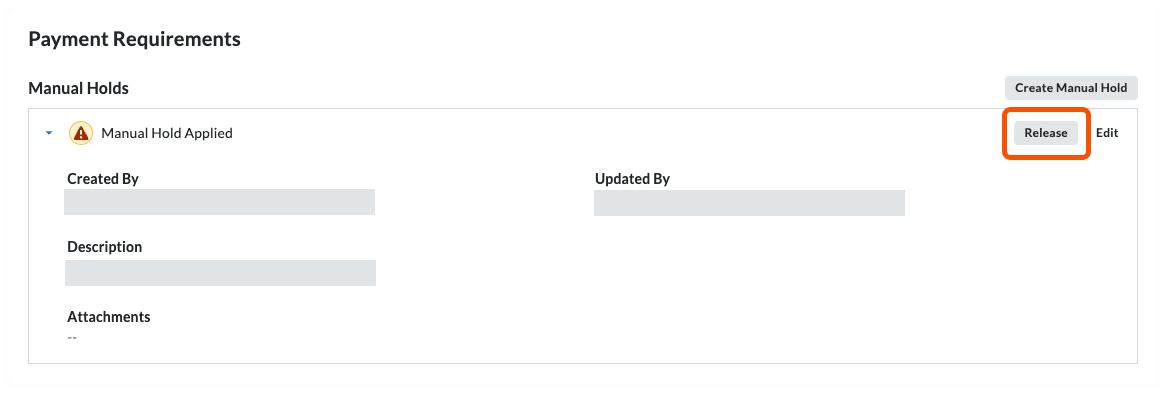 Procore releases the hold from the selected payment application. This action is logged in the payment application's Change history tab.