Review sub-tier lien waivers as a payment application administrator
Navigate to the project's Payment Applications tool.
Click the Subcontractor tab.
Locate the payment application to open in the table.
Click the Lien rights tab.
Depending on the lien waivers that your team collects, you will see one or more of the following cards on the payment application:
TipHow do we decide what type of lien waivers to collect? Your project team makes that decision. Your team can show or hide these cards on the project's payment applications on the Payment Applications settings page. To learn more, see Configure settings: Payment Applications.
Unconditional sub-tier waivers for the previous payment application. When you see this card, your team collects signed unconditional sub-tier waivers for the previous valuation period. A payment application contact must first upload the signed sub-tier waivers with their subcontractor payment application for the current Open valuation period. See Upload sub-tier waivers to a subcontractor payment application as a payment application contact.
Unconditional sub-tier waivers for this payment application. When you see this card, your team collects signed unconditional sub-tier waivers for the current Open valuation period. A payment application contact must first upload the signed sub-tier waivers with their subcontractor payment application for the current Open valuation period. See Upload sub-tier waivers to a subcontractor payment application as a payment application contact.
Conditional sub tier waivers for this payment application. When you see this card, your team collects signed conditional sub-tier waivers for the current Open valuation period. A payment application contact must first upload signed sub-tier waivers with their subcontractor payment application for the current Open valuation period. See Upload sub-tier waivers to a subcontractor payment application as a payment application contact.
Sub-tier information for this payment application. When you see this card, sub-tier waiver aren't being collected. There will be no waiver to review in this card.
Scroll to the card that contains the sub-tier waivers to review. Once sent by a payment application contact, the waivers are placed in the Review pending status.
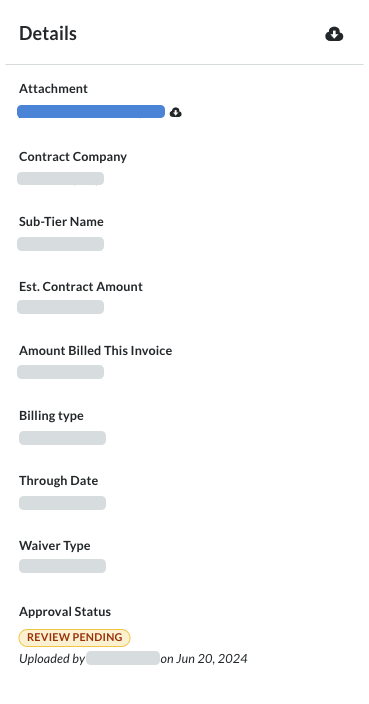
In the Waiver column, click Review. 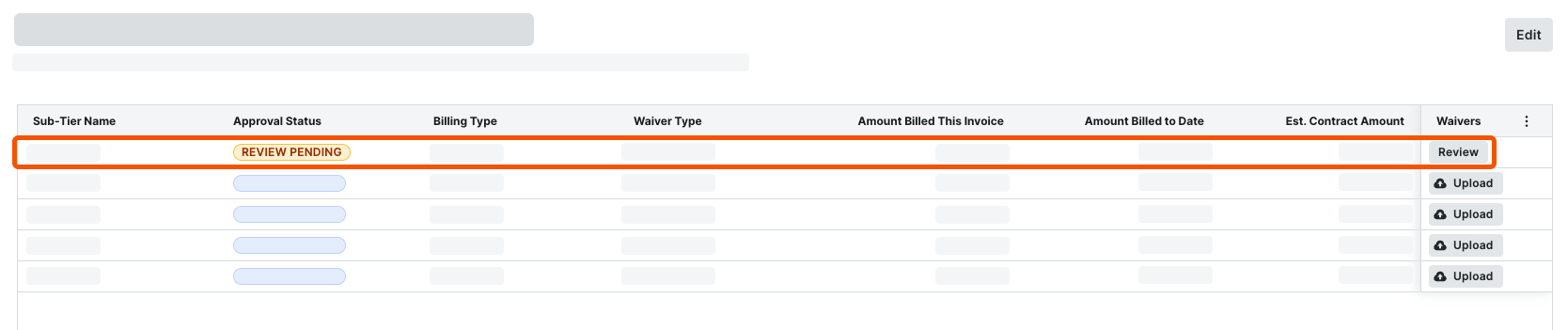 This opens the waiver in the attachment viewer. The details pane is active.
In the Details pane, you can also:
Click the Download
 icon to download a copy of the file.
Edit the value in the Amount billed this payment application field and the Billing type setting.
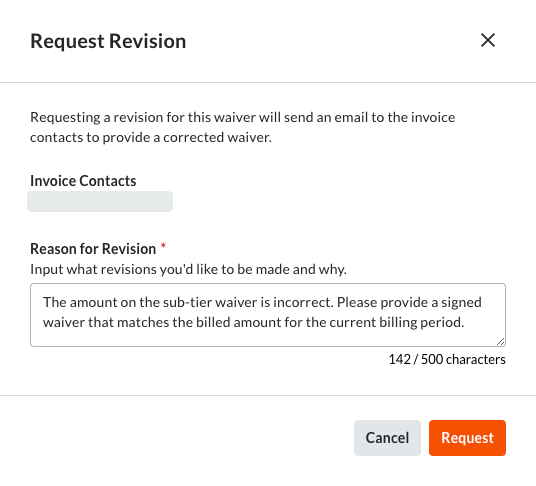
 This opens the request revision window.