A main contract payment application is an application for payment, typically submitted by a main contractor (MC) or construction manager (CM) to an owner to provide an itemised record of the amount due for work performed. In Procore, a main contract payment application is equivalent to an accounts receivable payment application.
Things to Consider
Required User Permissions:
'admin' level permission on the project's main contract tool.
Edit the payment application line items on the detail tab
Add approved variations to the payment application
Save the payment application
Create the payment application
Navigate to the project's main contract tool.
Locate the contract to work with. Then click its Number link.
Click the Create payment application button.
Note
If you've already created the payment application for current valuation period, click the payment applications tab. Next, click the Edit button to open it.
In the 'New payment application (payment application)' page, do the following:
Commitment valuation period Select the current valuation period from the drop-down list. To learn how to create a valuation period, see Create valuation periods.
Payment application # Procore automatically assigns payment application numbers in ascending numerical order, starting with one (1). The number entered in this field does NOT affect Procore's default payment application numbering scheme and you can change it as you want.
Period start Procore automatically populates this field with the selected valuation period's start date.
Period end Procore automatically populates this field with the selected valuation period's end date.
Billing date Click the calendar control and choose a billing date for the payment application.
Percent complete If previous payment applications exist, this field shows the percentage of work completed.
Attachment Click Attach files or drag-and-drop any files to associated with the payment application in the attachment area.
Click the Create button.
In the Do you want to pre-fill the main contract payment application? message, review the list of item that Procore will add to the payment application and compile a payment application backup from. Choose one (1) of these options to proceed:
Cancel. Click this button to cancel payment application creation.
No thanks. Click this button if you want to manually perform the data entry on the payment application.
Ensure the payment application appears as expected.
Edit the payment application line items on the detail tab
If your Procore user account has been granted the required user permissions for viewing the Detail tab, you can update the payment application line items:
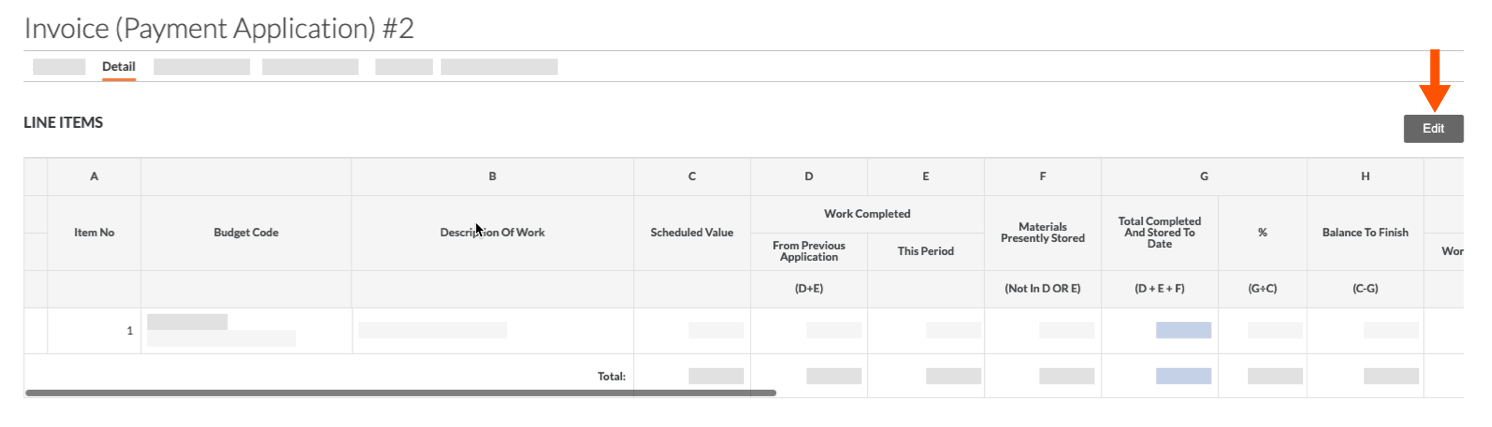
Click the Detail tab.
Click the Edit button.
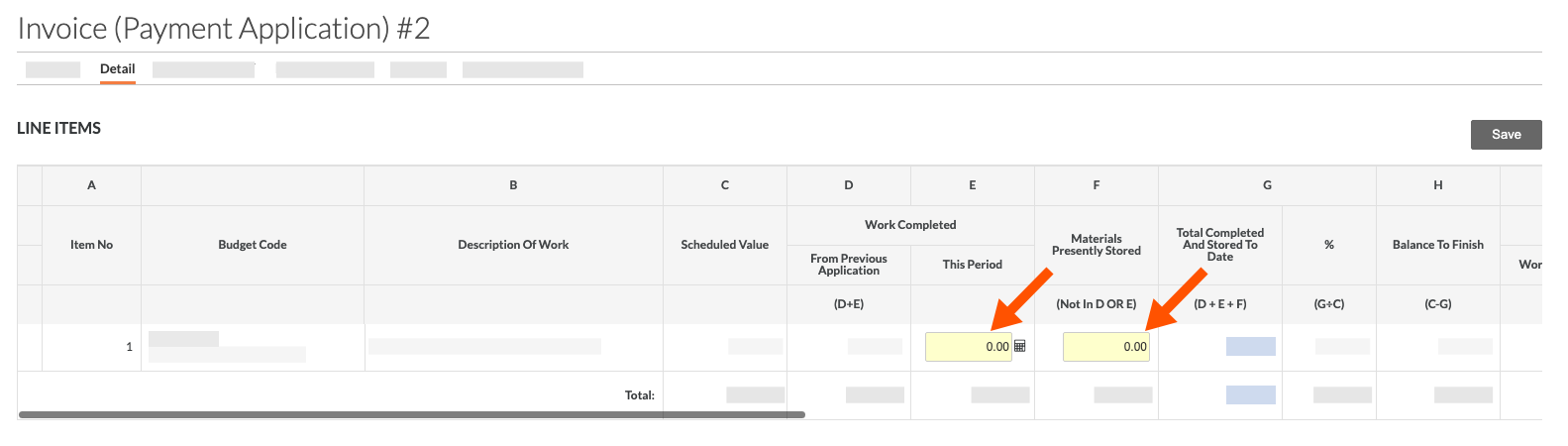
Enter data only in the YELLOW boxes:
Work completed: This period If you confirmed the option to automatically complete the main contract payment application's amounts. See How does Procore automatically complete amounts on an upstream payment application?, the values from the 'Work Completed: This Period' column from any related subcontractor payment applications and any direct cost amounts are included in this column.
Materials presently stored If you confirmed the option to automatically complete the main contract payment application's amounts. See How does Procore automatically complete amounts on an upstream payment application?, the values from the 'Materials presently stored' column in any related subcontractor payment applications are included in this column.
Work retention retained this period Enter a percentage or pound amount for work retention retained this period. You can also set retention on all line items by entering a value into the right sidebar and clicking Set.
Materials retention retained this period Enter a percentage or pound amount for materials retention retained this period. You can also set retention on all line items by entering a value into the right sidebar and clicking Set.
Work retention £ released this period Enter a pound amount of work retention released this period.
Scroll to the bottom of the payment application and continue with the next step.
Add approved variations to the payment application
If a variation is in the 'Approved' status and has line items that impact a payment application, the system lists the variation in the 'Approved main contract variations to add to this main contract payment application' table. If you want to add the variation to the payment application now, follow these steps:
Scroll to the bottom of the payment application's Detail tab.
Review the variation number, title and amount.
Optional: In the Add to main contract payment application as column, click the Add to payment application button. A GREEN banner confirms the payment application was added successfully.
Continue with the next step.
Notes
The variation detail update the appropriate line item on the payment application. You have these options:
To view the variation detail, follow the steps in Export a main contract payment application. The PDF export file shows the net change by variations value on line 2 and the variation summary table at the bottom of the contractor's application for payment.
To view the update on the main contract, navigate to the main contract, click the General tab and scroll down to the contract summary report.