Add Cost ROM, RFQ & Non-Commitment Cost Source Columns to a Budget View

Fond

Si votre entreprise a choisi d’utiliser l’outil Événements de changement sur un projet, vous pouvez utiliser les étapes ci-dessous pour ajouter une ou plusieurs colonnes de données associées à l’outil Événements de changement à la vue du budget de votre projet.

Les colonnes de données des événements de changement sont les suivantes :

  • ODG approximatif du coût. Abréviation d’ordre de grandeur approximatif du coût. Cette colonne affiche l’estimation de l’ODG approximatif du coût pour un événement de changement.

  • Appel d’offres. Abréviation de demande de devis. Cette colonne affiche le numéro de la DDD.

  • CCN. Abréviation de Coût de non-engagement. Cette colonne indique la valeur d’un coût qui n’est PAS inclus dans un poste sur un bon de commande ou un contrat de sous-traitance.

     Note

    If you also want to include the 'Revenue ROM' column in a budget view, see Add the Change Events Columns to a Budget View.

Éléments à prendre en compte

Conditions préalables

Escalier

Étape 1 : choisir une vue du budget

Lors de l’ajout des colonnes détaillées dans cet article, vous avez les choix suivants :

Après avoir choisi l’option préférée pour votre vue du budget, ajoutez toutes les colonnes recommandées en suivant les étapes détaillées ci-dessous.

Étape 2 : ajouter les colonnes recommandées

Ajouter une colonne ODG approximatif des coûts

This adds a source column named 'Cost ROM' which shows a estimate for change events. The value that appears in this column on a budget line item is not yet associated with a , an , or a .

Steps from the Configure Columns window in the Company Admin tool…

Settings

  1. Click Create Source Column.

  2. Under New Source Column, do the following:

    • Column Name. Enter the name: Cost ROM

    • Column Source. Select Change Events.

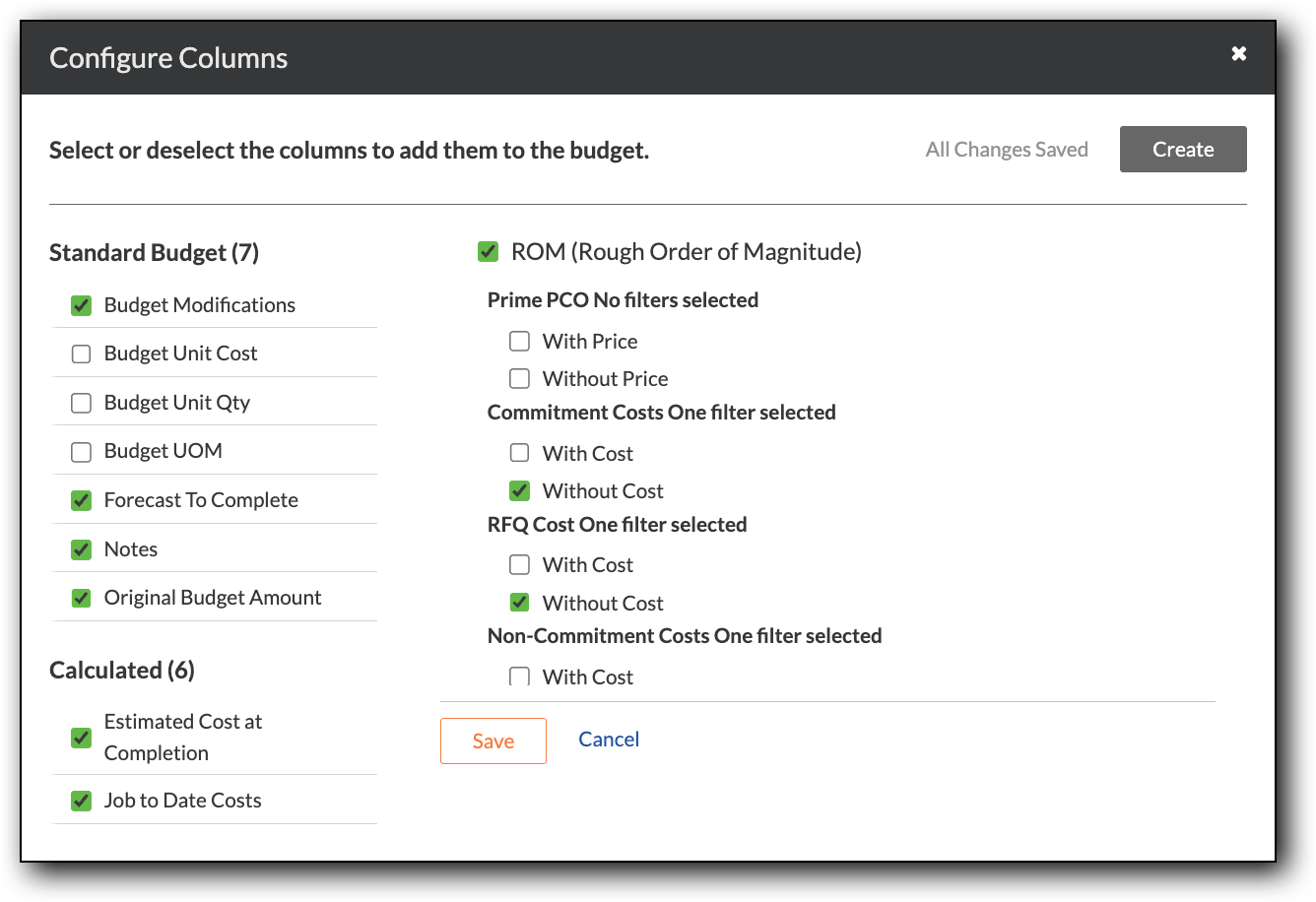
  3. Mark the ROM (Rough Order of Magnitude) checkbox to apply these filters:

    • Under Prime PCO, remove all of the marks from these checkboxes.

    • Under RFQ or Commitment Cost, mark the Without Cost checkbox only.

       Note

      This ensures that the source column includes only items that do not have associated costs, which excludes amounts from:

      • Request for Quotes (RFQs)

      • 2-tier Commitment Potential Change Orders (Commitment PCOs)

      • 1-tier Commitment Change Orders (CCOs)

    • Under Non-Commitment Cost, mark the Without Cost checkbox only.

       Note

      This ensures that the source column includes only amounts with commitment costs and excludes Non-Commitment Costs (NCCs).

    • Under Scope, mark these checkboxes only:

      • In Scope

      • TBD

    • Under Change Event Status, mark these boxes only:

      • Open

      • Closed

      • Pending

         Note
        • When filtering the columns data by change event status, any statuses not considered 'Void' are selected by default.

        • If your company created custom statuses, those will NOT be shown by name. However, any custom status considered 'Open', 'Closed', and 'Pending' are also selected by default.

        • To learn more about custom statuses, see Set the Default Change Management Configurations.

  4. Click Create.

add-cost-rom-column-budget

Ajouter une colonne de DDD de coût

This adds a source column named 'Cost RFQ' which shows costs associated with RFQs. The value that appears in this column on a budget line item is not yet associated with a or a .

Steps from the Configure Columns window in the Company Admin tool…

Settings

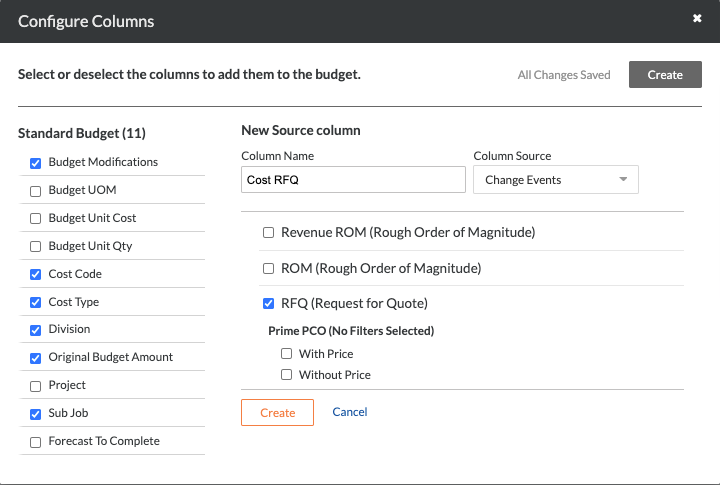
  1. Click Create Source Column.

  2. Under New Source Column, do the following:

    • Column Name. Enter the name: Cost RFQ

    • Column Source. Select Change Events.

  3. Mark the RFQ (Request for Quote) checkbox to apply these filters:

    • Under Prime PCO, remove all of the marks from these checkboxes.

    • Under RFQ or Commitment Cost, mark the Without Cost checkbox only.

       Note

      This ensures that the source column only includes values that do not have costs. This setting excludes amounts from:

      • 2-tier Commitment Potential Change Orders (Commitment PCOs)

      • 3-tier Commitment Potential Change Orders (Commitment PCOs)

      • 1-tier Commitment Change Orders (CCOs)

    • Under Non-Commitment Cost, mark the Without Cost checkbox only.

       Note

      This ensures that the source column includes only amounts with commitment costs and excludes Non-Commitment Costs (NCCs).

    • Under Scope, mark these checkboxes only:

      • In Scope

      • TBD

    • Under Change Event Status, mark these boxes only:

      • Open

      • Closed

      • Pending

         Note
        • When filtering the columns data by change event status, any statuses not considered 'Void' are selected by default.

        • If your company created custom statuses, those will NOT be shown by name. However, any custom status considered 'Open', 'Closed', and 'Pending' are also selected by default.

        • To learn more about custom statuses, see Set the Default Change Management Configurations.

    • Under RFQ Status, remove all of the marks from these checkboxes.

  4. Click Create.

bv-column-cost-rfq.png

Ajouter une colonne de coût de non-engagement

This adds a source column named 'Non-Commitment Cost' column. The value that appears in this column on a budget line item represents a .

 Important

If you plan to use the 'Non-Commitment Cost' column in the calculation for the 'Projected Cost' column (or for a 'Forecast' column), it is important to choose one (1) of the following options to ensure the calculation is NOT double-counted when related direct costs impact your budget:

  • Optional: Update the 'Cost RFQ' column to exclude 'Closed' change event statuses. Then instruct users who create relevant direct costs to also change the appropriate change event's status to 'Closed.' This will exclude the Non-Commitment Cost from the column's value.
    OR

  • Optional: When users create relevant direct costs, instruct your users to delete the 'Non-Commitment Cost' from the appropriate change event.
    OR

  • Optional: Do NOT create direct costs for the 'Non-Commitment Costs' being tracked in your budget.

Steps from the Configure Columns window in the Company Admin tool…

Settings

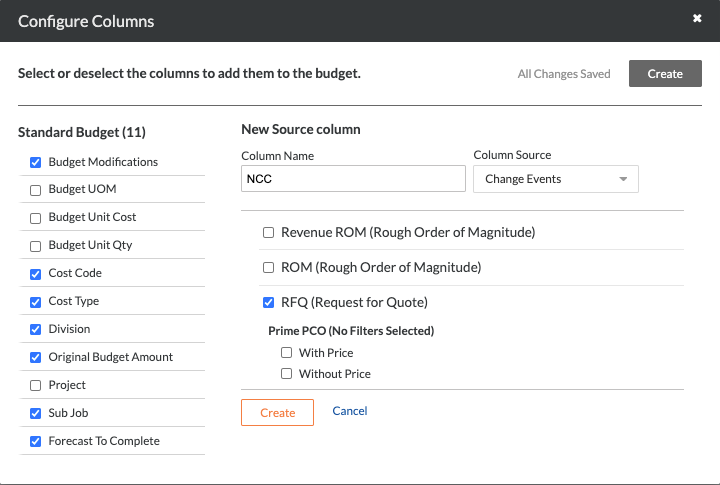
  1. Click Create Source Column.

  2. Under New Source Column, do the following:

    • Column Name. Enter the name: NCC

    • Column Source. Select Change Events.

  3. Select the RFQ (Request for Quote) checkbox to apply these filters:

    • Under Prime PCO, remove all of the marks from these checkboxes.

    • Under Scope, mark these checkboxes only:

      • In Scope

      • TBD

    • Under Change Event Status, mark these boxes only:

      • Open

      • Closed

      • Pending

         Note
        • When filtering the columns data by change event status, any statuses not considered 'Void' are selected by default.

        • If your company created custom statuses, those will NOT be shown by name. However, any custom status considered 'Open', 'Closed', and 'Pending' are also selected by default.

        • To learn more about custom statuses, see Set the Default Change Management Configurations.

    • Under Non-Commitment Costs, mark the Without Costs checkbox.

  4. Click Create.

bv-column-ncc.png

Mettre à jour la colonne Changements de coûts en attente

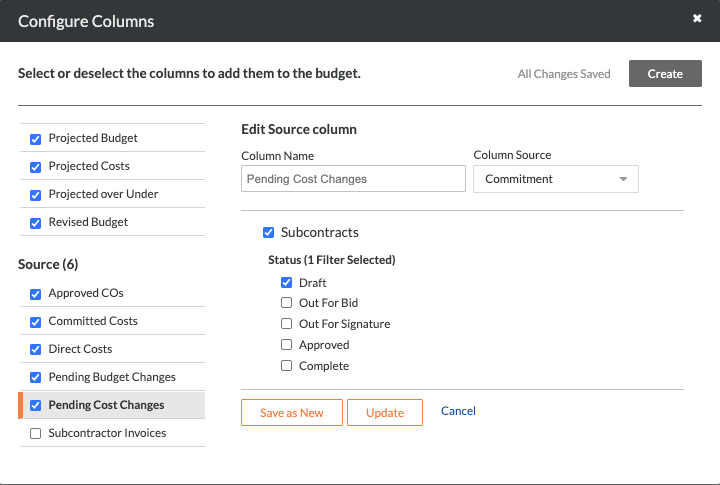
The Procore Standard Budget View includes a 'Pending Cost Changes' source column. Use the steps below to update that column.

Steps from the Configure Columns window in the Company Admin tool…

Settings

  1. Under Source, highlight the 'Pending Cost Changes' column.

  2. Click Edit.

  3. Ensure the Column Source is set to Commitments.

  4. Under Subcontracts, mark the Draft checkbox and remove the marks from all other checkboxes.

  5. Under Purchase Order Contracts, mark the Draft checkbox and remove the marks from all other checkboxes.

  6. Under Change Orders, mark the Draft checkbox and remove the marks from all other checkboxes.

  7. Click Update.

bv-column-pending-cost-changes.png

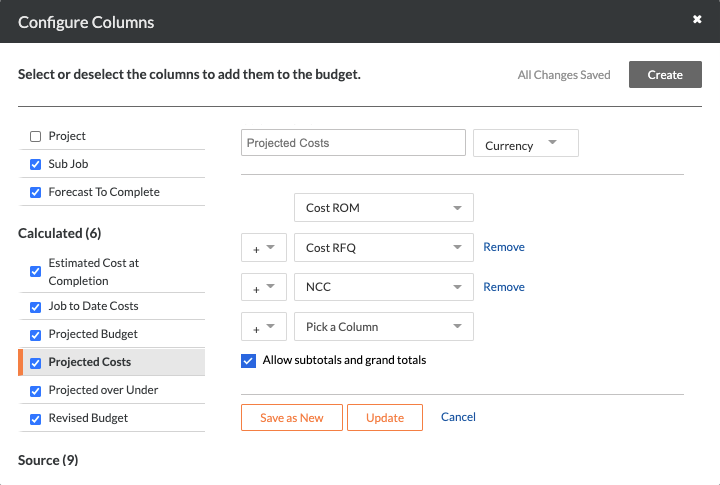
Mettre à jour la colonne des coûts prévus

The Procore Standard Budget View includes a 'Projected Cost ' calculated column. Use the steps below to update that column.

Steps from the Configure Columns window in the Company Admin tool…

Settings

  1. Under Calculated, highlight the 'Projected Costs' column.

  2. Click Edit.

  3. Configure the calculation's drop-down lists as follows:

    • Select the 'Cost ROM' column.

    • Select the plus (+) sign.

    • Select the 'Cost RFQ' column.

    • Select the plus (+) sign.

    • Select the 'NCC' column.

  4. Click Update.

bv-column-projected-costs.png

See Also

Loading related articles...