Ajouter les colonnes d’événements de changement à une vue du budget (y compris l’ODG approximatif des revenus)
Fond
Si votre entreprise a choisi d’utiliser l’outil Événements de changement sur un projet, vous pouvez utiliser les étapes ci-dessous pour ajouter une ou plusieurs colonnes de données associées à l’outil Événements de changement à la vue du budget de votre projet. Les colonnes de données des événements de changement sont les suivantes :
ODG approximatif des revenus. Abréviation d’ordre de grandeur approximatif des revenus. Cette colonne affiche l’estimation de l’ODG approximatif des revenus pour l’événement de changement.
ODG approximatif du coût. Abréviation d’ordre de grandeur approximatif du coût. Cette colonne affiche l’estimation de l’ODG approximatif du coût pour l’événement de changement.
Appel d’offres. Abréviation de demande de devis. Cette colonne affiche le montant de la DDD.
CCN. Abréviation de Coût de non-engagement. Cette colonne indique la valeur d’un coût qui n’est PAS inclus dans un poste d’engagement.
Éléments à prendre en compte
Autorisations utilisateur requises :
Autorisations de niveau « Admin » dans l’outil Admin au niveau entreprise.
Informations complémentaires :
Pour en savoir plus sur les coûts sans engagement dans Procore, voir Comment suivre les coûts sans engagement sur un événement de changement ?
Si vous ne souhaitez pas inclure l’ODG approximatif des revenus, voir Ajouter des colonnes source d’ODG approximatif de coût, de DDD et de coût sans engagement à la vue du budget.
Conditions préalables
Ajoutez les outils Budget et Événements de changement au projet. Voir Ajouter et supprimer des outils de projet.
Escalier
Étape 1 : choisir une vue du budget
Étape 2 : ajouter les colonnes recommandées
Étape 1 : choisir une vue du budget
Lors de l’ajout des colonnes détaillées dans cet article, vous avez les choix suivants :
Vous pouvez créer une nouvelle vue du budget et ajouter les colonnes recommandées. Voir Configurer une nouvelle vue du budget.
Vous pouvez modifier une vue du budget existante et ajouter les colonnes recommandées. Voir Modifier une vue du budget existante.
Vous pouvez configurer une vue du budget à utiliser avec les rapports personnalisés Procore et ajouter les colonnes recommandées. Voir Configurer une vue du budget pour les rapports personnalisés.
Après avoir choisi l’option préférée pour votre vue du budget, ajoutez toutes les colonnes recommandées en suivant les étapes détaillées ci-dessous.
Étape 2 : ajouter les colonnes recommandées
Ensuite, ajoutez et/ou mettez à jour les colonnes suivantes dans l’ordre recommandé ci-dessous :
Ajouter une colonne ODG approximatif des coûts
Ajouter une colonne DDD de coût
Ajouter une colonne Coût de non-engagement
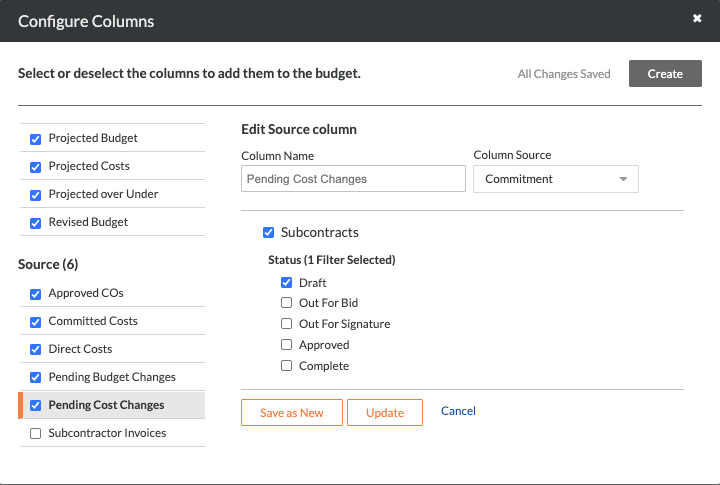
Mettre à jour la colonne Changements de coûts en attente
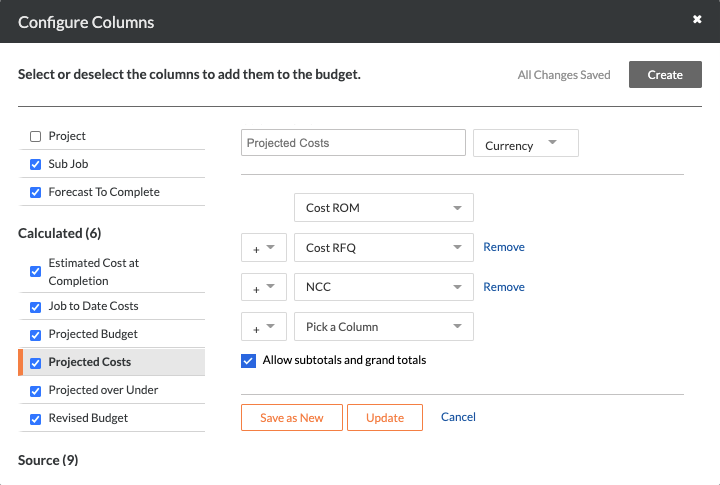
Mettre à jour la colonne Coûts prévus
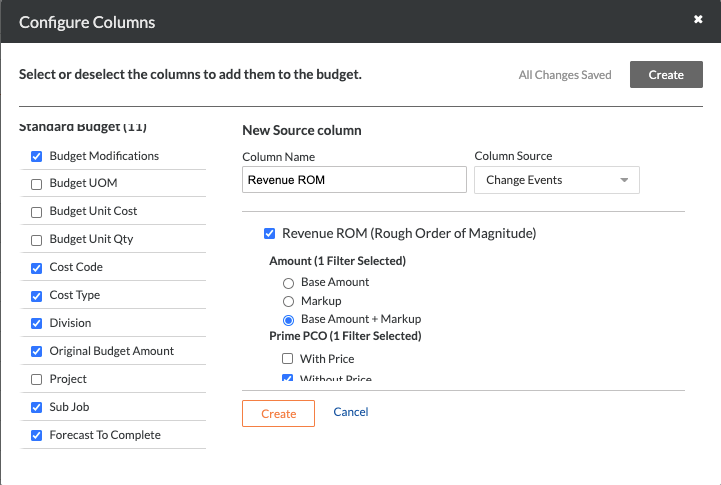
Ajouter une colonne ODG approximatif des revenus
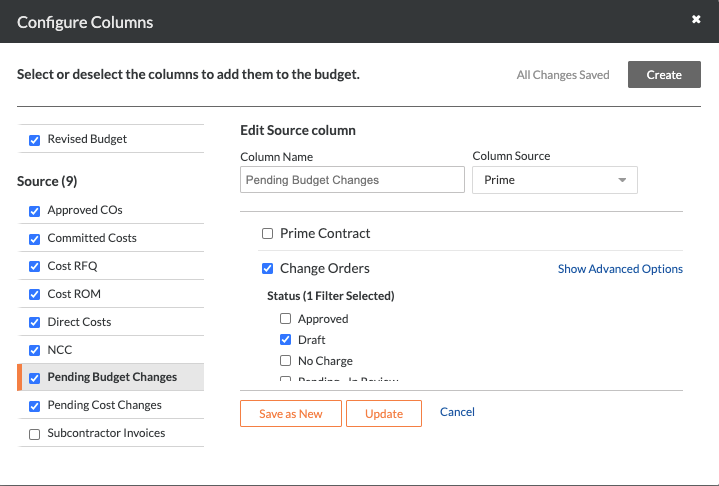
Mettre à jour la colonne Changements budgétaires en attente
Mettre à jour la colonne Budget prévisionnel
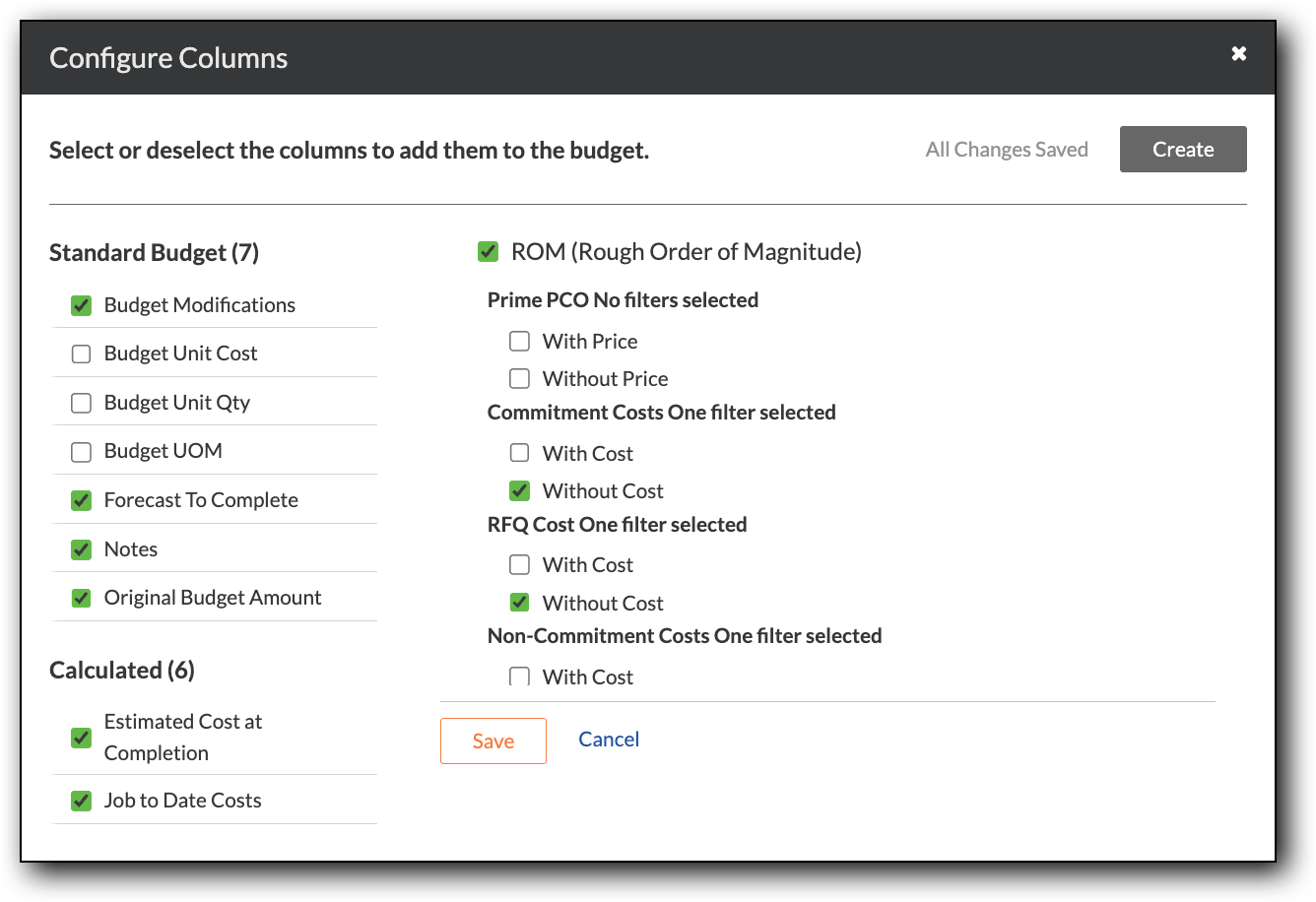
Ajouter une colonne ODG approximatif des coûts
Ceci ajoute une colonne source nommée « ODG approximatif du coût » qui affiche une L'ordre de grandeur approximatif (ODG approximatif) est une estimation numérique approximative des coûts qui est utilisée dans le secteur de la construction pour estimer un ou plusieurs coûts relatifs à la réalisation d'un projet. Les estimations d'ODG approximatif sont généralement fournies par un expert de haut niveau et bien informé pendant les phases de lancement/début d'un projet, lorsqu'il existe encore un niveau élevé d'incertitude quant au projet. Les estimations d'ODG approximatif sont réputées avoir un niveau de précision inférieur à celui d'une estimation définitive/conclusive. Procore dispose également d'une option de suivi des revenus potentiels pour les événements de changement. Il s'agit de l'option d'ODG approximatif de revenu qui vous permet d'utiliser les derniers montants de coûts lorsque les changements sont hors de portée. Dans Procore, un ordre de service de l'engagement (OSE) détaille un changement potentiel qui affectera les coûts d'origine et/ou le calendrier d'un bon de commande ou d'un contrat de sous-traitance. Une demande de devis (DDD) est un processus métier par lequel un client demande un devis à un collaborateur, tel qu'un sous-traitant, un vendeur ou un autre fournisseur. Le collaborateur examine les exigences de la DDD du client, puis répond en fournissant un devis écrit. Dans Procore, les DDD sont créées après la survenance d'un événement de changement et aident le client à éviter d'encourir des modifications ou des substitutions inattendues et coûteuses. Dans Procore, un coût non associé à des engagements est un coût qui n'est PAS inclus dans les postes d'un bon de commande ou d'un contrat de sous-traitance. Le coût est également un montant différent d'un coût soumis dans le cadre d'un ordre de service potentiel (OSP).
Étapes à partir de la fenêtre Configurer les colonnes dans l’outil Admin de l’entreprise... | Paramètres |
|---|---|
Sous Coût sans engagement, cochez la case à cocher Sans coût uniquement. Remarque Ceci garantit que la colonne source comprend uniquement les montants avec des coûts d’engagement et exclut les coûts sans engagement (CSE). Sous périmètre des travaux, cochez ces cases à cocher uniquement :
Sous statut d'événement de changement, cochez ces cases uniquement :
Cliquez sur Créer. |
|
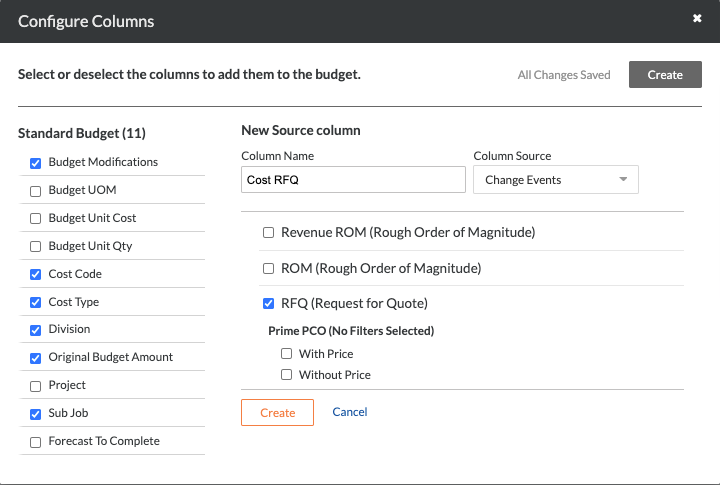
Ajouter une colonne de DDD de coût
Ceci ajoute une colonne source nommée « DDD de coût » qui affiche les coûts associés aux DDD. La valeur qui apparaît dans cette colonne sur un poste budgétaire n’est pas encore associée à a Dans Procore, un ordre de service de l'engagement (OSE) détaille un changement potentiel qui affectera les coûts d'origine et/ou le calendrier d'un bon de commande ou d'un contrat de sous-traitance. Dans Procore, un coût non associé à des engagements est un coût qui n'est PAS inclus dans les postes d'un bon de commande ou d'un contrat de sous-traitance. Le coût est également un montant différent d'un coût soumis dans le cadre d'un ordre de service potentiel (OSP).
Étapes à partir de la fenêtre Configurer les colonnes dans l’outil Admin de l’entreprise... | Paramètres |
|---|---|
Sous Coût sans engagement, cochez la case à cocher Sans coût uniquement. Remarque Ceci garantit que la colonne source comprend uniquement les montants avec des coûts d’engagement et exclut les coûts sans engagement (CSE). Sous périmètre des travaux, cochez ces cases à cocher uniquement :
Sous statut d'événement de changement, cochez ces cases uniquement :
Sous DDD Statut, supprimez toutes les marques de ces cases à cocher. Cliquez sur Créer. |
|
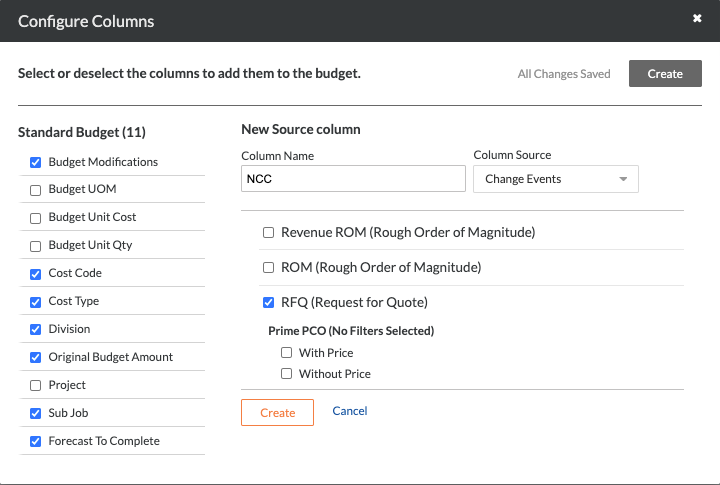
Ajouter une colonne de coût de non-engagement
Ceci ajoute une colonne source nommée colonne « Coût sans engagement ». La valeur qui apparaît dans cette colonne sur un poste budgétaire représente un Dans Procore, un coût non associé à des engagements est un coût qui n'est PAS inclus dans les postes d'un bon de commande ou d'un contrat de sous-traitance. Le coût est également un montant différent d'un coût soumis dans le cadre d'un ordre de service potentiel (OSP).
Si vous prévoyez d’utiliser la colonne « Coût sans engagement » dans le calcul de la colonne « Coûts prévus » (ou pour une colonne « Prévisions »), il est important de choisir une (1) des options suivantes pour que le calcul ne soit PAS compté deux fois lorsque les coûts directs associés ont un impact sur votre budget :
Facultatif : Mettez à jour la colonne « DDD des coûts » pour exclure les statuts d’événement de changement « Fermés ». Demandez ensuite aux utilisateurs qui créent des coûts directs pertinents de définir également le statut de l’événement de changement approprié sur « Fermé ». Ceci exclura le coût sans engagement de la valeur de la colonne.
OUFacultatif : Lorsque les utilisateurs créent des coûts directs pertinents, demandez-leur de supprimer le « coût sans engagement » de l’événement de changement approprié.
OUFacultatif : Ne créez PAS de coûts directs pour les « coûts sans engagement » suivis dans votre budget.
Étapes à partir de la fenêtre Configurer les colonnes dans l’outil Admin de l’entreprise... | Paramètres |
|---|---|
Sous Coûts sans engagement, cochez la case à cocher Sans coûts. Cliquez sur Créer. |
|
Mettre à jour la colonne Changements des coûts en attente
La vue du budget standard de Procore comprend une colonne source « Changements de coûts en attente ». Suivez les étapes ci-dessous pour mettre à jour cette colonne.
Étapes à partir de la fenêtre Configurer les colonnes dans l’outil Admin de l’entreprise... | Paramètres |
|---|---|
|
|
Mettre à jour la colonne Coûts prévus
La vue du budget standard de Procore comprend une colonne calculée « Coûts prévus ». Suivez les étapes ci-dessous pour mettre à jour cette colonne.
Étapes à partir de la fenêtre Configurer les colonnes dans l’outil Admin de l’entreprise... | Paramètres |
|---|---|
|
|
Ajouter une colonne d’ODG approximatif des revenus
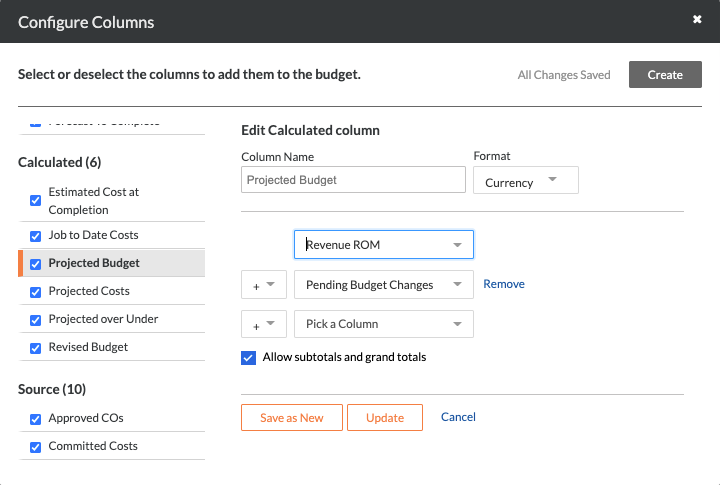
Ceci ajoute une colonne « ODG approximatif des revenus » pour afficher l’ODG approximatif des revenus qui n’est pas encore associé à un ordre de service potentiel (OSP) au contrat général à 2 ou 3 niveaux ou à un ordre de service au contrat général (OSCG) à 1 niveau.
Étapes à partir de la fenêtre Configurer les colonnes dans l’outil Admin de l’entreprise... | Paramètres |
|---|---|
Cliquez sur Créer. |
|
Mettre à jour la colonne Changements budgétaires en attente
La vue du budget standard de Procore comprend une colonne source « Changements budgétaires en attente ». Modifiez cette colonne pour afficher les montants des ordres de service ayant le statut « Ébauche ».
Étapes à partir de la fenêtre Configurer les colonnes dans l’outil Admin de l’entreprise... | Paramètres |
|---|---|
|
|
Mettre à jour la colonne Budget prévisionnel
La vue du budget standard de Procore comprend une colonne « Budget prévu ». Suivez les étapes ci-dessous pour modifier cette colonne.
Étapes à partir de la fenêtre Configurer les colonnes dans l’outil Admin de l’entreprise... | Paramètres |
|---|---|
|
|