Accept or Decline an 'Invite to Bill' as an Invoice Contact

Vous utilisez la terminologie du maître d’ouvrage ou de l’entrepreneur spécialisé ?

Procore peut être configuré pour utiliser une terminologie spécifique aux entreprises générales, aux maîtres d’ouvrage ou aux entreprises spécialisées. Découvrez comment appliquer les options du dictionnaire.
  • To learn the differences: Show/Hide

    • This table shows the differences in tool names (bold) and terms across the point-of-view dictionaries for Project Financials.

      Entrepreneurs généraux
      Anglais (États-Unis) - Par défaut

      Propriétaire
      Anglais (Terminologie du propriétaire V2)

      Entrepreneurs spécialisés
      Anglais (terminologie des entrepreneurs spécialisés)

      Facturation

      Facturation

      Facturations proportionnelles

      Propriétaire

      Financement

      Propriétaire

      Maître d’ouvrage/Client

      Maître d’ouvrage/Client

      CG/client

      Ordre de changement au contrat principal

      Ordre de changement de financement

      Ordre de changement du contrat client

      Contrats principaux

      Financement

      Contrats clients

      Revenu

      Financement

      Revenu

      Sous-traiter

      Contrat

      Sous-traiter

      Sous-traitant

      Entrepreneur

      Sous-traitant

      Ventilation des coûts du sous-traitant (VDCS)

      Ventilation des coûts de l’entrepreneur (VDCST)

      Ventilation des coûts du sous-traitant (VDCS)

      About These Dictionaries
      • Default Setting: The 'General Contractor' dictionary is enabled by default for all accounts.

      • Availability: These alternate dictionaries in italics are available in US English only.

      How to Switch Your Dictionary

      To change your company's terminology to the Owner or Specialty Contractor dictionary, contact your company's . They will work with your Procore Point of Contact to make the change.

Background

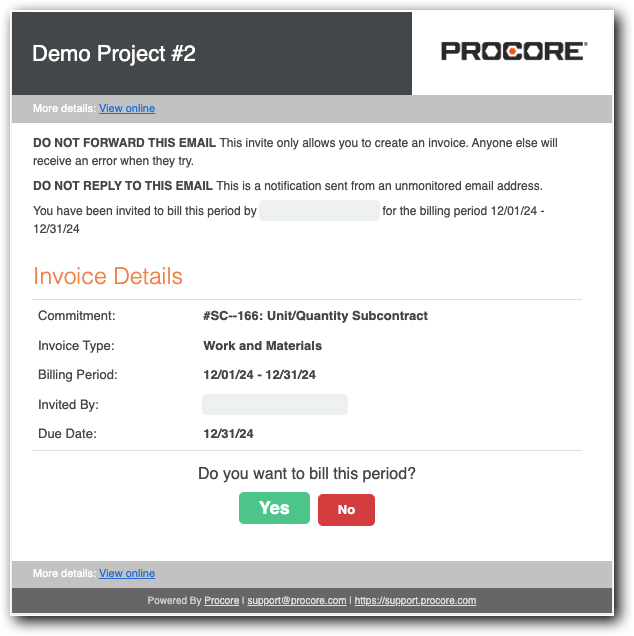
After creating a new billing period, an invoice administrator can send an 'Invite to Bill to the invoice contact on a commitment. The invite reminds the contact to submit their invoice by the Open billing period's due date. The subject line reads "Project Name: User Name has invited you to bill." Invoice contacts can then accept or decline the invite.

 Tip

Missing your 'Invite to Bill'? Invoice contacts can create new invoices in Procore. See Create a Subcontractor Invoice.

Things to Consider

Prerequisites

Steps

  1. Open your email Inbox.

  2. Look for the email message with the subject line, " "Project Name: User Name has invited you to bill."

  3. Open the 'Invite to Bill'.
    invite-to-bill.png

  4. Review the Invoice Details:

    • Commitment. Shows the commitment number and name.

    • Invoice Type. Shows the invoice type. See Configure Settings: Invoicing.

    • Billing Period. The date range for the Open billing period.

    • Invited By. The first and last name of the sender. Typically, this is the invoice administrator.

    • Due Date. The date your invoice is due. Invoice contacts cannot create or submit an invoice in the Procore project after this date.

  5. Click one of these buttons to respond to the Do you want to bill this period? prompt:

    • Yes. Accept the invite and submit an invoice. This changes the invoice status to Accepted. Continue with the steps in Submit a New Invoice as an Invoice Contact.

    • No. Decline the invite if you don't want to submit an invoice for the Open billing period. This changes the invoice status to Declined.

Next Step

See Also

Loading related articles...