Important Notice for ERP Integrated Customers:

The erpsupport@procore.com email address will be retired on April 8, 2026. We recommend using our enhanced Webform, Phone, or Chat for faster support on new requests.

  • Top Product Manuals

    The most used Product Manuals across the site

    Procore Imports
    Procore Drive
    Portfolio (Company)
    Submittals (Project)
    Home (Project)
    Featured Product Manuals

    Highlights of newly released Product Manuals

    Scheduling
    Procore for Government
    MFA
    See All Product Manuals
    Developer Portal
  • Process Guides
  • Certifications

    Get Procore Certified for free with role-based, online training courses

    Training Video Library

    Search our library of training videos

    Permissions Matrix
    Glossary of Terms
    System Status

    View the status of the app

    Community

    Ask questions, find ideas and articles, and connect with others

    Product Updates

    Learn about the newest features to see what's coming to the platform

    Developers

    Build applications on the Procore platform

  • Release Notes
    • Top Product Manuals
      • Procore Imports
      • Procore Drive
      • Portfolio (Company)
      • Submittals (Project)
      • Home (Project)
    • Featured Product Manuals
      • Scheduling
      • Procore for Government
      • MFA
    • See All Product Manuals
    • Developer Portal
  • Process Guides
    • Certifications
    • Training Video Library
    • Permissions Matrix
    • Glossary of Terms
    • System Status
    • Community
    • Product Updates
    • Developers
  • Release Notes
Australia (English)
Brasil (Português)
Canada (English)
Canada (Français)
Deutschland (Deutsch)
España (Español)
France (Français)
Latinoamérica (Español)
Polska (Polski)
United Kingdom (English)
United States (English)
新加坡 (中文)
日本 (日本語)
  • Australia (English)
  • Brasil (Português)
  • Canada (English)
  • Canada (Français)
  • Deutschland (Deutsch)
  • España (Español)
  • France (Français)
  • Latinoamérica (Español)
  • Polska (Polski)
  • United Kingdom (English)
  • United States (English)
  • 新加坡 (中文)
  • 日本 (日本語)
  1. Support Home
  2. Project Map User Guide
  3. Add a Pin

Project Map User Guide

  • Welcome
    • Overview
    • How to Get Started
    • Considerations
  • View Items
    • View Items on the Map
    • Filter
    • Show or Hide Tools
  • Manage Items on the Map
    • Add a Pin
    • Move a Pin
    • Remove Photo Pin from Map
  • Configure the Map
  • FAQ
  • Permissions
  • Welcome
    • Overview
    • How to Get Started
    • Considerations
  • View Items
    • View Items on the Map
    • Filter
    • Show or Hide Tools
  • Manage Items on the Map
    • Add a Pin
    • Move a Pin
    • Remove Photo Pin from Map
  • Configure the Map
  • FAQ
  • Permissions

Add a Pin

Steps

  1. Navigate to the tool's map.

    • View Photos on a Map

    • View the Project Map (Beta)

  2. If using the Project Map, select a tool and the list Icon List View Mobile icon.

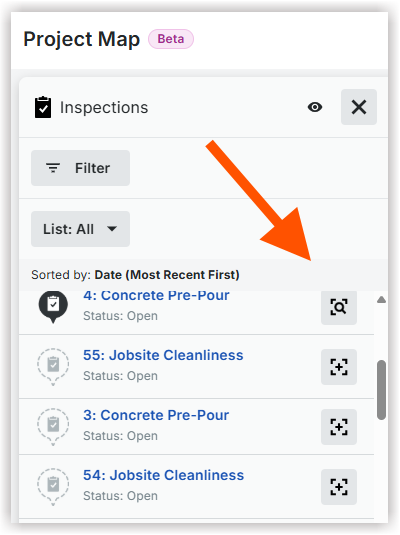
  3. Optional: Click List and select Unmapped to see a list of unmapped items.

  4. Click the add to map Icon Add To Map icon next to the item.

    Project Map Add Item
  5. Move your cursor over the map. Then click to add the pin to the desired location.

Show or Hide Tools
Move a Pin

Procore is committed to advancing the construction industry by improving the lives of people working in construction, driving technology innovation, and building a global community of groundbreakers. Our connected global construction platform unites all stakeholders on a project with unlimited access to support and a business model designed for the construction industry.

Twitter Youtube Facebook LinkedIn Instagram

About Procore

  • Website
  • System Status
  • App Marketplace
  • Contact Support

Downloads

  • Apple App Store
  • Google Play Store
  • Privacy Notice
  • Terms of Service
  • Do Not Sell Personal Information

© 2026 Procore Technologies, Inc.