Follow these steps to link objects in a 3D Model to items in supported Procore tools.
Link Objects to a New Item
Navigate to the Model Manager (Beta) tool. .
Open a model.
Select one or multiple objects in the 3D model:
To select one object, right-click it and choose Create New Item from the menu.
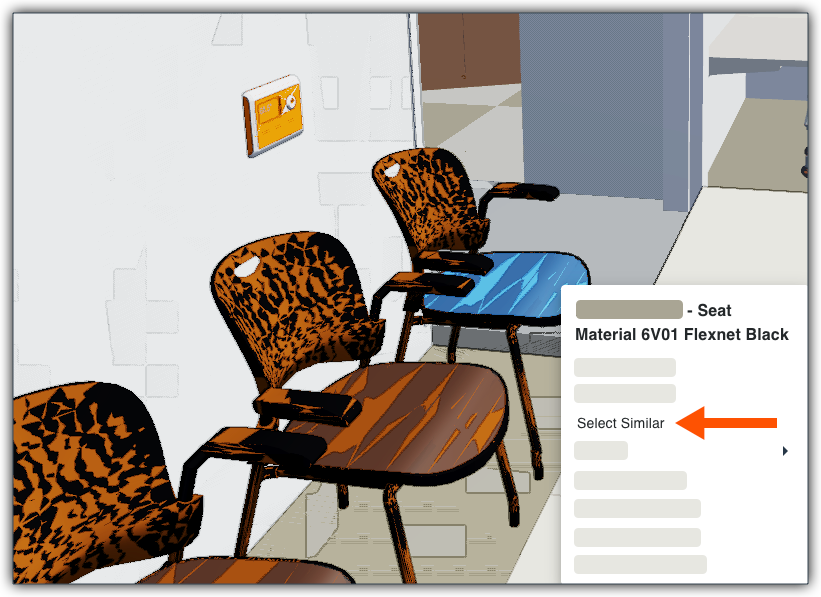
To select multiple objects, right-click one object and choose Select Similar to highlight all identical items in the model. Next, right-click again and choose Create New Item from the menu.
In the item creation form for the selected tool, complete the required fields and click Create.
Link Objects to an Existing Item
Navigate to the Model Manager (Beta) tool. .
Open a model.
Select one or multiple objects in the 3D model:
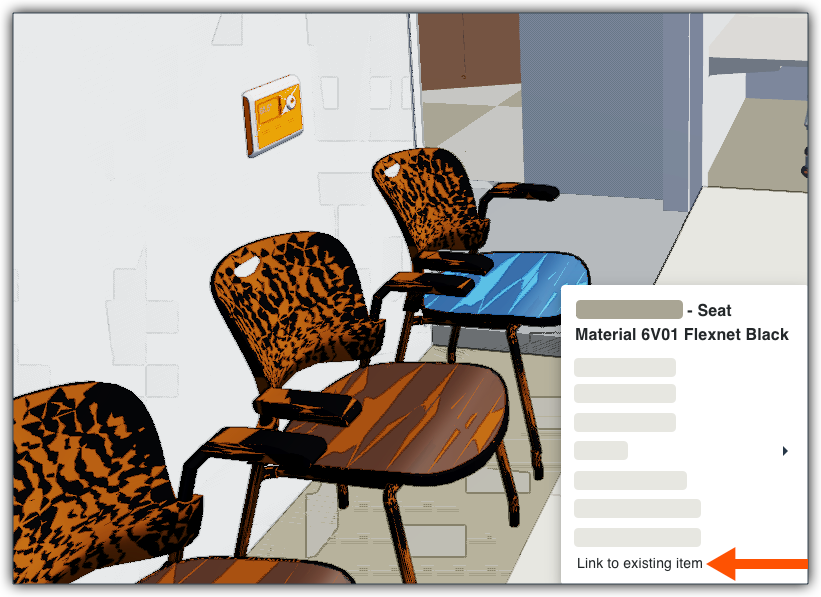
To select one object, right-click it and choose Link Existing Item from the menu.
To select multiple objects, right-click one object and choose Select Similar to highlight all identical items in the model. Next, right-click again and choose Link Existing Item from the menu.
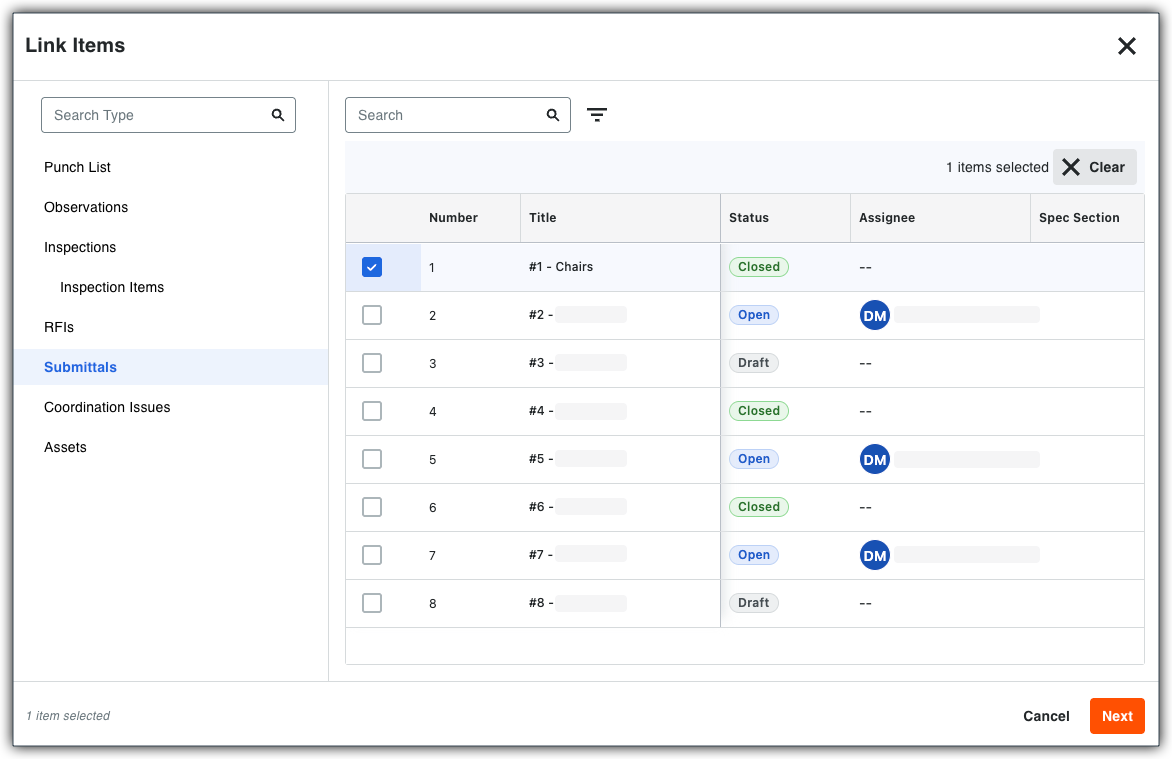
In the Related Items window, select the Inspections tool. A list of existing inspection records appears.
Select the specific inspection record to attach. You can only select one (1) record at a time.
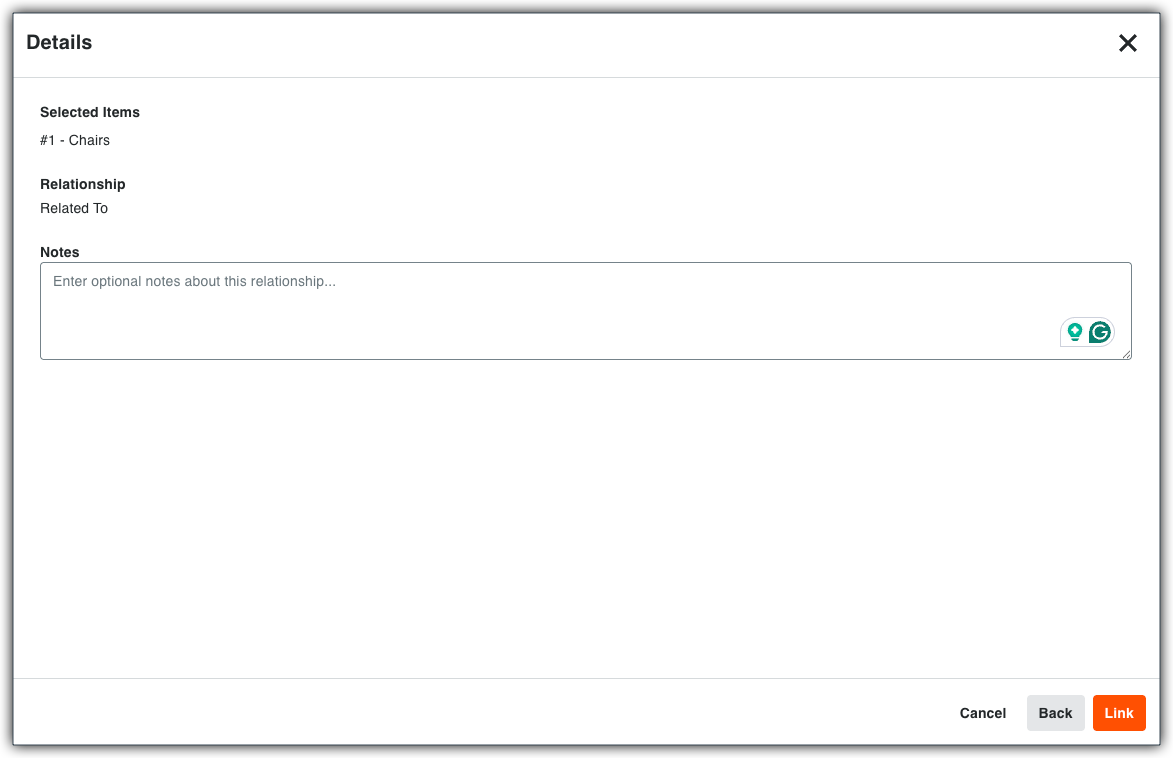
Click Link.