Review and manage early pay enrolments
Limited release
Free Procore accounts are currently only available in the United States and Canada.
Main contractors paying payment applications with Procore Pay can create an An early pay programme (EPP) is a financial strategy where a payor, typically a large main contractor, agrees to make early subcontractor payment application payment, in return for a fee. and assign it to a project. They also define whether a payee is eligible to participate in their programme. If you are eligible for participation, payees can review the programme's details and opt-in to the programme by enrolling. Once enrolled in a programme, the programme terms go into effect on future payment applications. You can opt out of an Early Pay programme at any time.
Additional Information:
To receive an early payment, you must be enrolled in the Early Pay Programme before creating a payment application.
Main contractors can discontinue Early Pay programmes at any time. If a programme is discontinued, it appears on the Early Pay tab under 'Voided Early Pay enrolments'.
You can also enrol in an early pay programme when you accept your Procore Pay agreement. See Review and accept a Procore Pay agreement.
The payer must:
Create an Early Pay programme and assign it to a Procore project.
Configure payees to define their eligibility for participation in Early Pay programmes.
Navigate to your company's homepage. See How do I change companies?
Navigate to the Payments tool.
Click the Early Pay tab.
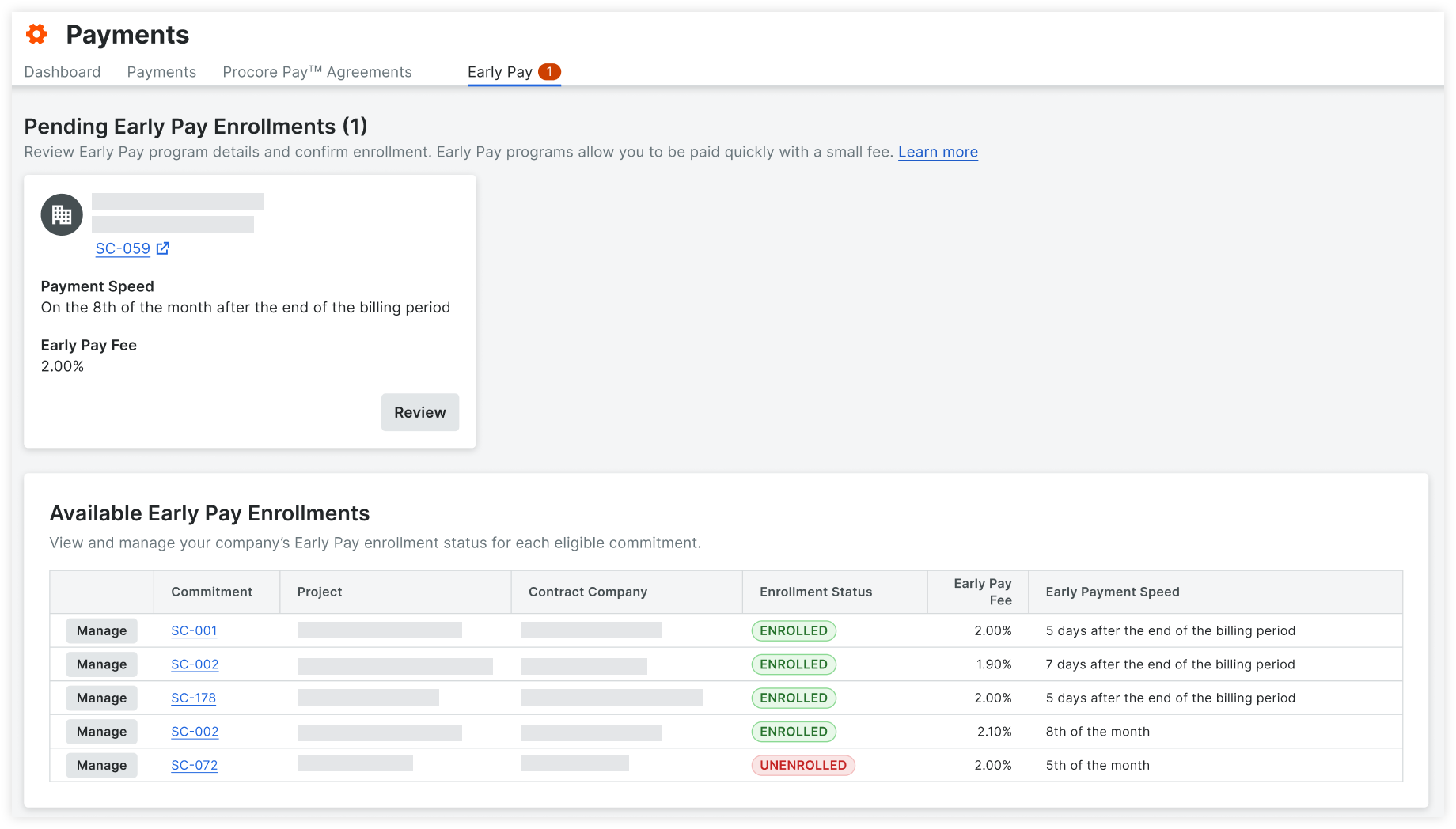
Under 'Pending agreements,' locate the project and click Review.
OR
Under 'Available Early Pay enrolments,' locate the project and click Manage.
Review the Early Pay programme details.
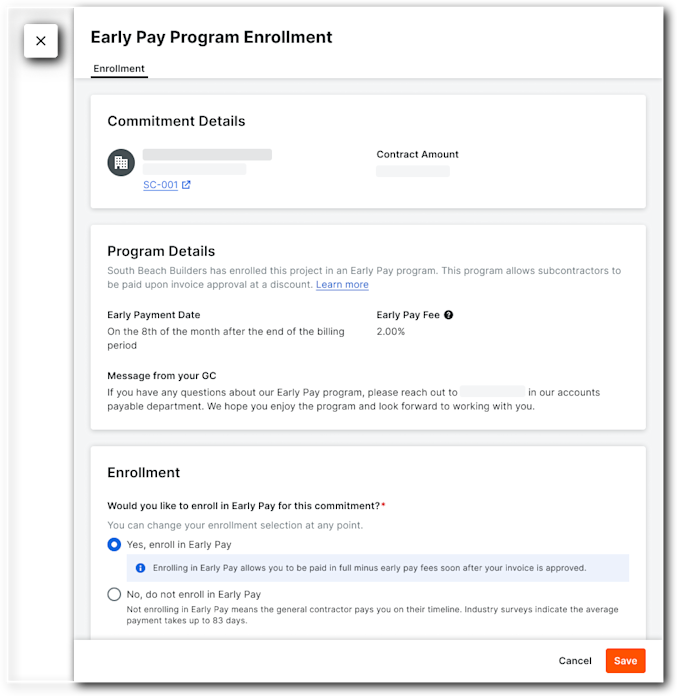
Mark one of the following selections:
Yes, enrol in Early Pay.
No, do not enrol in early pay.
Click Save.