Connect a SpaceMouse

Deployment Status & Regional Availability

Model Manager, Procore’s next-generation replacement for the Models tool, officially launches in General Availability across the UK and Ireland (UKI) on October 15, 2026, alongside a global Beta for all other regions. Procore Mobile App (iOS/Android) support is also live in Beta as Procore continues to transform 3D model workflows. Stay tuned for additional features in future releases.

For platform deployment status & regional availability Show/Hide

The Model Manager and the Models tool can be active on the same project at once. Administrators are not required to disable the Models tool.

Platform

Deployment Status/Region

Learn More

Web

  • General Availability: United Kingdom & Ireland (UKI) on October 13, 2026

  • Beta: All other regions

iOS

  • Beta: All regions

Android

  • Beta: All regions

Model Manager Beta: Access & Guidelines

  • Registration: Participating companies must sign the Procore Beta Agreement. Once signed, your Procore Administrator will coordinate with your Procore point of contact to enable Model Manager on specific projects. It is not available in Procore Explore.

  • Support & Feedback: Please report critical or breaking issues directly to Procore Customer Support. For general feedback, feature requests, and non-critical issues, contact your dedicated Beta program lead or Procore point of contact.

  • Beta Notice: This feature and its supporting documentation are in active development. Beta services are provided strictly "as is" for evaluation purposes, carry no standard warranties or liability, and are subject to change or discontinuation without notice. For full terms, please refer to the Procore Subscription Services Agreement.

Pre-Release Documentation

This article documents a planned feature that is not in General Availability (GA). Release timing is not guaranteed, and functionality described here may change before launch.

The Next-Gen Viewer supports 3Dconnexion 3D mice, allowing teams to perform fluid, 6-Degrees-of-Freedom (6DoF) navigation. Using a SpaceMouse® alongside a standard mouse enables a two-handed workflow to simultaneously orbit, pan, and zoom through complex models while selecting elements and reviewing properties.

Things to Consider

  • Required User Permissions

  • Additional Information

    • The Model Manager supports all standard 3Dconnexion 3D mice, including SpaceMouse® Enterprise, SpaceMouse® Pro, SpaceMouse® Wireless, and SpaceMouse® Compact.

    • Install the 3Dconnexion 3DxWare driver (v10.8+ recommended)

      on your computer.

    • SpaceMouse® is also supported by the Next-Gen Viewer in Document Management.

      Important

      Procore does not provide technical support for 3D mouse hardware. For technical specs or troubleshooting, please visit the 3Dconnexion website for your specific country.

Steps

Enable SpaceMouse® Support

  1. Choose one of these options:

    • Navigate to the project's Model Manager tool.

    • Navigate to the project's Document Management tool.

  2. View a model.

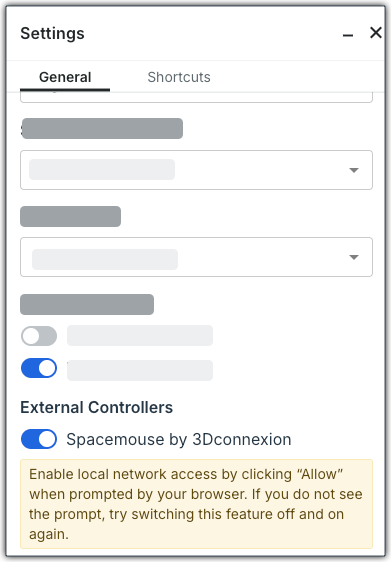
  3. In the viewer toolbar, click Settings.

  4. Locate the External Controllers section.

  5. Toggle this setting to the ON position: SpaceMouse by 3Dconnexion


    This image shows you the External Controllers area of the Next-Gen Viewer Settings with the Spacemouse by 3Dconnexion setting toggled on.

  6. Once toggled ON, you'll be prompted to enable local network access.
    This image shows the Access other apps and services on this device prompt for the user's corresponding File Storage Location.

    • When you see this prompt, click Allow.

    • If you don't see the prompt, toggle this setting ON/OFF: SpaceMouse by 3Dconnexion

Navigate the Next-Gen Viewer with a SpaceMouse®

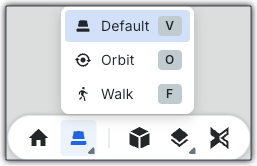
Once you've enabled the SpaceMouse®, navigation is supported by clicking this icon and selecting Default mode.

This image shows the SpaceMouse icon and flyout menu of controls: Default, Orbit, and Walk

Important

SpaceMouse® navigation modes include: Object, Fly, Drone, and Target Camera. These navigation modes are controlled by the 3Dconnexion 3DxWare driver (v10.8+ recommended)

and not the Next-Gen Viewer. To learn more, see the Product Manuals page on the 3Dconnexion web site.

Troubleshooting

  • Check your system tray (Windows) or menu bar (macOS) to verify that the 3DxWare service is active.

  • Click anywhere within the 3D viewer canvas to ensure the browser window has active focus.

  • If your device was plugged in after opening the browser, disconnect and reconnect the USB cable to re-initialize the connection.

  • Restart your computer.

  • For additional technical support, visit the 3Dconnexion web site for your specific country.


Windows is a registered trademark of Microsoft Corporation in the United States and other countries. Google Chrome, Android, and Google Play are trademarks of Google LLC. iPhone, iPad, and App Store are trademarks or service marks of Apple Inc., registered in the U.S. and other countries and regions. iOS is a trademark or registered trademark of Cisco in the U.S. and other countries and is used under license by Apple Inc. Autodesk, AutoCAD, Civil 3D, Navisworks, and Revit are registered trademarks or trademarks of Autodesk, Inc., and/or its subsidiaries and/or affiliates in the USA and other countries. SpaceMouse is a registered trademark of 3Dconnexion. All other trademarks are the property of their respective owners.