Keyboard & mouse

Deployment status & regional availability

Model manager, Procore’s next-generation replacement for the model tool, officially launched in general availability in all regions. Procore Mobile App (iOS/Android) support is also live in beta as Procore continues to transform 3D model workflows. Stay tuned for additional features in future releases.

For platform deployment status & regional availability Show/hide

The Model manager and the model tool can be active on the same project at once. Administrators are not required to disable the model tool.

Platform

Status

Region

Web

Beta (GA for UKI coming soon)

Global (GA for UKI coming soon)

iOS

Beta

Global

Android

Beta

Global

Model manager Beta: Access & guidelines

  • Registration: Participating companies must sign the Procore Beta agreement. Once signed, your Procore administrator will coordinate with your Procore point of contact to enable Model manager on specific projects. It is not available in Procore Explore.

  • Support & feedback: Please report critical or breaking issues directly to Procore customer support. For general feedback, feature requests and non-critical issues, contact your dedicated Beta programme lead or Procore point of contact.

  • Beta notice: This feature and its supporting documentation are in active development. Beta services are provided strictly "as is" for evaluation purposes, carry no standard warranties or liability and are subject to change or discontinuation without notice. For full terms, please refer to the Procore Subscription Services agreement.

Keyboard shortcuts and mouse controls let you to move through the 3D model with ease. By mastering the shortcuts, you can spend less time clicking through menus and more time managing your construction data. These shortcuts and controls are organised by the type of action you want to perform.

Things to Consider

Keyboard shortcuts

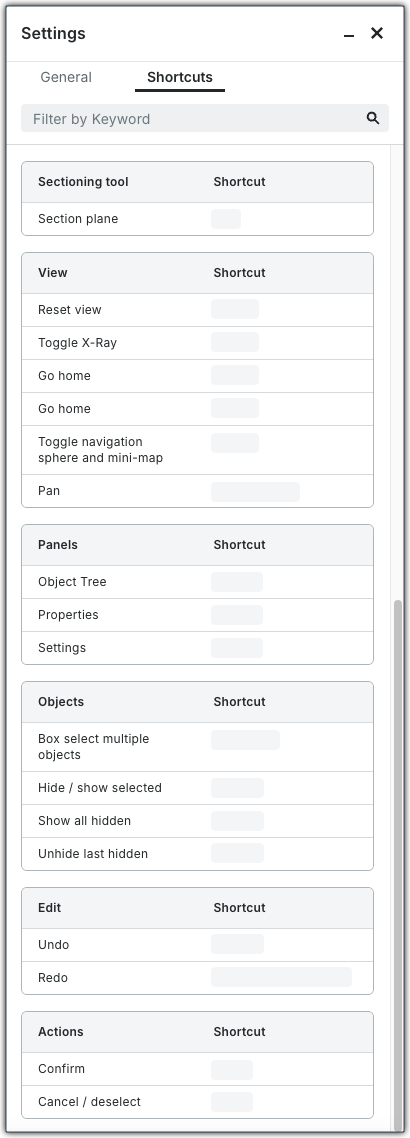
A list of keyboard shortcuts for the Next-gen viewer is maintained in the Procore web application.

  1. Navigate to one of the project tools supporting the Next-gen viewer: asset, Documents, Document Management or Model manager.

  2. View a model.

  3. Click settings in the top-right to open the settings window.

  4. Click the Shortcuts tab.

  5. (Optional) Choose an option to search for a shortcut:

    • Type a keyword in the Filter by keyboard box and press ENTER or click the This image shows the Search Groups icon in the Next-Gen Viewer of the Model Manager tool. magnifying glass.

    • Scroll down the list.

This simplified user image shows a list of keyboard Shortcuts for the Next-Gen Viewer, which appears in the Settings window of the Procore Project Tools that support the viewer.

Mouse controls by navigation mode

Each mode maps mouse input differently.

Navigation mode

Left mouse button

Right mouse button

Scroll wheel

Space + left mouse

Default

Look

Orbit

Pan

Pan

Orbit

Orbit

Look

Pan

Pan

Walk

Walk through the model at a speed controlled by drag distance

Orbit

Look up/down

—