Use the actions bar in the object tree

Deployment status & regional availability

Model manager, Procore’s next-generation replacement for the model tool, officially launched in general availability in all regions. Procore Mobile App (iOS/Android) support is also live in beta as Procore continues to transform 3D model workflows. Stay tuned for additional features in future releases.
For platform deployment status & regional availability Show/hide

The Model manager and the model tool can be active on the same project at once. Administrators are not required to disable the model tool.

Platform

Status

Region

Web

Beta (GA for UKI coming soon)

Global (GA for UKI coming soon)

iOS

Beta

Global

Android

Beta

Global

Model manager Beta: Access & guidelines

  • Registration: Participating companies must sign the Procore Beta agreement. Once signed, your Procore administrator will coordinate with your Procore point of contact to enable Model manager on specific projects. It is not available in Procore Explore.

  • Support & feedback: Please report critical or breaking issues directly to Procore customer support. For general feedback, feature requests and non-critical issues, contact your dedicated Beta programme lead or Procore point of contact.

  • Beta notice: This feature and its supporting documentation are in active development. Beta services are provided strictly "as is" for evaluation purposes, carry no standard warranties or liability and are subject to change or discontinuation without notice. For full terms, please refer to the Procore Subscription Services agreement.

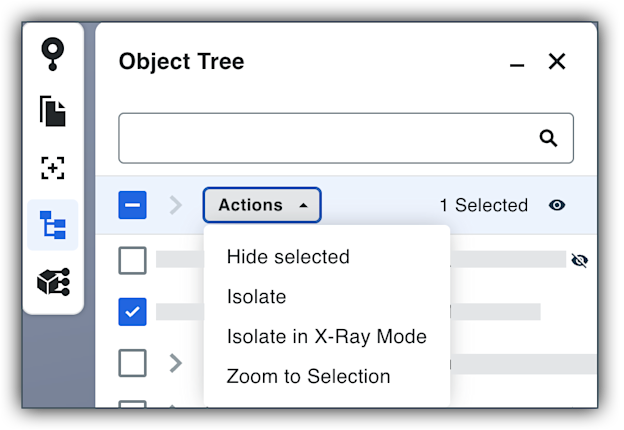
The actions bar in the object tree provides an efficient way to control how you view and interact with 3D model data. Use this feature to declutter your view, zoom to focus on specific model objects and isolate complex internal details. This helps to maintain the overall context of the model while evaluating specific components.

Things to Consider

Prerequisites

Steps

  1. Navigate to the project's Model manager tool.

  2. Open a model.

  3. Click Object tree.

  4. Select the tickboxes for the files or folders you want. This activates the Actions bar.

  5. Click the Actions menu and choose the desired option: This image shows the Actions Bar and menu options in the Object Tree in the Model Manager tool's viewer.

    • Hide/unhide selected. Toggle the visibility of the selected items. You can also click the icon - project model manager - show eye next to the file or folder to toggle visibility.

    • Isolate/Unisolate. Focus exclusively on the selected item, hiding everything else.

    • Isolate in X-Ray mode/Unisolate in X-Ray mode. Focus on the selected item while making the rest of the scene semi-transparent.

    • Zoom to selection. Frame the camera view directly on the selected item.


Windows is a registered trademark of Microsoft Corporation in the United States and other countries. Google Chrome, Android and Google Play are trademarks of Google LLC. iPhone, iPad and Application Store are trademarks or service marks of Apple Inc., registered in the U.S. and other countries and regions. iOS is a trademark or registered trademark of Cisco in the U.S. and other countries and is used under licence by Apple Inc. Autodesk, AutoCAD, Civil 3D, Navisworks and Revit are registered trademarks or trademarks of Autodesk, Inc., and/or its subsidiaries and/or affiliates in the USA and other countries. SpaceMouse is a registered trademark of 3Dconnexion. All other trademarks are the property of their respective owner.