Use the Actions Bar in the Object Tree

Procore Model Manager - Beta Access & Feedback

The Model Manager (Beta) features and documentation are subject to change without notice. Please be aware that this content is restricted to beta participants and requires a direct link to access.

  • To learn about the beta program, see the Beta Participant Guide.

  • To access the beta and provide feedback Show/Hide Details

    • How to Access: Participating companies must sign the Procore Beta Agreement. Once signed, your Procore Administrator coordinates with your Procore point of contact to enable Model Manager (Beta) on specific Procore projects.

    • How to Provide Feedback During Beta: Contact your dedicated Beta program lead.

    • How to report critical issues: Report breaking changes to Procore Customer Support. For general feedback or non-critical issues, contact your Beta program lead or Procore point of contact.


Currently, only Admin permissions are available. 'Read-Only' and 'Standard' permission levels are coming soon.
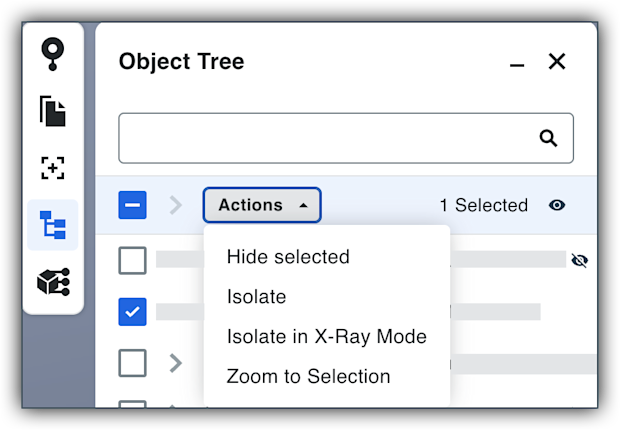
The Actions Bar in the Object Tree provides an efficient way to control how you view and interact with 3D model data. Using this feature allows you to quickly declutter your view, zoom to focus on specific model objects, and isolate complex internal details. This helps you maintain the overall context of the model while evaluating specific components.

Things to Consider

  • Required User Permissions

  • Additional Information:

    • The Actions Bar remains unavailable until you choose specific items. Mark at least one file or folder checkbox to activate the menu.

    • Similar actions are available in the 3D space. For details, see Use the Actions Menu in the Viewer.

Steps

  1. Navigate to the Model Manager (Beta) tool.

  2. Open a model.

  3. Click Object Tree.

  4. Select the checkboxes for the files or folders you want. This activates the Actions bar.

  5. Click the Actions menu and choose the desired option: This image shows the Actions Bar and menu options in the Object Tree in the Model Manager tool's viewer.

    • Hide/Unhide Selected. Toggle the visibility of the selected items. You can also click the icon - project model manager - show eye next to the file or folder to toggle visibility.

    • Isolate/Unisolate. Focus exclusively on the selected items, hiding everything else.

    • Isolate in X-Ray Mode/Unisolate in X-Ray Mode. Focus on the selected items while making the rest of the scene semi-transparent.

    • Zoom to Selection. Frame the camera view directly on the selected items.


Windows is a registered trademark of Microsoft Corporation in the United States and other countries. Google Chrome, Android, and Google Play are trademarks of Google LLC. iPhone, iPad, and App Store are trademarks or service marks of Apple Inc., registered in the U.S. and other countries and regions. iOS is a trademark or registered trademark of Cisco in the U.S. and other countries and is used under license by Apple Inc. Autodesk, AutoCAD, Civil 3D, Navisworks, and Revit are registered trademarks or trademarks of Autodesk, Inc., and/or its subsidiaries and/or affiliates in the USA and other countries. All other trademarks are the property of their respective owners.