Navigate the Model Manager Landing Page

Procore Model Manager - Beta Access & Feedback

The Model Manager (Beta) features and documentation are subject to change without notice. Please be aware that this content is restricted to beta participants and requires a direct link to access.

  • To learn about the beta program, see the Beta Participant Guide.

  • To access the beta and provide feedback Afficher/Masquer

    • How to Access: Participating companies must sign the Procore Beta Agreement. Once signed, your Procore Administrator coordinates with your Procore point of contact to enable Model Manager (Beta) on specific Procore projects.

    • How to Provide Feedback During Beta: Contact your dedicated Beta program lead.

    • How to report critical issues: Report breaking changes to Procore Customer Support. For general feedback or non-critical issues, contact your Beta program lead or Procore point of contact.


Currently, only Admin permissions are available. 'Read-Only' and 'Standard' permission levels are coming soon.

The Model Manager (Beta) landing page serves as the central hub for managing your project's Building Information Modeling (BIM) data within Procore. It provides a unified view of the federated project model, individual file versions, and saved project views to streamline communication and coordination.

Things to Consider

Prerequisites

Tailored Roles & Views

To ensure a tailored experience, the landing page will offer two distinct views: one (1) for Admins and one (1) for Standard and Read-Only users.

About the Admin View

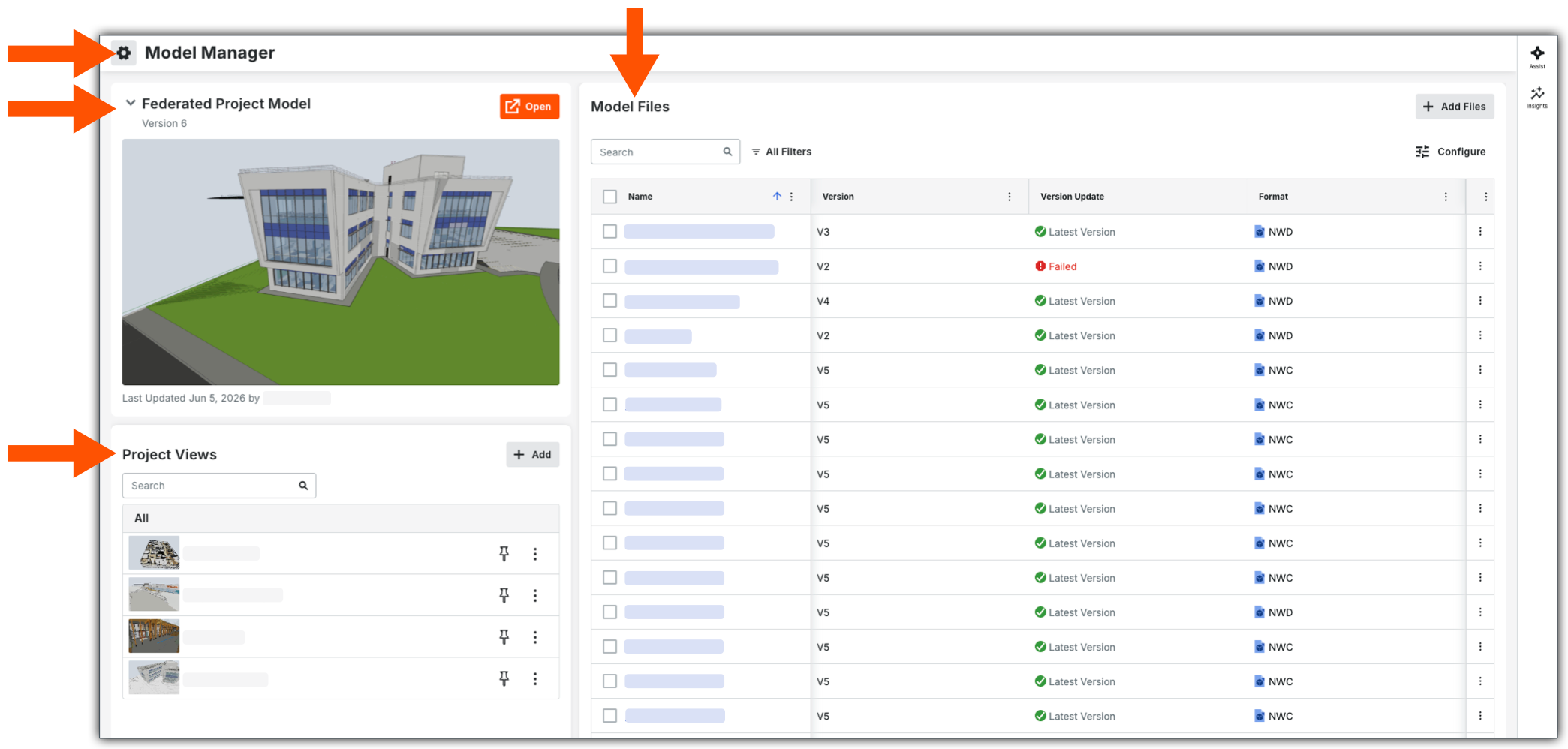
From the Admin view of the landing page, you can click Icon Settings Gear Grey3 Settings to Configure Model Manager Settings. You also have three (3) cards: Federated Project Model, Model Files, and Project Views.

This image shows the default Admin view of the Model Manager landing page with pointers to the Configure Settings page and these cards: Federated Project Model, Model Files, and Project views

To learn about the cards in the Admin view Show/Hide Details

Federated Project Model

The Federated Project Model card serves as your primary gateway to the 3D environment. This model aggregates the 3D discipline files into a single, cohesive view, allowing for comprehensive project coordination. The card provides a high-level snapshot of the model's current status:

  • 3D Environment Access: Click Open to launch the federated project model in the viewer.

  • Visual Preview: Displays a thumbnail of the designated Home viewpoint.

  • Version Control: Shows the latest version of the federated model.

  • Metadata: Displays the date of the most recent change and the user who performed the update.

Project Views

Admins use this card to add, open, manage, search for, and filter saved project views. Hover your mouse cursor over the thumbnails to blow up the thumbnail. Click the Pin icon to create a Pinned Items list for faster navigation to critical project areas, such as specific floor levels or structural systems.

The card provides a high-level snapshot of the model's current status:

  • 3D Environment Access: Click a project view in the list to open it.

  • Search: Enter a keyword or phrase to find a project view.

  • Visual Preview: Displays a thumbnail of the project view.

  • Pinning. Add project views to your Pinned list.

  • Sharing. Click the Share icon to share the project view with others.

Model Files

Only Admins can manage the federated project model through the Model Files card. From here, you can add, search for, and open model files. You can also search for files, filter your view, customize table settings, view file info, update versions, and remove files as needed. The columns that appear in the Model Files table depend on the Procore project's chosen document repository: Documents or Document Management.

About the Standard & Read-Only View

From the Standard & Read-Only view of the landing page, you also have three (3) cards: Federated Project Model, Recently Opened, and Project Views.

This image shows the Model Manager landing page as it displays for users with Read Only and Standard Level permissions.

To learn about the cards in the Standard & Read Only View Show/Hide Details

Federated Project Model

The Federated Project Model card serves as your primary gateway to the 3D environment. This model aggregates the 3D discipline files into a single, cohesive view, allowing for comprehensive project coordination. The card provides a high-level snapshot of the model's current status:

  • 3D Environment Access: Click Open to launch the federated project model in the viewer.

  • Visual Preview: Displays a thumbnail of the designated Home viewpoint.

  • Version Control: Shows the latest version of the federated model.

  • Metadata: Displays the date of the most recent change and the user who performed the update.

Recently Opened

Read Only and Standard users can see the views they've opened within the last seven (7) days in the left pane, under the federated project model.

The card provides a high-level snapshot of the model's current status:

  • Add: Click this button to create a private project view.

  • Search: Enter a keyword or phrase to find a project view.

  • Visual Preview: Displays a thumbnail of the project view.

  • Pinning. Add project views to your Pinned list at the top of the card.

  • Sharing. Click to share the view with others.

Project Views

Read Only and Standard users use this card to add, open, manage, search for, and filter public views. There are two types of views: Public (created by Admins) or Private (created by you). Hover your mouse cursor over the thumbnails to blow up the thumbnail. Click the Pin icon to create a Pinned Items list for faster navigation to critical project areas, such as specific floor levels or structural systems.

The card provides a high-level snapshot of the model's current status:

  • 3D Environment Access: Click a project view in the list to open it.

  • Search: Enter a keyword or phrase to find a project view.

  • Filter: Click the button and apply any filters.

  • Visual Preview: Displays a thumbnail of the project view.

  • Pinning. Add project views to your Pinned list at the top of the card.

  • Sharing. Click to share the view with others.


Windows is a registered trademark of Microsoft Corporation in the United States and other countries. Google Chrome, Android, and Google Play are trademarks of Google LLC. iPhone, iPad, and App Store are trademarks or service marks of Apple Inc., registered in the U.S. and other countries and regions. iOS is a trademark or registered trademark of Cisco in the U.S. and other countries and is used under license by Apple Inc. Autodesk, AutoCAD, Civil 3D, Navisworks, and Revit are registered trademarks or trademarks of Autodesk, Inc., and/or its subsidiaries and/or affiliates in the USA and other countries. All other trademarks are the property of their respective owners.