Ajouter des segments personnalisés

Background

A segment is a discrete category that an organization uses to break down its work into manageable components. A segment item is one of many distinct items in a segment. In Procore's Financial Management tools, segments are the building blocks that define the pattern of your company's

Examples

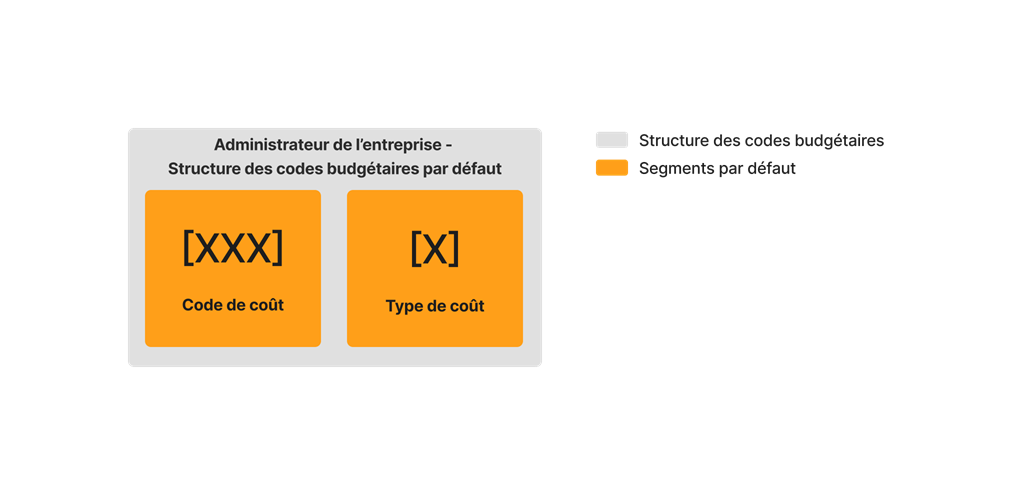
The example below shows you Procore's default budget code structure, which is available in the Company Admin tool. This budget code structure consists of Procore's two (2) default segments: Cost Code and Cost Type. These segments are required.

diagram_wbs_default-budget-code-structure.png

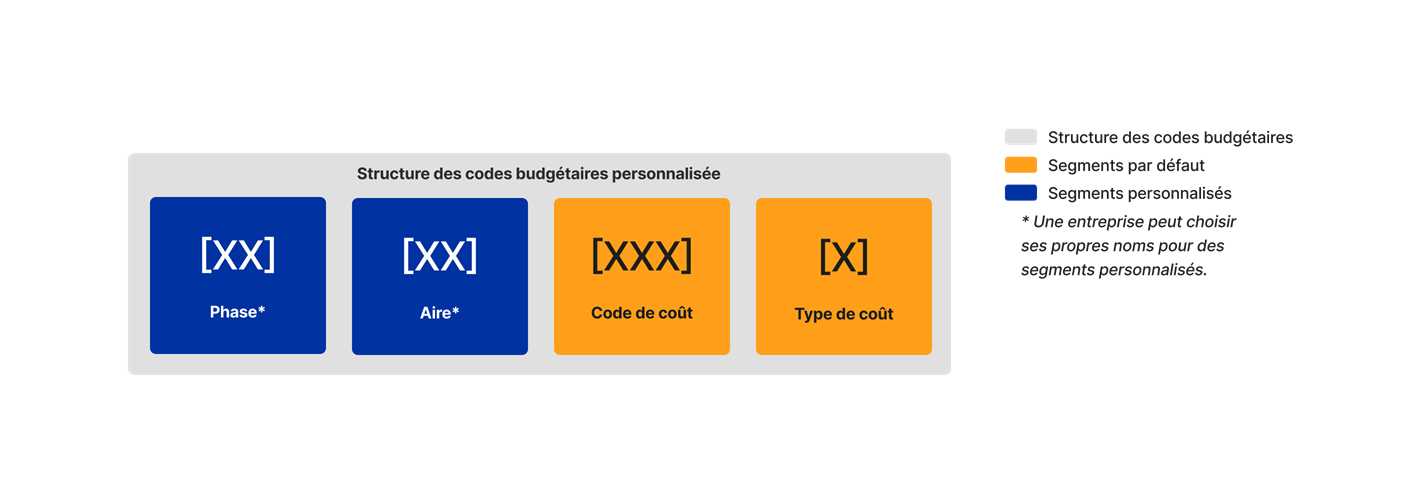
You also have the option to customize your budget code structure with up to ten (10) custom segments. The illustration below shows you how your budget code structure can be customized using a combination of both Procore's default segments and your own custom segments.

diagram_wbs_custom-budget-code-structure.png

When getting started with Procore's WBS, segments must be added in the Company level Admin tool by your company's Procore Administrator. They are later used to define your company's budget code structure. Your company's budget code structure can be applied as-is to individual Procore projects or you can define a unique budget code structure at the project level, using a subset of what has been made available on projects via the company level.

When adding new segments to Procore, your company's Procore Administrator can configure each segment as flat or tiered. To learn more, see What are segments?

 Tip

Not sure what custom segments to create? To learn how other Procore clients use Work Breakdown Structure, see What custom segments should we create for our company's Work Breakdown Structure?

Things to Consider

  • Required User Permissions:

    • 'Admin' level permissions on the Company level Admin tool.

  • Additional Information:

    • Default Segments:

      • There are two (2) required segments: Cost Code and Cost Type. These are Procore's two (2) default segments. You cannot delete these segments at the company or project level.

      • There is also an optional third default segment named Sub Job. This segment can be enabled for use at the project level. See Enable Sub Jobs for WBS.

      • When enabled at the project level, the 'Sub Job' segment is added to the 'Segments' and 'Budget Code Structure' sections of the 'Work Breakdown Structure' page in the Company Admin tool.

      • When enabled on one (1) or more projects, the 'Sub Job' segment counts as one (1) of the thirteen (13) available segments in your company's Procore account.

      • You cannot add or edit the default 'Sub Job' segment at the company. Instead, you must add them to a project. See Add Sub Jobs to a Project.

    • Custom Segments:

      • Duplicate 'Segment' names are NOT permitted.

      • Your company's Procore Administrator can add up to ten (10) custom segments in your company's WBS.

      • Custom segments are automatically available on all Procore projects.

      • After creating a segment, you cannot convert its segment structure. For example, if you create a flat segment, you cannot convert it to a tiered segment later. You also cannot convert a tiered segment to a flat segment. To learn more, see Edit Custom Segment Settings.

      • You can delete a custom segment at the Company level as long as it has not been added to the budget code structure on one (1) or more projects in your company's Procore account. See Delete Custom Segments.

  • Limitations:

    • For customers using the Company level ERP Integrations tool
      The default segments in WBS are compatible with Procore's tool. However, some integrations do NOT yet support custom segments.

    • For customers who have independently developed or purchased a third-party solution to integrate with Procore
      To take advantage of the custom segment capabilities associated with WBS, any existing API integrations that you have independently developed or purchased to interact with Procore must be updated to support Procore's new WBS API.

    • Custom Segments are NOT supported with the ERP Integrations tool.

Steps

  1. Navigate to the Company level Admin tool.

  2. Under 'Company Settings', click the Work Breakdown Structure link.

  3. In the 'Segments' table, click the Add Segment button.

    wbs-default-segment-click-add.png

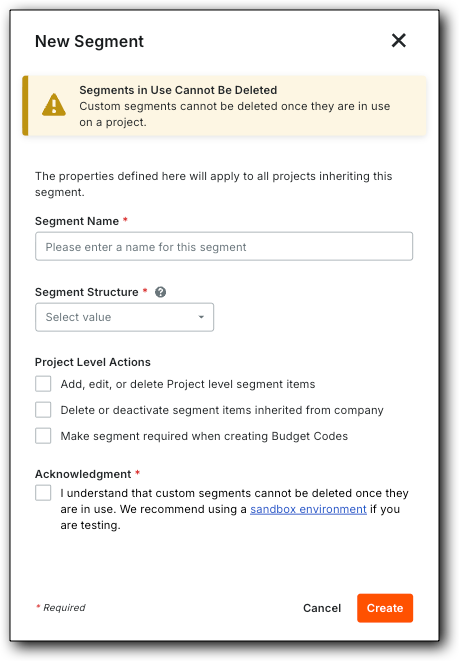
  4. In the 'New Segment' window, do the following:

     Note

    Un astérisque (*) dans la liste ci-dessous indique un champ obligatoire.

    wbs-new-segment.png

  5. Under the Project Level Actions section, choose one (1) or all of these options:

     Note

    Lorsque les paramètres « Actions au niveau projet » sont activés, vos administrateurs de projet (utilisateurs avec des autorisations de niveau « Admin » sur l’outil Admin au niveau projet) sont autorisés à effectuer des tâches spécifiques sur des segments et des éléments de segment au niveau projet. Ces paramètres sont désactivés par défaut.

  6. Click Create. Procore adds the new segment to the bottom of the 'Segments' list.

  7. Repeat the steps above for all of the new segments to add.

 Conseils
  • Besoin de modifier les paramètres de votre nouveau segment ? Le meilleur moment pour modifier un nouveau segment est avant de commencer à l’utiliser sur un projet. Une fois qu’un segment personnalisé est utilisé pour créer un code budgétaire de projet, vous pouvez le modifier à tout moment. Pour plus de détails, voir Modifier les paramètres de segment personnalisés.

  • Vous souhaitez supprimer un segment personnalisé ? Il est important de noter qu’un segment personnalisé ne peut pas être supprimé après avoir été ajouté à la structure des codes budgétaires sur un (1) ou plusieurs projets dans le compte Procore de votre entreprise. Pour en savoir plus, voir Supprimer des segments personnalisés.

  • Vous souhaitez ajouter des éléments de segment ? Si votre nouveau segment est créé, vous pouvez ajouter de nouveaux éléments maintenant. Pour obtenir des directives, voir Ajouter des éléments de segment personnalisés.

  • Prêt à définir la structure des codes budgétaires par défaut de votre entreprise ? Vous pouvez organiser vos segments dans l’ordre de votre choix. Cette organisation définit la structure des codes budgétaires de votre entreprise. Pour obtenir des directives, voir Organiser les segments pour former la structure des codes budgétaires de l’entreprise.

Next Step