Créer des documents et des statuts de contrat
Accédez à l’outil Engagements du projet.
Dans l’onglet Contrats , recherchez l’engagement avec lequel vous souhaitez travailler.
Cliquez sur le lien Numéro pour l’ouvrir.
Dans l’engagement, cliquez sur l’onglet Conformité .
Faites défiler jusqu’à la carte Contrat Conformité Documents.
Cliquez sur Créer.
NoteLe bouton Créer n’est visible et disponible que pour les utilisateurs disposant d’autorisations d’administrateur des factures dans l’outil Engagements du projet.
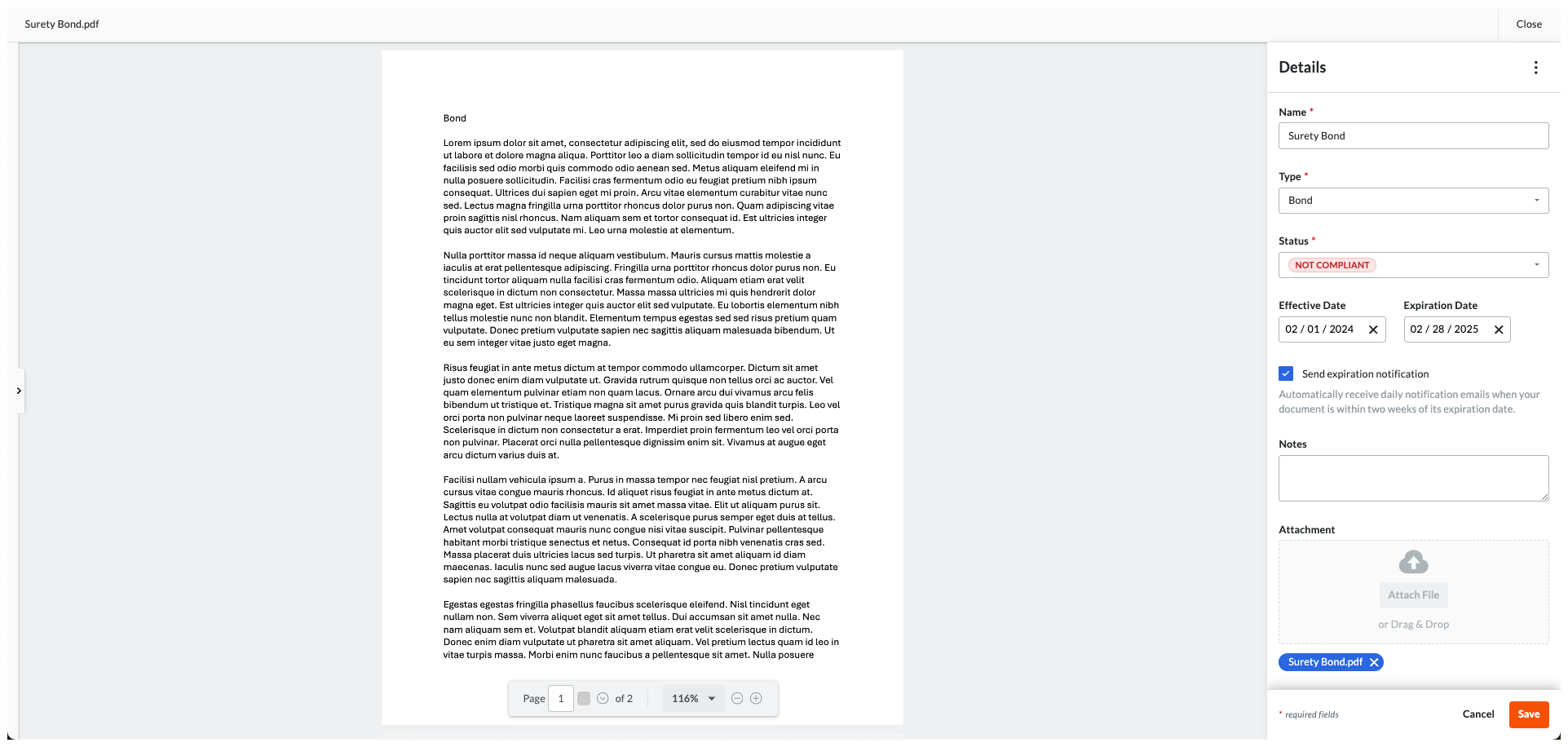
Dans le volet Détails , saisissez :
Nom. Saisissez le nom de l’exigence de conformité. Par exemple, tapez : Cautionnement de garantie
Tapez. Sélectionnez un type d’exigence dans la liste déroulante. Les choix sont Obligation, Licence, Accord-cadre, Permis, Sécurité, W-9 ou Autre.
Statut. Choisissez un statut pour l’exigence : Conforme ou Non conforme.
date d'entrée en vigueur. Sélectionnez une date d’entrée en vigueur pour l’exigence de conformité.
date d'expiration. Sélectionnez une date d’expiration pour l’exigence de conformité.
Envoyer une notification d’expiration. Cochez cette case à cocher pour envoyer une notification quotidienne par e-mail aux contacts de facturation de l’engagement lorsque l’exigence de conformité est dans les quatorze (14) jours suivant la « Date d’expiration » définie.
NotePour arrêter la notification par e-mail, modifiez ou supprimez la date d’expiration. Procore cesse d’envoyer des notifications soixante (60) jours après la date d’expiration.
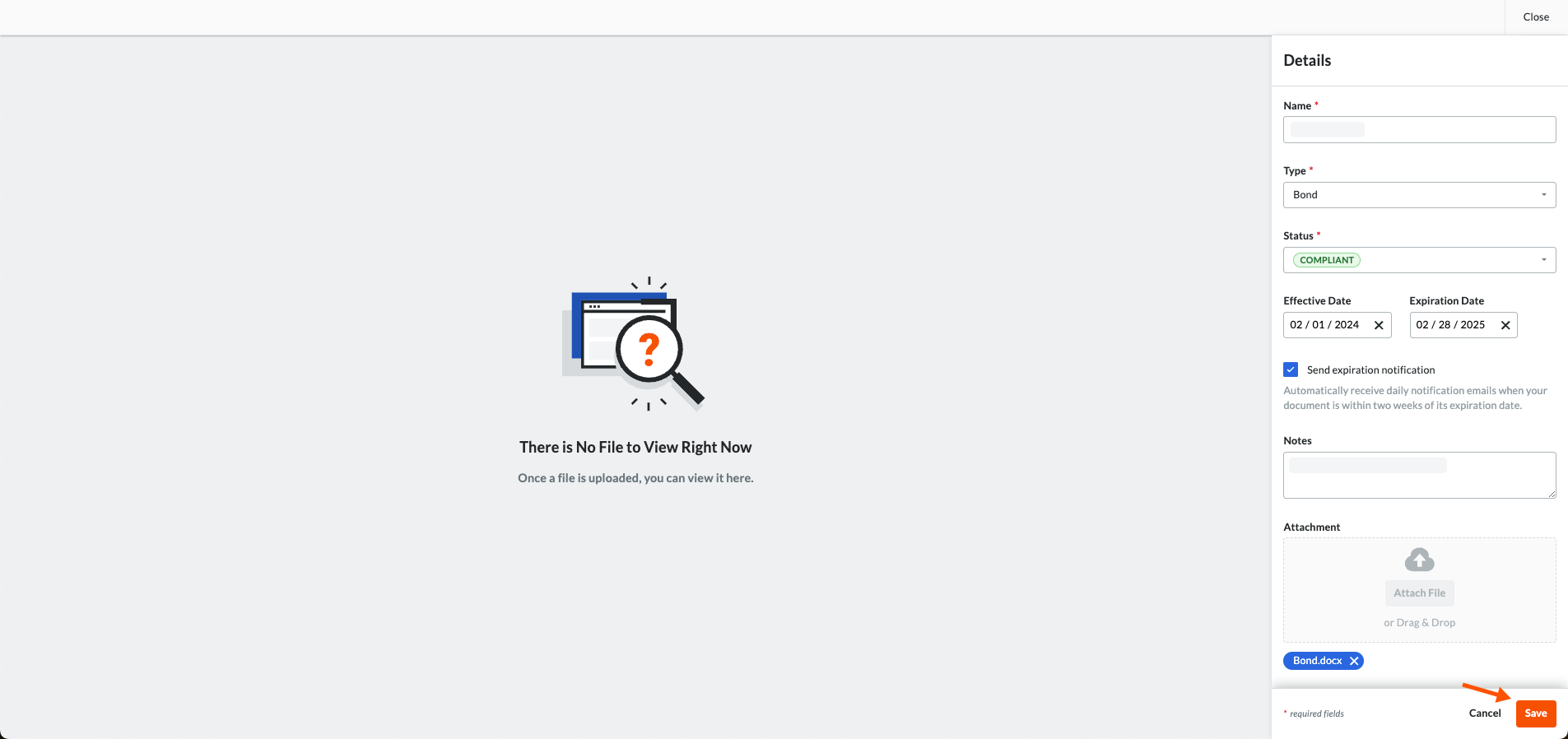 Une bannière verte de réussite confirme que le document de conformité du contrat a été ajouté au tableau. L’action d’ajout est également indiquée dans l’onglet Historique des changements de l’engagement.