Modifier les bons de commande
Fond
Après avoir créé un bon de commande, vous pouvez le modifier à tout moment.
Éléments à prendre en compte
Autorisations utilisateur requises :
Autorisations de niveau « Admin » dans l’outil Engagements du projet.
OUAutorisations de niveau « Lecture seule » ou « Standard » sur l’outil Engagements du projet avec les autorisations granulaires « Mettre à jour le bon de commande de contrat » activées sur votre modèle d’autorisation.
Pour les entreprises utilisant l’outil
 Intégrations ERP : Afficher/Masquer
Si vous modifiez un contrat de sous-traitance qui n’a PAS encore été synchronisé avec le système ERP intégréde votre entreprise , vous pouvez suivre les étapes ci-dessous. Pour déterminer si un contrat de sous-traitance a été synchronisé avec un système ERP, voir Que signifient les icônes ERP ?
Si vous modifiez un contrat de sous-traitance qui a déjà été synchronisé avec le système ERP intégré de votre entreprise, voir Modifier un engagement synchronisé avec le système ERP.
Conditions préalables
Escalier
Accédez à l’outil Engagements du projet.
Dans l’onglet Contrats , recherchez le contrat à modifier et cliquez sur son lien Numéro .
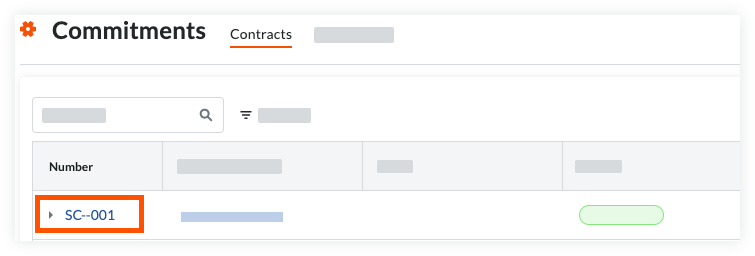
Passez aux étapes suivantes :
Ajouter les informations de base
Mettre à jour les informations générales
Mettre à jour l’accès au contrat
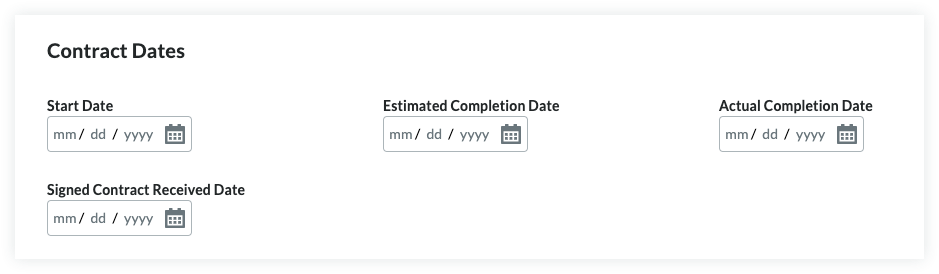
Mettre à jour les dates du contrat
Définir la méthode comptable
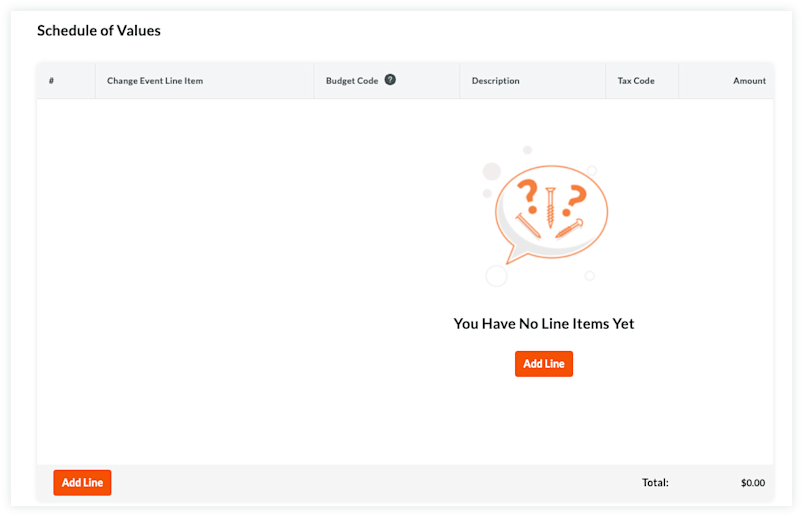
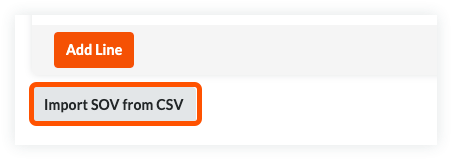
Mettre à jour la ventilation des coûts* Ajouter des postes à la ventilation des coûts* Importer des postes dans la ventilation des coûts à partir d’un fichier CSV
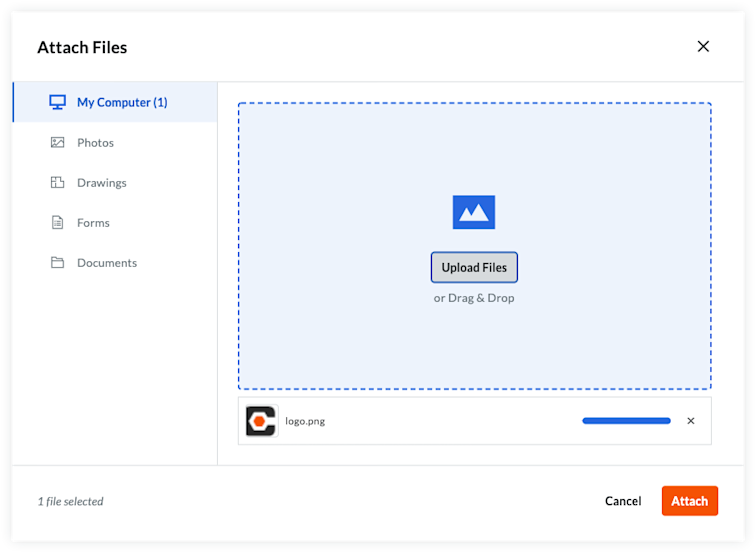
Joindre des fichiers
Enregistrer le contrat
Ajouter les informations de base
Mettez à jour les informations de base comme suit :
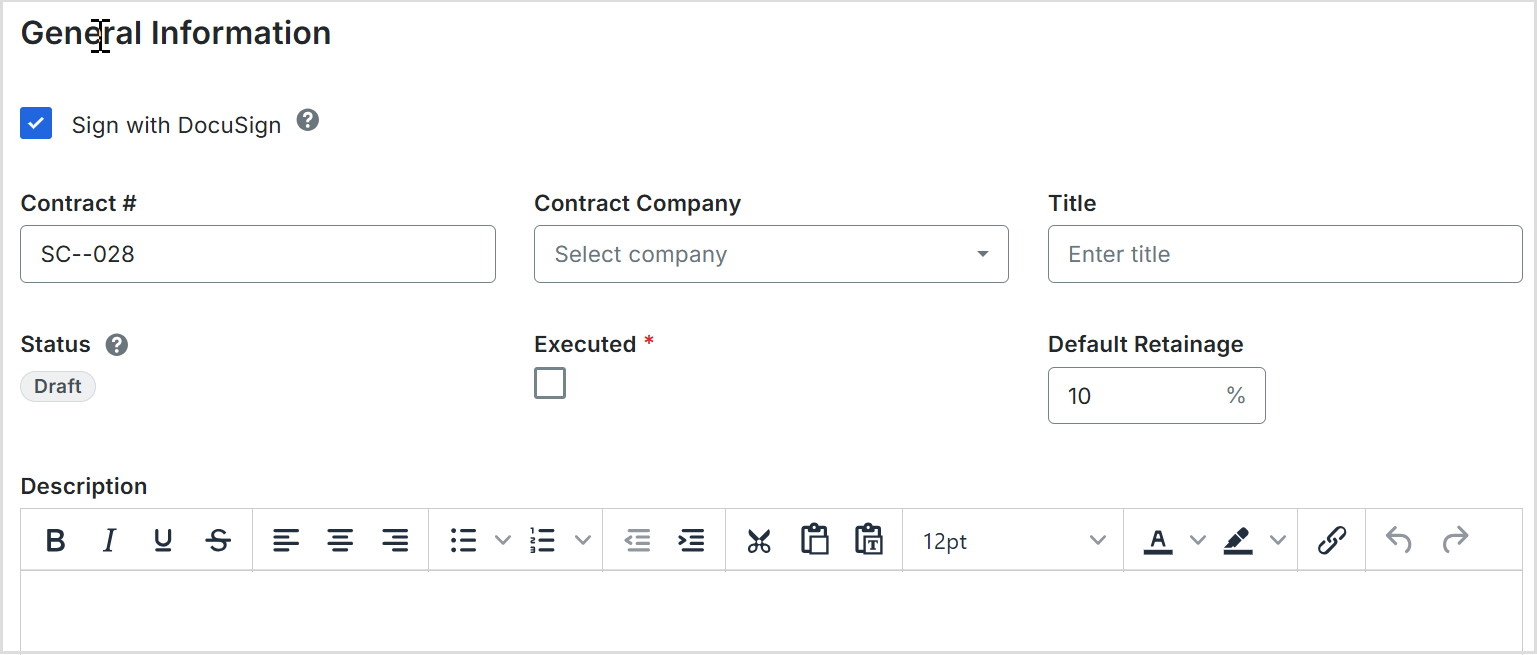
Il n’y a pas de champs obligatoires lors de l’ajout des informations de base.
Si vous cliquez sur le bouton Créer sans avoir terminé la saisie de données, Procore enregistre le contrat, vous répertorie comme créateur et le place automatiquement au statut Ébauche .
Numéro de contrat Pour numéroter vos contrats, choisissez parmi ces options :
Si vous numérotez vos contrats à l’aide d’un système de numérotation séquentielle, vous pouvez saisir n’importe quelle combinaison de caractères alphanumériques dans cette case. Pour les contrats suivants, Procore applique automatiquement la numérotation consécutive dans l’ordre croissant.
ExempleLes exemples ci-dessous vous montrent comment fonctionne la numérotation consécutive ascendante de Procore :
Si le contrat précédent était 1, les contrats suivants sont 2, 3, et ainsi de suite.
Si le contrat précédent était CP-0001, les contrats suivants sont CP-0002, CP-0003, etc.
Si le contrat précédent était DCA00010-12-G-0001, les contrats suivants sont DCA00010-12-G-0002, DCA00010-12-G-0003, etc.
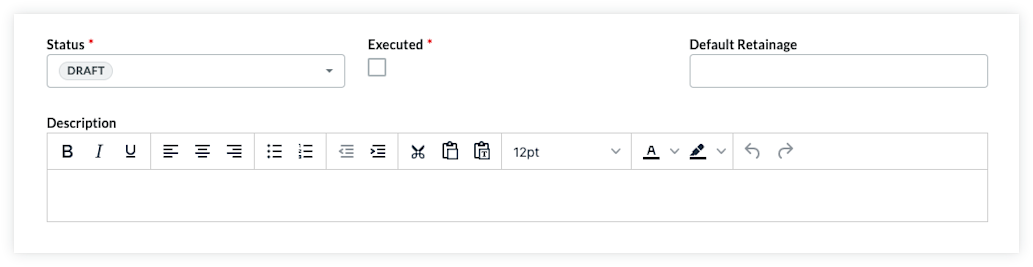
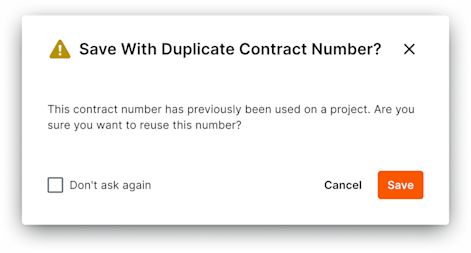 Si le # de contrat de l’engagement que vous créez a déjà été utilisé sur un projet au sein de votre entreprise, une fenêtre de confirmation apparaîtra pour vous demander comment vous souhaitez procéder. Si vous choisissez d’ignorer ce message, cliquez sur Enregistrer et le contrat sera créé. De plus, si vous ne souhaitez pas recevoir ce message lors de la création d’engagements futurs, vous pouvez cocher à nouveau la case à côté du texte Don’at as.