The erpsupport@procore.com email address will be retired on April 8, 2026. We recommend using our enhanced Webform, Phone, or Chat for faster support on new requests.
Send a New Invoice as an Invoice Contact using Procore Pay
General Availability in Select Markets (United States)
Procore Pay is available in the United States. It is designed for General Contractors and Owner-Builders who act as their own General Contractors on a job. Procore Pay extends the Invoice Management functionality in the Procore web application to handle the payment process between general and specialty contractors.
Background
If you're the invoice contact on a
Dans Procore, un engagement est un bon de commande ou un contrat de sous-traitance. Les deux types d'engagements sont des contrats qui représentent un accord financier juridiquement exécutoire entre deux parties.
in Procore, the general contractor's
Un administrateur des factures est une personne ou un groupe de personnes responsable de la collecte, de la vérification et de la création des factures dans Procore. Un administrateur des factures peut être toute personne de votre organisation (par exemple, un chef de projet, un comptable ou une équipe de comptables) qui a reçu les autorisations appropriées pour gérer les factures relatives à vos contrats et/ou financements.
can start your invoicing process by sending you an 'Invite to Bill' so you can submit an invoice for the work your crew completed during the billing period. A Yes response indicates that you want to enter your invoice in Procore and send it to the general contractor for review. A No response indicates that you won't be submitting an invoice for the billing period. If you do not receive the Invite to Bill, you can still create an invoice from the commitment if there is an Open billing period.
Important
Some general contractors choose to collect invoices outside of Procore. If this is the case for your invoice, make sure that you understand the required submission process. Once your invoice is submitted, an invoice administrator can create your invoice for you using Procore's Invoice Management tools. For instructions, see Create an Invoice on Behalf of an Invoice Contact.
With Procore Pay, Procore's Invoice Management tools also provide you with the ability to regenerate, preview, and sign your lien waivers for your invoices.
Things to Consider
Required User Permissions:
You must be the
Un contact de facturation est une personne qui s'assure qu'une facture est soumise à un sous-traitant en amont pour paiement. Dans Procore, un contact de facturation est toujours un employé de l'« entreprise sous-traitante » désignée sur un bon de commande ou un contrat de sous-traitance. L'entreprise sous-traitante est la partie responsable de l'exécution des travaux et/ou de la fourniture des matériaux pour un projet. Pour les clients aux États-Unis utilisant l'outil Facturations proportionnelles de Procore, ce terme est synonyme de « contact de facturation proportionnelle ».
on the commitment.
Additional Information:
You must submit your invoice before the billing period's 'Due Date'.
When a General Contractor sends a downstream collaborator an 'Invite to Bill', they invite an invoice contact to send a response. If you receive an invite, the Invited By person is the invoice administrator for the commitment that the invoice is billing against. This means you are an invoice contact and you can submit an invoice for work completed in the Billing Period. For instructions, see Respond to the Invite to Bill.
Tip
Does Procore send reminders about a Due Date? Yes. Procore emails a reminder to the invoice contact before the Due Date. It also sends a daily reminder after the Due Date passes. To limit the number of reminders you receive, always submit a Yes or No response before the Due Date. After you send your completed invoice or a No response, the reminders stop.
Example
Below is an example of an 'Invite to Bill' sent to an invoice contact. The Subject line is: "Project Name: [Procore User] has invited you to bill." Note that the do-no-reply address from Procoretech is unmonitored and only sends transactional notifications.
Respond to the Invite to Bill
To respond, review the Invoice Details in the invite. Under Do you want to bill this period? click a button:
Yes
To submit an invoice now, click Yes to launch the Procore web application and log in. Next, continue with Update the New Invoice.
To submit an invoice later, keep the invite and click Yes or No before the Due Date.
No
To decline the invite, click No before the Due Date. A Thank You message acknowledges your response. To change your response, click Yes before the Due Date.
Tip
Can't find your 'Invite to Bill'? Invoice contacts are granted permission to log into the Procore project. They also have 'Read Only' permissions or higher on the Commitments tool. If you can't find your invite, you can submit your invoice directly using the Commitments tool. For instructions, see What if my 'Invite to Bill' is lost or missing?
Update the General Information on the New Invoice
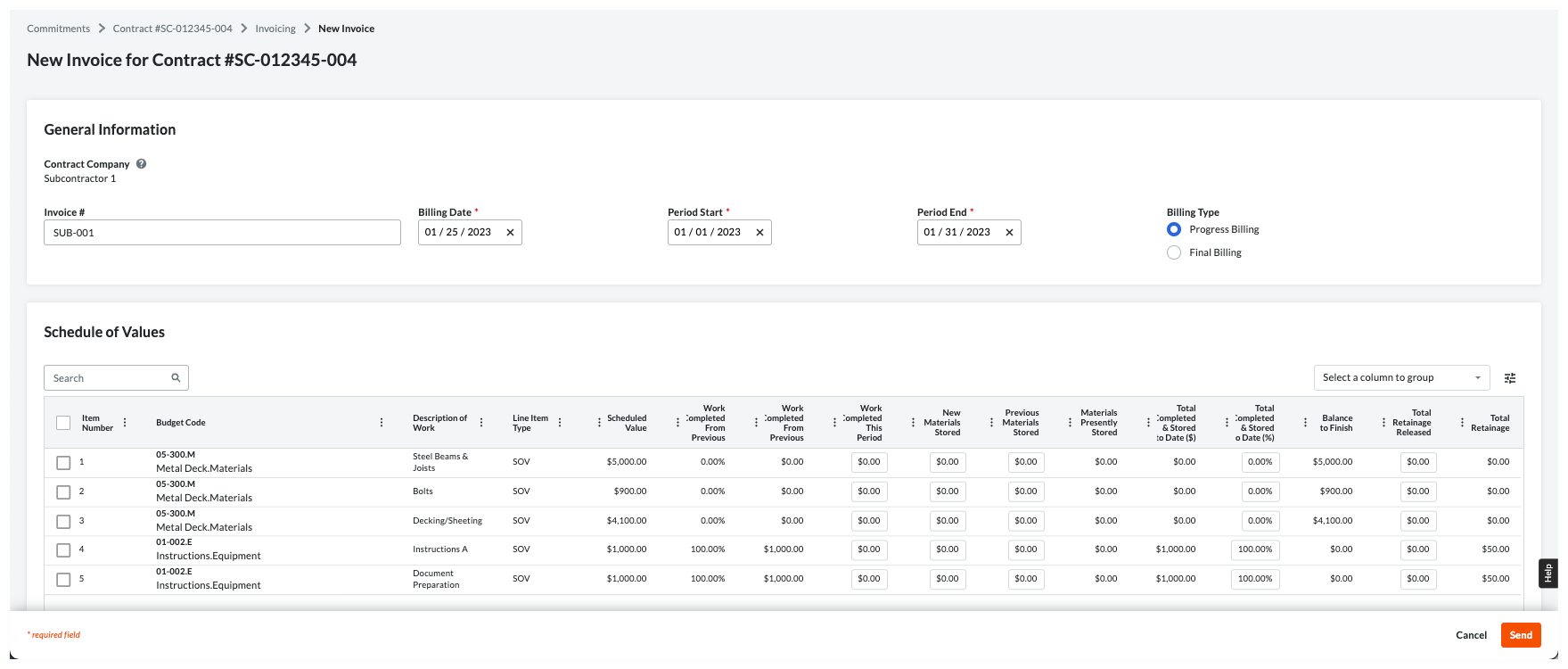
In the New Invoice for [Contract #] page, update these sections: General Information and Schedule of Values beforeclicking Send.
Example
Below is an example of the New Invoice for [Contract #] page that uses the Amount-Based accounting method. There are two accounting methods in Procore, but an invoice administrator can only select one for all of a project's contracts and invoices. See How do I set the accounting method for a contract?
General Information
This table provides you with helpful information to complete the data entry.
In the table below, an asterisk (*) indicates an entry is required.
Field
Field Type
Description
How to complete the entry...
How is this created?
Contract Company
Read Only
Shows your company name. Note: This is the 'Contract Company' assigned on the purchase order or subcontract. The name is stored in the Company Directory.
Verify your company name. If the name is wrong, contact the Invited By person on the 'Invite to Bill'. Important! Do not attempt to contact the person by replying to the invite. It's sent from an unmonitored do-no-reply address.
Shows the 'Billing Type' option. Set by the invoice administrator, this determines whether you sign a Progress or Final lien waiver. Note: Depending on your agreement, you may be required to sign a Conditional and/or Unconditional lien waiver.
Select this option if you will be billing incrementally for work completed. Note: To learn the difference between a Progress Conditional and Progress Unconditional lien waivers, see How are lien waivers categorized?
Shows the 'Billing Type' option. Set by the invoice administrator, this determines if you must sign a Progress or Final lien waiver. Note: Depending on your agreement, you may be required to sign a Conditional and/or Unconditional lien waiver.
Select this option if this is your final invoice. To learn about lien waiver types, see What is a lien waiver?Note: To learn the difference between Final Conditional and Final Unconditional lien waivers, see How are lien waivers categorized?
Après avoir déroulé une ligne dans la section Ordres de changement, cliquez sur la ou les lignes d’ordre de changement d’engagement et la ou les lignes d’ordre de changement potentiel afin de les développer jusqu’à ce que vous atteigniez les postes de saisie de données.
Amount-Based Accounting Method
Use this method to invoice lump-sum amounts for the invoice line items on the Schedule of Values (SOV). Procore automatically calculates and adjusts the other entries on the line item for you. If you want to release retainage, enter a dollar amount as needed. Depending on your specific commitment, you may also have the option to bill for stored materials (pictured below). For details about the additional columns that appear when billing for stored materials, see About Stored Materials on Invoices.
Cliquez ici pour plus d’informations sur la méthode comptable basée sur le montant.
La méthode comptable basée sur le montant nécessite la saisie de sommes forfaitaires pour chaque poste de la ventilation des coûts. Notez que Procore utilise vos entrées pour calculer et mettre à jour automatiquement les valeurs dans d’autres colonnes.
Passez en revue chaque poste de la ventilation des coûts :
Numéro d’article. Indique le numéro du poste.
Code budgétaire. Affiche le code budgétaire assigné au poste.
Description des travaux. Affiche la description du poste.
Valeur planifiée. Affiche la valeur planifiée du poste dans le contrat d’engagement. Il s’agit de la valeur du contrat du poste.
Travaux terminés à partir de la demande précédente ( %). Si des factures précédentes ont été créées pour cet engagement, cette cellule affiche une valeur en pourcentage qui représente le travail effectué au cours des périodes de facturation précédentes.
Saisissez votre facture pour les travaux effectués au cours de la période de facturation en cours :
Travaux achevés cette période. Saisissez un montant pour la période de facturation en cours.
Example
If you completed half of the work for the line item, enter the amount in the Work Completed This Period column. For example, enter $250.00. Procore automatically calculates and updates these columns for the line item:
Total Completed & Stored to Date ($). If the line item has a scheduled value of $500.00, Procore adds $250.00, which is 50%. This represents the amount of the total work for the line item on this invoice plus any amount(s) from past billing periods.
Total Completed & Stored to Date (%). If the line item has a scheduled value of $500.00, Procore changes the column value to 50%, which corresponds to your entry of $250.00. This represents the amount of the total work for the line item on this invoice plus any amount(s) from past billing periods.
Si vous avez reçu des matériaux au cours de cette période de facturation et que vous les entreposez sur le chantier (ou dans une installation d’entreposage), vous avez l’option suivante :
Conditionnel :Nouveaux matériaux entreposés. Saisissez la quantité de nouveaux matériaux entreposés pour la période de facturation en cours. Votre saisie doit exclure tous les coûts saisis dans la colonne « Travaux terminés cette période ».
Note
If the invoice administrator turned ON the 'Enable Billing Separately for Stored Materials' setting for the commitment, enter a dollar amount for materials for this billing period. Your entry automatically calculates the values in these columns: 'Total Completed & Stored to Date ($) %' and 'Total Completed & Stored to Date (%).'
Matériaux précédents stockés. S’il s’agit de la première facture, cette valeur est de 0,00 $.
Note
If there are previous invoices, this value shows the cumulative amounts entered in 'New Materials Stored' on those invoices. An invoice contact cannot modify this setting.
Matériaux actuellement entreposés. Affiche la quantité de matériaux stockés au cours de la période de facturation en cours.
Total terminé et entreposé à ce jour ($). Affiche le montant des travaux terminés et des matériaux entreposés sur le chantier pour la facture en cours et sur la ou les factures pour la ou les périodes de facturation passées.
Si vous soumettez une facture demandant le déblocage d’un montant de retenue de garantie :
Totale retenue de garantie libérée. Saisissez le montant de la retenue de garantie que vous souhaitez débloquer pour cette période de facturation.
Note
Note that you can request the amount to be released, but you are not permitted to change the retainage rate.
Retenue de garantie totale. Affiche le montant cumulé de la retenue de garantie libérée pour le poste.
Continuez les étapes ci-dessus pour chaque poste.
Unit-Based Accounting Method
Use this method when invoicing for materials you've ordered in quantity. With this method, you either enter a percentage value 'Total Progress' column or a monetary value in the 'Work Progress' column. Procore automatically calculates and adjusts the other entries on the line item for you. If you want to release retainage, you can enter a dollar amount in the 'Retainage Released' column needed.
Cliquez ici pour obtenir des informations plus détaillées sur la méthode comptable par unités.
La méthode de comptabilisation basée sur l’unité vous oblige à saisir une quantité et un prix unitaire pour chaque poste sur la ventilation des coûts. Avec cette méthode, Procore calcule automatiquement les totaux des postes pour vous.
Note
An asterisk (*) in the list below indicates that you can edit the value of the SOV line item on your invoice.
Quantité affiche le nombre total d’unités pour le poste.
Prix unitaire Affiche les dépenses engagées pour chaque unité du poste.
Valeur affiche le montant total en dollars du poste. Il s’agit de la somme des valeurs Prix unitaire + Quantité.
Quantité précédente affiche le nombre total d’unités facturées au cours des périodes de facturation précédentes.
Valeur précédente affiche le montant total en dollars facturé au cours des périodes de facturation précédentes.
Progression totale en %.* Saisissez un pourcentage qui reflète votre progression totale. Votre saisie doit refléter la progression cumulée de toutes les périodes de facturation précédentes et de la période de facturation en cours.
Nouvelle quantité.* Saisissez une nouvelle quantité pour refléter la quantité facturée cette période sur la nouvelle facture.
Note
A calculator icon indicates that Procore automatically calculates the line item's Amount based on the entries in the Qty, UOM, and Unit Cost fields. Click here to see an example.
Nouvelle valeur.* Saisissez une nouvelle valeur pour refléter la valeur du poste facturé cette période sur la nouvelle facture.
Note
A warning icon indicates a user's Amount entry overrides the automatic calculation with a custom amount. Click here to see an example.
Libération de la retenue de garantie.* Saisissez un montant de retenue de garantie à débloquer pour cette période de facturation.
Totalede la retenue de garantie Affiche le montant total en dollars de la retenue de garantie à verser pour le poste.
Add Attachments on the New Invoice
To add attachments, click Attach Files to upload any files. You can also drag-and-drop any files.
Tip
Want to attach new files at a later time? To attach files after an invoice administrator approves your invoice (see What are the default statuses for Procore invoices?), you must have 'Standard' level permissions on the project's Commitments tool. Typically, invoice contacts are not granted 'Standard' permissions. However, some invoice administrators choose to make exceptions for trusted contacts on a case-by-case basis.
Save as Draft or Send for Review
To send your invoice back to the invoice administrator for review, click one of these buttons:
To save a Draft invoice, click Save as Draft. You can complete it later before the Due Date.
Tip
Want to share your invoice with others? If so, see Export Subcontractor Invoices. Then insert the exported file as an email attachment or review it as a printout.
OR
To send your completed invoice for review, click Send. This changes the invoice's status to Under Review and sends an email to the invoice administrator. Note: If lien waivers are present, the button will say Next. Click Next to review and sign associated lien waivers.
Un contact de facturation est une personne qui s'assure qu'une facture est soumise à un sous-traitant en amont pour paiement. Dans Procore, un contact de facturation est toujours un employé de l'« entreprise sous-traitante » désignée sur un bon de commande ou un contrat de sous-traitance. L'entreprise sous-traitante est la partie responsable de l'exécution des travaux et/ou de la fourniture des matériaux pour un projet. Pour les clients aux États-Unis utilisant l'outil Facturations proportionnelles de Procore, ce terme est synonyme de « contact de facturation proportionnelle ».
can preview, sign, and regenerate lien waivers for an invoice. Anyone who can view an invoice can preview signed conditional lien waivers. For a list of tasks related to managing lien waivers with the Invoice Management tools, see Manage Lien Waivers on Project Invoices.
Preview Lien Waivers
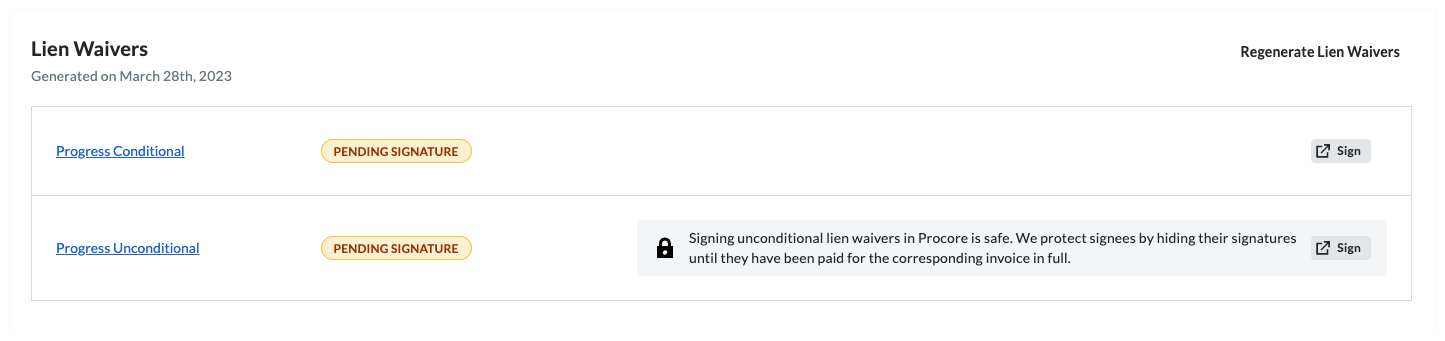
To preview the invoice's lien waivers, scroll to the Lien Waivers card and click the Preview button. This downloads a PDF copy of the selected lien waiver. If your computer is set up to open PDF in a third-party PDF viewer, this opens the PDF. For instructions, see Preview Lien Waivers on Project Invoices.
Sign Lien Waivers
Open the invoice with the lien waiver to sign.
Click the Lien Rights tab.
In the Lien Waivers table, find the waiver and click Sign. Note: The Sign button only appears when the lien is in the Pending Signature state.
Tips
Is it safe to sign an unconditional waiver before payment? Yes. Procore Pay protects your legal interests by hiding your signature behind a gray banner until the invoice is paid in full. If necessary, you can manually Unlock a Signed Unconditional Lien Waiver.
What if I don't have signature authority? You can Share Lien Waiver Signature Authority to invite the appropriate person within your company to sign the document.
In the [Company Name] is Requesting a Lien Waiver window, click Fill Out & Sign. This opens the Fill Out Document window.
Caution
Before signing a lien waiver, it is important to understand the different types and what you are signing to protect your legal and financial interests. See What is a lien waiver?
Choose between a Conditional or Unconditional lien waiver based on the type you are signing and click Next.
Conditional: Use this when you expect to receive a progress or final payment; signing only waives lien rights for the specified amount on the condition that payment is actually received.
Unconditional: Note that these waive lien rights immediately upon signing; Procore Pay protects signees by hiding these signatures until the corresponding invoice is paid in full.
Under Who should receive this document?, choose your signature option.
eSign. Select this option to complete an e-signature. Note: This option only appears when the lien waiver template allows e-signatures.
Click Update Signature.
Use the controls to input your electronic signature.
Click Sign Invoice.
Notarize. Select this option to have your document notarized electronically or manually.
If the ‘Requires Notary’ setting is enabled, choose from the following options in the Notarize your lien waiver page:
Online Notarization (24/7): Click Start Online Notarization to be connected with a certified notary from the OneNotary network. This is the best option if you do not have a notary available, as it allows you to complete the process immediately for a per-session fee.
In-Person eNotarization: Click Start Session to use a digital notary that you already know. This option is ideal if you have a notary on staff or a preferred local partner; if they are not yet registered, they can onboard with OneNotary at no cost.
Traditional In-Person: Click Download and Print to complete the process manually. Select this option if you prefer to print your documents, obtain a physical "wet-ink" signature and seal from a notary in person, and then upload the finished files back to the platform.
Complete the remaining eSignature fields:
Requester: To add new recipients, click the Add Recipient list to select a contact or add a new one. Be sure to assign a Contact Role and click Save.
Email Options: To add a note, enter a message in the Add a Note box. To send a copy to yourself, enter your email in the Send a Copy To box.
When you are ready to send the lien waiver to your recipients, read the Terms of Service provided and click Accept Terms and Send Document.
Once you are done signing the lien waivers you will come back into the Procore Invoice and you will need to click one of these buttons:
To save a Draft invoice, click Save as Draft. You can complete it later before the Due Date.
To send your completed invoice for review, click Send. This changes the invoice's status to Under Review and sends the invoice administrator an email.
Regenerate Lien Waivers
To refresh your lien waivers in the Project level Invoicing tool, scroll to the Lien Waivers card and click the Regenerate Lien Waivers button. Procore refreshes the invoice's lien waivers with the Levelset integration. The date and time of the last successful refresh under the card's heading. For instructions, see Regenerate Lien Waivers on Project Invoices.
Manage Sub-Tiers
With Procore Pay, Invoice Contacts can manage sub-tier subcontractors (see What is a sub-tier subcontractor?) on a project invoice. Users with the appropriate permissions have these options:
Add Sub-Tiers
To provide a complete list of everyone working on a project:
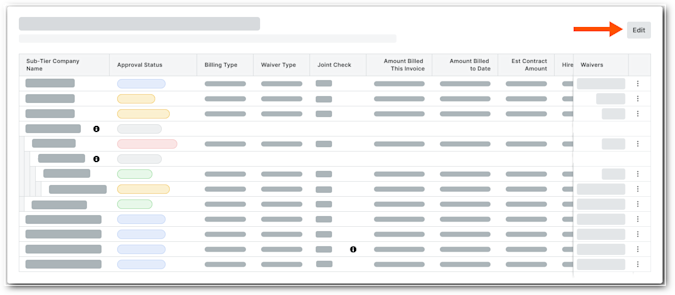
Scroll to the desired sub-tier card in the invoice and click Edit. This places the selected card into editing mode.
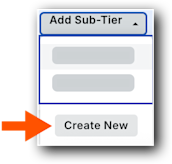
Click Add Sub-Tier at the bottom of the data table, and click Create New.
This opens the Add Sub-Tier panel.
Enter the following information in the line item:
Note
An asterisk (*) below denotes a required field.
Sub-Tier Company Name.* Type a name for the sub-tier.
Kind of Work. Enter the type of work for the sub-tier company. This is a free-form text entry.
Hired By. Choose the sub-tier's hiring company from the Contract Company or Sub-Tiers section of the drop-down list.
Phone Number. Type the primary telephone number for this sub-tier.
Sub-Tier Type. Choose the Supplier or Subcontractor option to indicate the company's business type.
Street Address. Type the primary address for this sub-tier.
Note
To add an apartment, suite, or unit number, click the Add Apt, Suite, Unit link to show those entry fields.
City.* Enter the city for this sub-tier's primary address.
State.* Enter the state for this sub-tier's primary address.
ZIP.* Enter the postal code for this sub-tier's primary address.
Country.* Enter the country for this sub-tier's primary address.
Amount Billed This Invoice*. Enter the amount the sub-tier billed you for this invoice.
Important
No amount billed for this invoice? If one of the listed sub-tiers didn't bill an amount for this invoice, enter $0.00 in the Amount Billed This Invoice field. This field cannot be blank.
Est. Contract Amount. Enter the estimated contract amount for the sub-tier.
Sub-Tier Waiver Contact Email Address. Type the email address of the person signing the lien waiver for the sub-tier subcontractor. This person does not need a Procore user account.
Billing Type. Choose Progress or Final.
Click Add Sub-Tier.
Repeat the step above for each sub-tier subcontractor.
Click Save.
Certify No Sub-Tiers
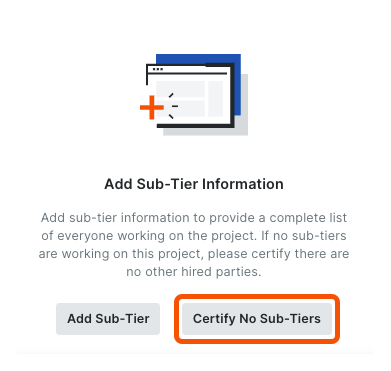
If there are no sub-tier subcontractors for the project invoice, click the Certify No Sub-Tiers button. The message 'You have certified no sub-tiers are involved in this project' appears.
 Procore Pay is available in the United States. It is designed for General Contractors and Owner-Builders who act as their own General Contractors on a job. Procore Pay extends the Invoice Management functionality in the Procore web application to handle the payment process between general and specialty contractors.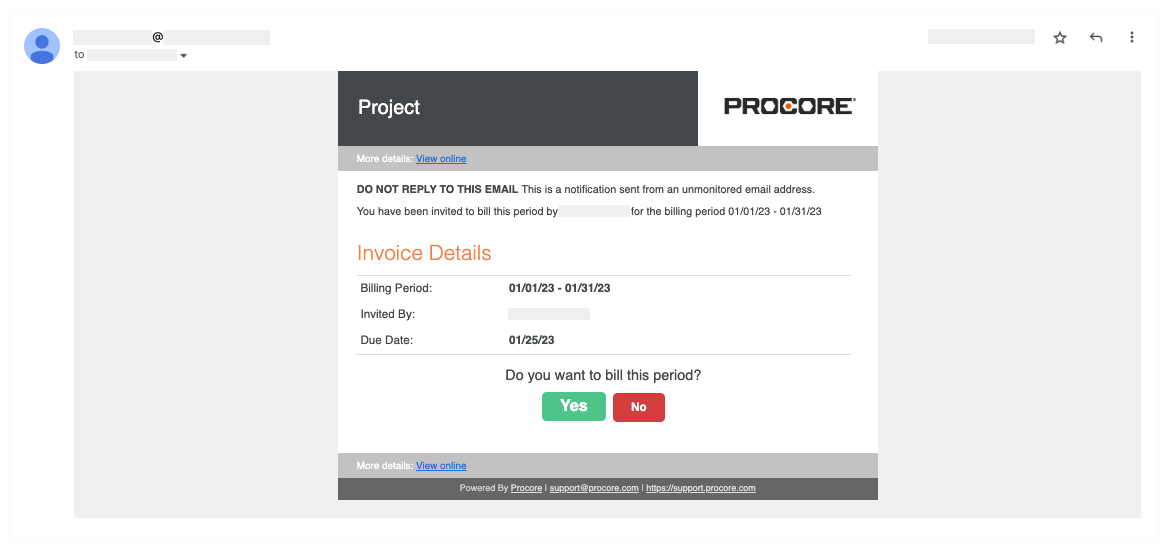

 calculator icon indicates that Procore automatically calculates the line item's Amount based on the entries in the Qty, UOM, and Unit Cost fields. Click
  warning icon indicates a user's Amount entry overrides the automatic calculation with a custom amount. Click