Autoriser un déboursement
Les étapes à suivre dépendent de l’activation ou de la désactivation de l’outil Flux de travail dans votre environnement. Pour les instructions, voir :
Flux de travail activé : Démarrer le flux de travail de paiement et autoriser le décaissement
Flux de travail désactivés : autoriser le décaissement
Une fois autorisés, les instructions de prélèvement et les ordres de paiement d’un débours ne peuvent pas être annulés. Pour annuler un débours avant de l’autoriser, lisez Annuler des débours avant l’autorisation à titre de payeur.
Flux de travail activés : Démarrer le flux de travail de paiement et autoriser le décaissement
Si l’outil Flux de travail est activé, un flux de travail de paiements personnalisé guide votre équipe tout au long du processus d’approbation de votre entreprise. Le système envoie une notification par e-mail à la personne assignée pour la première étape, qui examine ensuite le décaissement et les paiements des factures. Votre équipe peut avoir une (1) ou plusieurs étapes de flux de travail.
Cliquez ici pour voir les étapes.
Démarrer le flux de travail de paiement
Dans la page # de décaissement, cliquez sur Démarrer le flux de travail.
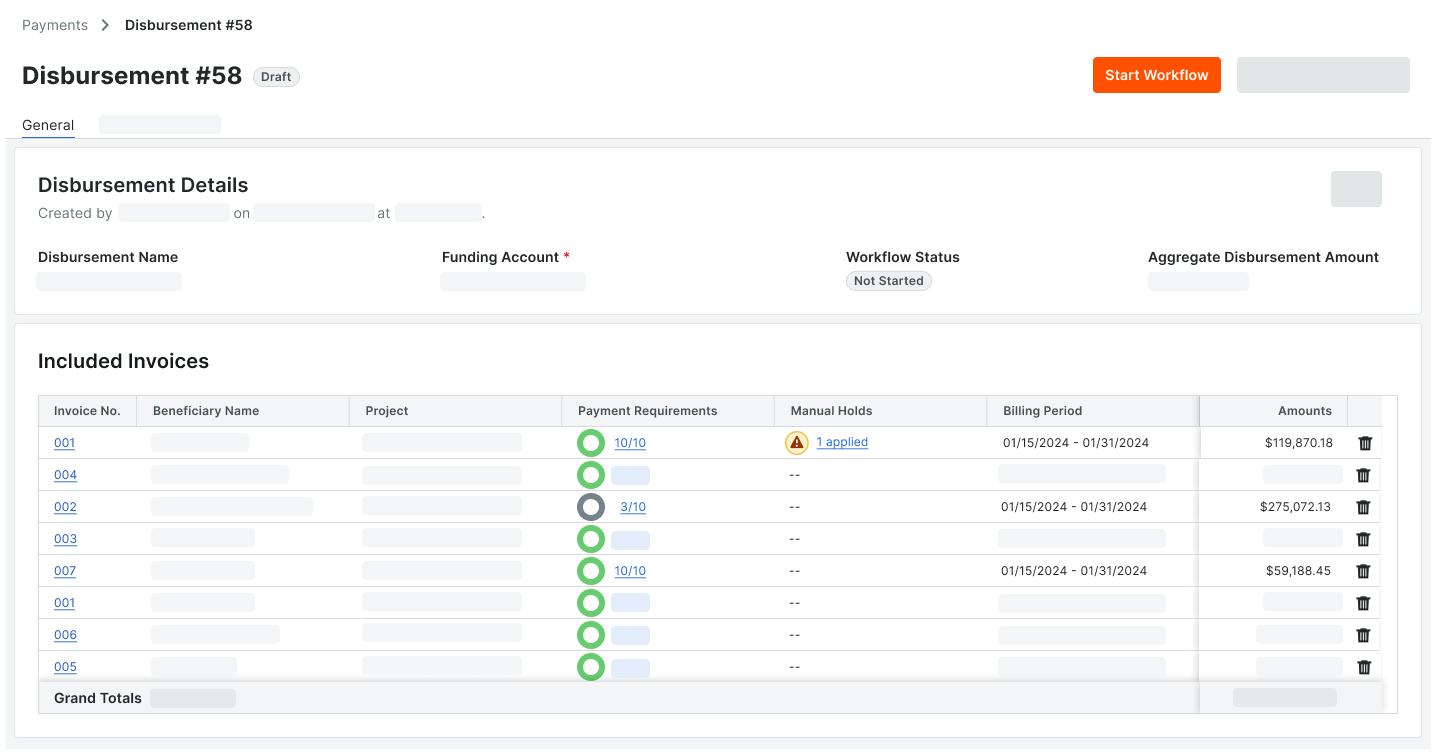
Le système démarre les paiements personnalisé flux de travail configurés pour l’outil Paiements. Le Flux de travail Statut passe de Non démarré à En cours de révision. Un panneau Flux de travail s’ouvre également sur le côté droit de la page.Chaque personne assignée du flux de travail de paiements personnalisés doit terminer l’étape qui lui a été assignée. Pour obtenir des directives, voir Approuver ou rejeter un décaissement avec un flux de travail de paiements personnalisé.
Dans le panneau Flux de travail, le système affiche le nom de l’étape du flux de travail en cours, la date d’échéance, le statut de l’étape et le nom de l’étape personne assignée.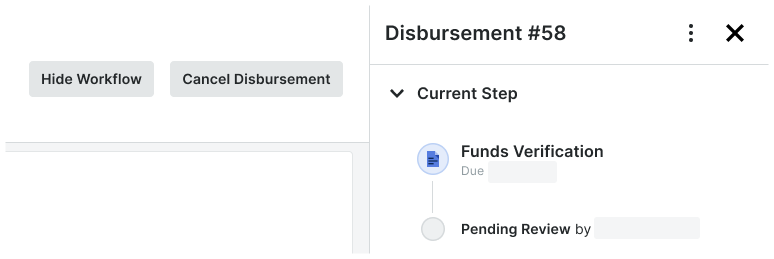 Conseils
Vous souhaitez masquer le panneau Flux de travail du décaissement ? Cliquez sur Masquer le flux de travail.
Vous voulez annuler le déboursement ? Cliquez sur Annuler le décaissement. Cette action supprime définitivement le débours. Il ne peut pas être récupéré, mais vous pouvez en créer un nouveau pour le remplacer.
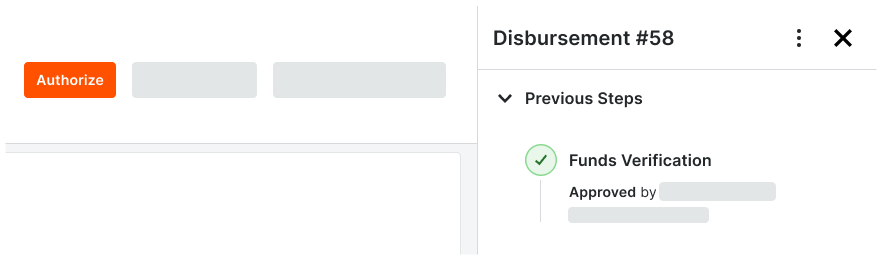
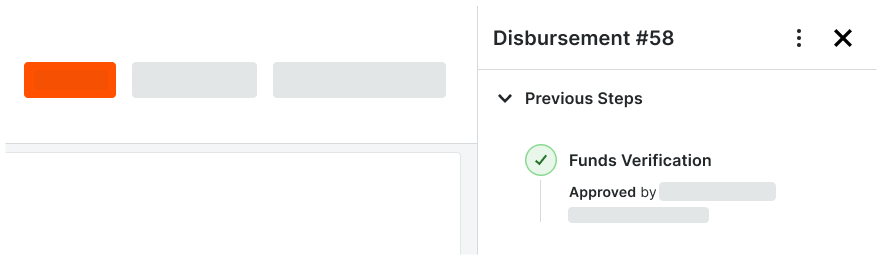
Une fois que toutes les étapes de flux de travail sont terminées et que le décaissement est approuvé, le panneau de Flux de travail affiche un enregistrement de chaque étape qui comprend le nom de chaque approbateur, ainsi qu’une date et un horodatage pour l’étape terminée.
Passez à l’étape suivante.
Autoriser le déboursement
Une fois le décaissement approuvé, un Admin des paiements ou un Débourseur des paiements termine l’étape d’autorisation. Pour protéger votre entreprise contre les risques d’inconduite, Procore exige que deux (2) utilisateurs différents s’occupent de l’approbation des factures et de l’autorisation des paiements. Cela permet d’éviter qu’un seul utilisateur de Procore approuve unilatéralement une facture et autorise le paiement correspondant.
Les administrateurs de paiements et les débours ne peuvent pas autoriser un décaissement s’ils sont également le dernier utilisateur à approuver une facture de sous-traitant dans ce décaissement.
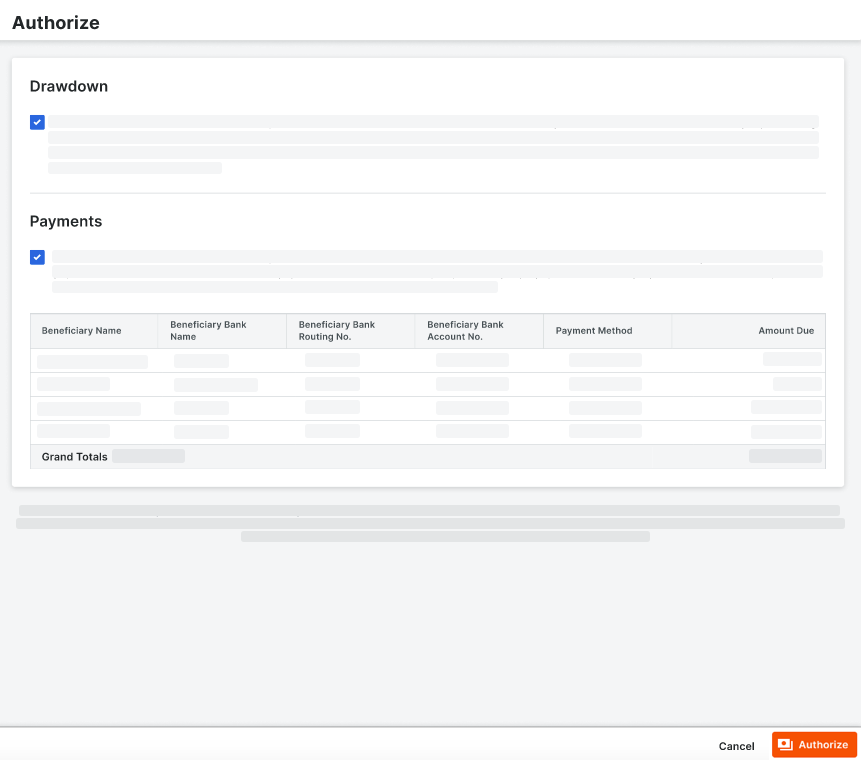
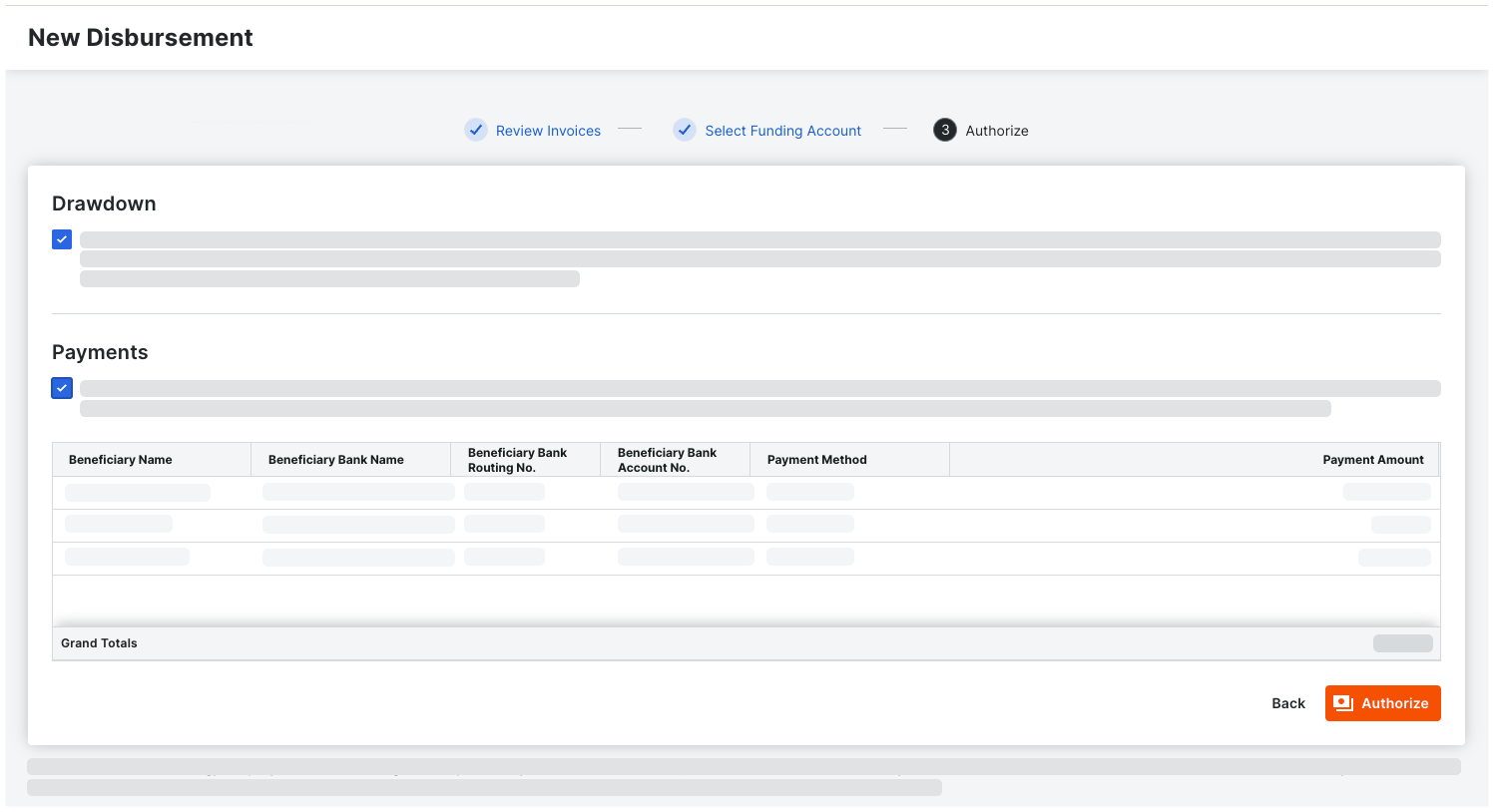
Dans l’onglet Général du déboursement, cliquez sur Autoriser.
PointeVous ne voyez pas le bouton Autoriser ? Si votre entreprise a activé l’outil Flux de travail, mais n’a pas configuré de flux de travail de paiements personnalisés pour Procore Pay, une bannière d’alerte apparaît. Consultez les bonnes pratiques pour la création d’un flux de travail de À propos de l’onglet Traitement des paiements de l’outil Paiements - Configurer un modèlepaiements et Configurer les paramètres d’un modèle de flux de travail de paiement.