Ce site Web n'est pas encore complètement disponible dans votre langue
La seule page du site de support V2 disponible dans vos paramètres régionaux est celle de la bibliothèque vidéo. Le lancement complet du site Web arrivera prochainement.
Vous recherchez d'autres contenus ? Retournez sur le site de support V1.
Manuels de produits populaires
Les manuels de produits les plus utilisés sur le chantier
Disponibilité générale sur certains marchés (États-Unis)
Procore Pay est disponible aux États-Unis. Il est conçu pour les entreprises générales et les constructeurs-propriétaires qui agissent comme leurs propres entreprises générales sur un projet. Procore Pay étend la fonctionnalité de gestion des factures de l’application Web Procore pour gérer le processus de paiement entre les entrepreneurs généraux et spécialisés.
Dans Procore Pay, un administrateur des paiements est un utilisateur Procore désigné qui administre l'outil de paiements au niveau de l'entreprise pour le compte Procore de cette entreprise. En règle générale, un (1) ou un petit nombre d’utilisateurs de confiance sont désignés pour effectuer les tâches associées à ce rôle.
ou
Dans Procore Pay, un payeur est un utilisateur Procore autorisé à créer et à consulter des décaissements dans l'outil Paiements au niveau de l'entreprise. En raison de la nature sensible des paiements, seul un administrateur des paiements peut ajouter/supprimer des payeurs.
peut créer des décaissements à l’aide de l’onglet « facture de sous-traitant » de l’outil Paiements au niveau Entreprise. Un décaissement peut traiter jusqu’à 100 paiements de factures de sous-traitants et être enregistré sous forme d’ébauche pour plus de flexibilité. Les utilisateurs peuvent ajouter ou supprimer des factures dans Ébauche statut avant l’autorisation.
Grâce à l’outil Niveau entreprise Flux de travail, les payeurs peuvent suivre facture paiement exigences et commencer un personnalisé paiements flux de travail pour révision et approbation. Sans l’outil Flux de travail, les administrateurs des paiements ou les débourseurs vérifient et autorisent directement les paiements. Un décaissement Procore Pay initie la demande de prélèvement depuis le compte de financement et transfère les fonds sur le compte de dépôt pour traiter et exécuter les ordres de paiement.
Le tableau ci-dessous détaille la différence entre un compte de financement et un compte de dépôt :
Type de compte
Définition
But
Pour en savoir plus
Compte de financement
Un compte bancaire utilisé comme source pour retirer des fonds pour des décaissements.
Retient les fonds du payeur et les débloque dans le compte de dépôt.
Procore Pay initie un virement inversé depuis le compte de dépôt pour transférer les fonds d’un décaissement du compte de financement vers le compte de dépôt.
Reçoit les fonds retirés pour traiter et exécuter les ordres de paiement des factures de sous-traitants d’un décaissement.
* Procore est une entreprise de technologie financière, pas une banque. Les services bancaires sont fournis par nos institutions financières partenaires. Paiement services de traitement et de transfert d’argent sont fournis par Procore Paiement Services, Inc. (NMLS ID : 2560496). Les comptes et les services sont assujettis aux modalités, conditions et frais respectifs de l’institution qui les fournit.
Pointe
Vous avez besoin de plusieurs comptes de dépôt ? Vous avez besoin de plusieurs comptes de dépôt ? Pour éviter de mélanger les fonds et rationaliser le rapprochement, vous pouvez ouvrir des comptes de dépôt supplémentaires pendant ou après la mise en œuvre de Procore Pay. Soumettez votre demande à l’équipe Opérations de paiement de Procore.
Pour recevoir des paiements, les bénéficiaires doivent disposer d’un compte Procore gratuit ou payant et un utilisateur disposant d’autorisations d’administrateur doit ajouter en toute sécurité un compte bancaire vérifié. Pour plus d’informations, consultez le Guide de configuration du bénéficiaire.
Un seul décaissement peut traiter jusqu’à 100 paiements de factures de sous-traitants.
Procore Pay exige un solde de paiement positif pour toutes les transactions. La compensation des totaux de factures positifs par des soldes de factures négatifs n’est pas prise en charge.
Les contributeurs aux décaissements ne peuvent enregistrer leurs décaissements qu’en tant que traites.
Les administrateurs de paiements et les débours ne peuvent pas autoriser un débours s’ils étaient l’approbateur final de l’une des factures incluses.
Créez au moins un (1) engagement sur un projet Procore payant. Voir Créer un Engagement.
Créez au moins une (1) facture de sous-traitant pour un engagement et définissez le statut « Approuvé » de la facture. Voir Créer une facture de sous-traitant.
Escalier
Réviser les factures
Sélectionnez Entité commerciale et compte de financement
Sélectionnez une (1) ou plusieurs factures « impayées » en cochant la ou les cases à cocher et en cliquant sur Ajouter au décaissement.
Si un ou plusieurs débours « Ébauche » sont disponibles pour ajouter le ou les facture sélectionnés, choisissez Ajouter au décaissement ou Créer un nouveau dans le menu déroulant.
S’il n’y a pas de débours « Ébauche » disponibles auxquels ajouter la ou les factures sélectionnées, cliquez sur Créer.
À noter
Lors de l’utilisation d’un flux de travail de paiements personnalisé, la page Nouveau décaissement contient deux sous-pages : #1 Réviser les factures et #2 Sélectionner un compte de financement.
Lorsque vous n’utilisez pas de flux de travail personnalisé, la page Nouveau décaissement contient également une sous-page #3 Autoriser .
Dans la page #1Réviser les factures , confirmez la liste des factures ajoutées au débours. Utilisez l’icône pour supprimer les factures si nécessaire.
Pointe
Utilisez les carats de l’en-tête de colonne Montants pour développer le groupe de colonnes afin d’afficher le montant net, le montant payé, le montant du chèque conjoint, les frais de paiement anticipé, le montant dû et le montant du paiement pour chaque facture.
Sélectionnez Suivant ou Continuer.
Sélectionnez Entité commerciale et compte de financement
L’étape suivante dépend de la configuration par votre entreprise d’un flux de travail de paiements personnalisé. Consultez Bonnes pratiques pour la création d’un flux de travail de paiement. Pour les entreprises opérant avec plusieurs entités commerciales, une liste déroulante Entité commerciale s’affiche.
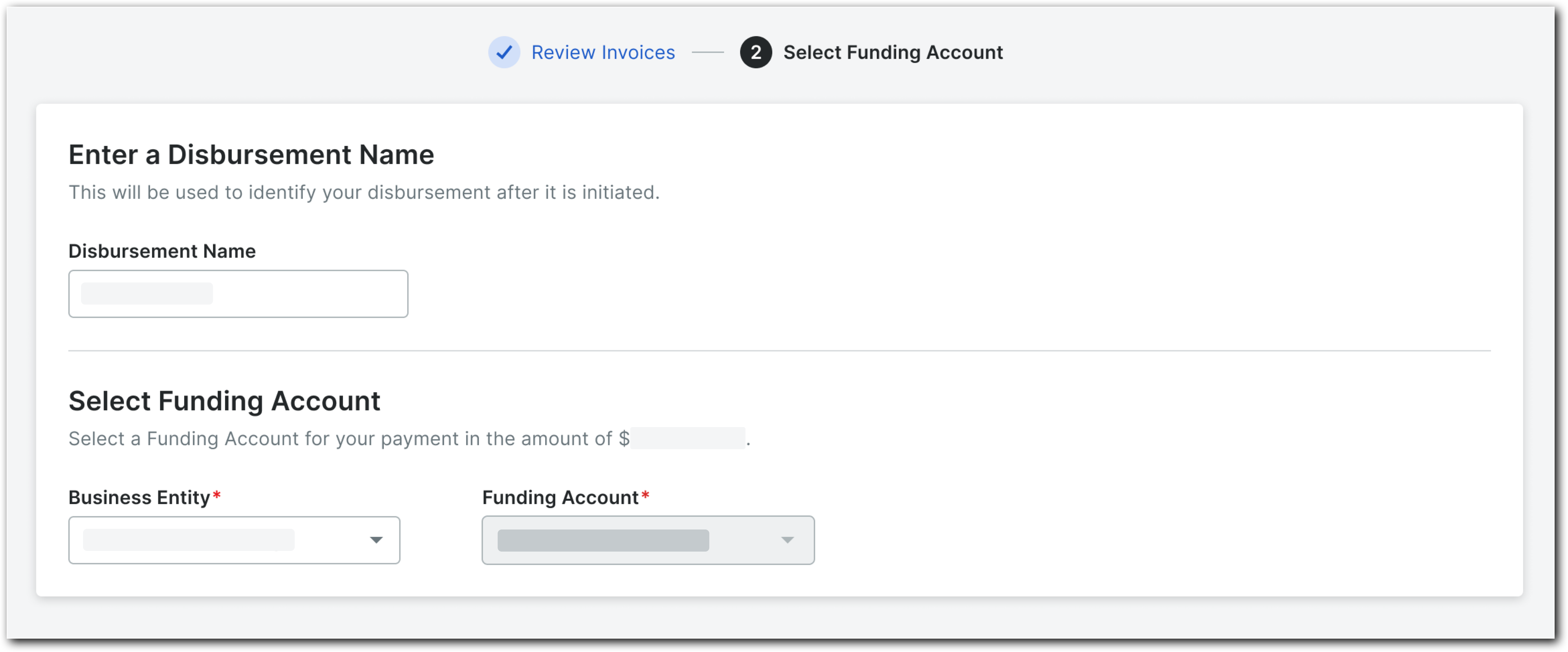
Dans la page #2 Sélectionner un compte de financement , entrez les détails du décaissement :
Entité commerciale. Le cas échéant, sélectionnez l’option appropriée
Dans Procore Pay, une entité commerciale est une organisation reconnue comme distincte de son ou ses maîtres d’ouvrage. Certaines entreprises de construction opèrent comme une seule entité commerciale, tandis que d’autres opèrent comme plusieurs entités commerciales, chaque entité, filiale ou division se concentrant sur la supervision d’un marché ou d’un secteur différent.
Compte de financement. Sélectionnez votre entreprise dans
Dans Procore Pay, un compte de financement est un compte bancaire dans lequel l’argent est détenu par une institution financière et contrôlé par le payeur. Il s’agit du compte « Payer à partir de ».
la liste déroulante. Si un seul compte de financement est configuré pour l’entité sélectionnée, il sera présélectionné.
Nom du décaissement. Saisissez un nom unique pour aider les autres personnes à identifier le déboursement. La limite maximale de caractères est de 50.
Sélectionnez une option pour terminer la saisie :
Enregistrer comme Ébauche. Enregistrer le déboursement en tant qu’Ébauche. Procore ajoute un Ébauche statut au décaissement pour faciliter l’identification. Pour ajouter d’autres factures au décaissement, voir Ajouter des factures de sous-traitant à un Ébauche de décaissement.
Démarrer le flux de travail. Pour poursuivre les étapes de Flux de travail activés : Démarrer le flux de travail de paiement et autoriser le décaissement.
Continuer. Procéder à l’autorisation des débours. Remarque: Le bouton Continuer n’apparaît que si vous n’avez pas de flux de travail de paiements personnalisé. Si vous disposez d’un flux de travail de paiements personnalisé, le bouton Démarrer le flux de travail apparaîtra à la place.
Après avoir cliqué sur Enregistrer comme Ébauche, Continuer ou Démarrer le flux de travail, le système vérifie si les factures sélectionnées sont éligibles au paiement. Si des factures ne sont pas éligibles au paiement, un message d’erreur s’affiche.
Info
Cliquez sur Afficher les détails pour développer le message et examiner les détails.
Cliquez sur Masquer les détails pour masquer le message d’erreur.
Cliquez sur Désélectionner tout et recommencer pour supprimer les factures concernées et :
Si toutes les factures sélectionnées ne sont pas éligibles au paiement, vous êtes renvoyé à l’onglet Factures de sous-traitant dans l’outil Paiements pour recommencer.
Si au moins une facture sélectionnée est éligible au paiement, vous êtes redirigé vers l’étape Réviser les factures dans le panneau Nouveau décaissement .
 Procore Pay est disponible aux États-Unis. Il est conçu pour les entreprises générales et les constructeurs-propriétaires qui agissent comme leurs propres entreprises générales sur un projet. Procore Pay étend la fonctionnalité de gestion des factures de l’application Web Procore pour gérer le processus de paiement entre les entrepreneurs généraux et spécialisés.