Tutoriais

Procore Model Manager - Beta Access & Feedback

The Model Manager (Beta) features and documentation are subject to change without notice. Please be aware that this content is restricted to beta participants and requires a direct link to access.

  • To learn about the beta program, see the Beta Participant Guide.

  • To access the beta and provide feedback Show/Hide Details

    • How to Access: Participating companies must sign the Procore Beta Agreement. Once signed, your Procore Administrator coordinates with your Procore point of contact to enable Model Manager (Beta) on specific Procore projects.

    • How to Provide Feedback During Beta: Contact your dedicated Beta program lead.

    • How to report critical issues: Report breaking changes to Procore Customer Support. For general feedback or non-critical issues, contact your Beta program lead or Procore point of contact.


Currently, only Admin permissions are available. Procore will add more permission levels later.

Model Manager (Beta) unifies fragmented project data into a single source of truth. Admins can combine isolated discipline files into one federated 3D scene directly in Procore. After merging these files, you can begin conditioning the model.

Diagram

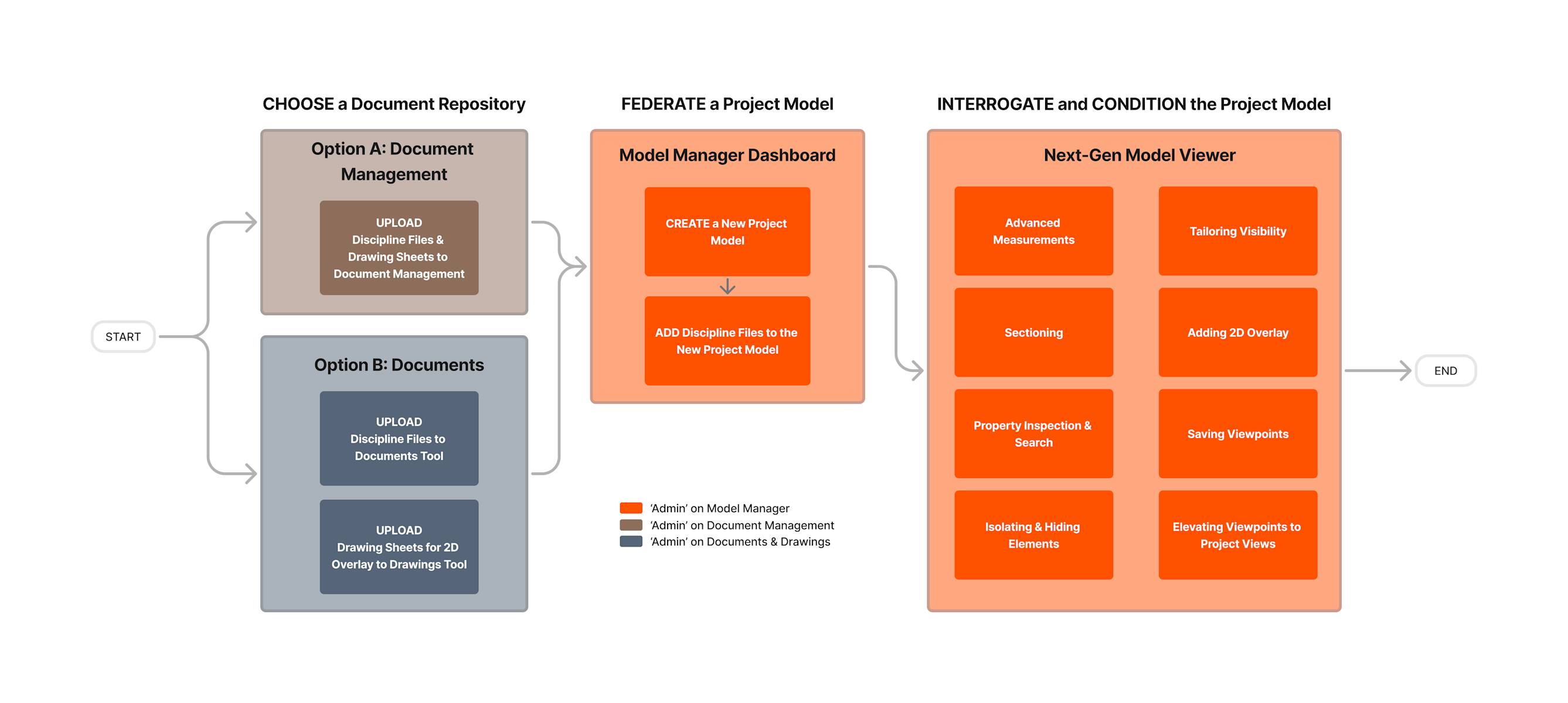
To federate a new project model, use this workflow.

This Diagram shows the basic workflow for uploading, federating, and conditioning a 3D project model in the project's chosen document repository and the Model Manager tool.

Key Steps

Follow these steps to federate a new project model within the Model Manager (Beta).

Step

Action

Details & Tooling

Links & Resources

1. Choose Repository

Option A: Document Management

Upload both Discipline Files and Drawing Sheets directly to the Document Management tool.

Upload Files to Document Management

Option B: Documents & Drawings

Upload Discipline Files to the Documents tool; upload Drawing Sheets (for 2D overlay) to the Drawings tool.

Upload Files to Documents

Upload 2D Drawing Sheets for 2D Overlay

2. Federate Model

Create a New Project Model

Initialize the container for your federated data.

Create a New Project Model

Add Discipline Files

Select an link trade files from your chosen repository to the new project model.

Add Discipline Files to a New Project Model

3. Finalize

Interrogate & Condition

Align 2D and 3D data to ensure they work in harmony within the model.

About Model Interrogation & Conditioning


Windows is a registered trademark of Microsoft Corporation in the United States and other countries. Google Chrome, Android, and Google Play are trademarks of Google LLC. iPhone, iPad, and App Store are trademarks or service marks of Apple Inc., registered in the U.S. and other countries and regions. iOS is a trademark or registered trademark of Cisco in the U.S. and other countries and is used under license by Apple Inc. Autodesk, AutoCAD, Civil 3D, Navisworks, and Revit are registered trademarks or trademarks of Autodesk, Inc., and/or its subsidiaries and/or affiliates in the USA and other countries. All other trademarks are the property of their respective owners.