Enable Model Manager on a Procore Project
Procore Model Manager - Beta Access & Feedback
The Model Manager (Beta) features and documentation are subject to change without notice.
To learn about the beta program, see the Beta Participant Guide.
The Model Manager (Beta) features and documentation are subject to change without notice.
To learn about the beta program, see the Beta Participant Guide.
Once Procore activates Model Manager (Beta) for your company and project, your team can manage 3D models directly in the platform to improve coordination. Project Admins simply need to enable the tool to get started.
Required User Permissions Currently, only Admin permissions are available. Procore will add more permission levels later.
Your company must be a registered beta program participant.
Procore must:
Activate the Model Manager for the Company Admin tool.
Add your Procore project to its Beta Participant list.
Navigate to the Project Admin tool.
If your team's project is not on Procore's approved Beta project list, the Model Manager (Beta) tool will not be accessible in the menu. Contact your Procore point of contact for assistance.
Click Tool Settings.
Start typing Model Manager in the Jump to a Tool box.
Move the Model Manager toggle to the Active position.
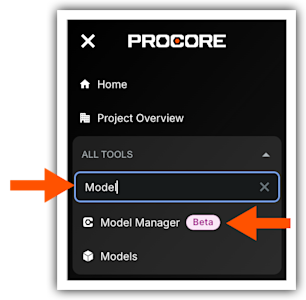
Start typing Model Manager in the Search All Tools box. 
Click the menu option to launch the tool in your web browser.