Hide Objects
Procore Model Manager - Beta Access & Feedback
The Model Manager (Beta) tool is exclusively available to registered beta participants. It is not available through Procore Explore. To learn more, see Beta Participant Guide.
The Next-Gen Viewer allows you to isolate and manage specific elements within your 3D models. Hiding objects helps you declutter your view, making it easier to focus on specific components, verify model details, and improve visual clarity during your project coordination tasks.
You have the option to hide a selected object or to hide objects that are similar to your active selection.
Navigate to the Model Manager (Beta) tool.
Open a model.
In the 3D model, click one or more objects to highlight it.
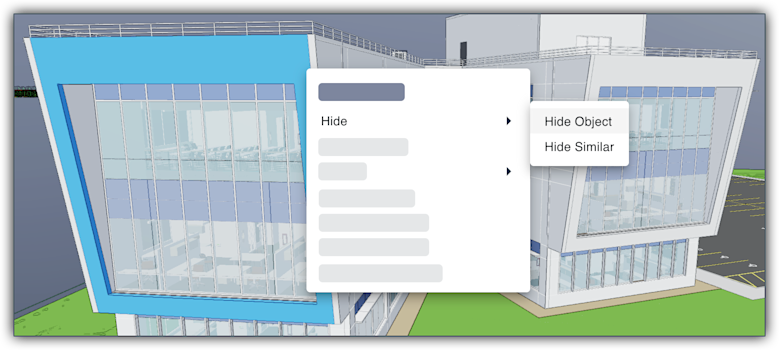
Right-click the object to open the context menu and choose Hide > Hide Object
Follow these steps to hide objects similar to your selection on a model:
Navigate to the Model Manager (Beta) tool.
Open a model.
In the Next-Gen Viewer, click one or more objects in the model to select it. The object turns red.
Right-click to open the context menu and choose Hide > Hide Similar.
Navigate to the Model Manager (Beta) tool.
Open a model.
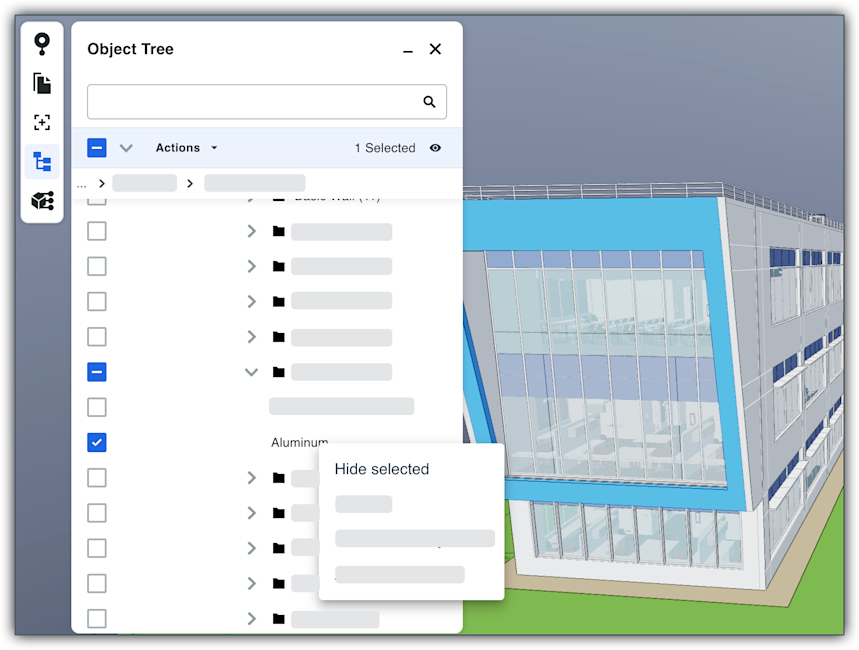
In the Next-Gen Viewer, click Object Tree.
Mark the checkbox next to one or more folders or objects to make a selection.
Right-click the folder or object to open a shortcut menu and choose Hide Selected.