Import Viewpoints
Procore Model Manager - Beta Access & Feedback
The Model Manager (Beta) tool is exclusively available to registered beta participants. It is not available through Procore Explore. To learn more, see Beta Participant Guide.
Importing viewpoints from an XML file allows your project team to quickly migrate and review localized design data within Procore. This feature streamlines collaboration by making shared model views easily navigable and consumable without needing to manually recreate them in Procore.
Additional Information:
Imported viewpoints maintain the folder hierarchy established in the Navisworks® XML source file.
Save or export an XML viewpoint file from Autodesk® Navisworks®.
Ensure the active model in Procore where you are importing data matches the coordinate system of the model used to generate the XML file.
Navigate to the Model Manager (Beta) tool.
Open a model.
Click Viewpoints.
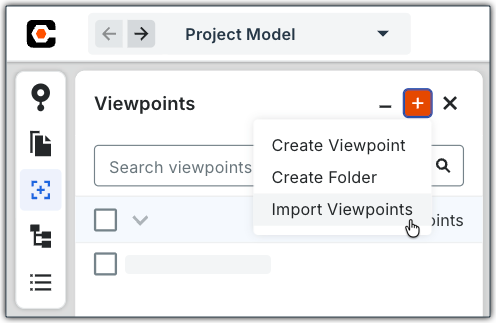
Click the plus (+) sign at the top of the panel and select Import Views.
Select the XML file you want to upload from your computer.
Review the folders and files in the panel to ensure your views appear as expected. The total number of viewpoints in the XML file are highlighted in the gray banner.
Mark the check box next to each viewpoint you want to import.
Click Import.
A success banner displays at the top of the screen once the import is complete, and the views populate the Viewpoints list.