Navigate to the Model Manager Tool

Procore Model Manager - Beta Access & Feedback

The Model Manager (Beta) features and documentation are subject to change without notice. Please be aware that this content is restricted to beta participants and requires a direct link to access.

  • To learn about the beta program, see the Beta Participant Guide.

  • To access the beta and provide feedback Show/Hide Details

    • How to Access: Participating companies must sign the Procore Beta Agreement. Once signed, your Procore Administrator coordinates with your Procore point of contact to enable Model Manager (Beta) on specific Procore projects.

    • How to Provide Feedback During Beta: Contact your dedicated Beta program lead.

    • How to report critical issues: Report breaking changes to Procore Customer Support. For general feedback or non-critical issues, contact your Beta program lead or Procore point of contact.


Currently, only Admin permissions are available. Procore will add more permission levels later.

The Model Manager (Beta) provides a centralized dashboard for managing your project's 3D models. Using this tool allows you to organize and access model data efficiently to streamline your BIM workflows.

Things to Consider

Prerequisites

Steps

  1. Log into the Procore web application.

  2. Open a Procore project.

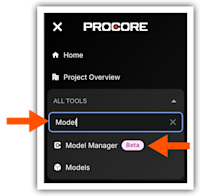
  3. In the All Tools menu, start typing: Model Manager

    Tip

    Don't see the Model Manager (Beta) in the Project Tools menu? If the tool is missing for your Project Tools menu, reach out to your Procore Administrator to confirm that you have been granted the necessary permissions to access it. Depending on how your administrator manages access permissions in Procore, see Manage User Access with a Project Permissions Template or Configure Model Manager Settings.

  4. Click the menu option in the All Tools list.
    This images shows the Project Tools menu in Procore with

    This launches the Model Manager (Beta) tool and takes you to its dashboard.