Créer une inspection (web)
Éléments à prendre en compte
Une fois qu’un modèle d’entreprise est copié dans votre projet, il devient un modèle de projet qui peut être modifié sans affecter le modèle d’entreprise d’où il provient.
Les modèles de projet peuvent être modifiés dans l’outil Inspections au niveau projet pendant toute la durée du projet, mais les modifications ne seront reflétées que sur les listes de contrôle de projet créées à partir du modèle modifié.
Vous pouvez utiliser un modèle d’inspection par défaut plusieurs fois.
La création d’une inspection des actifs la lie automatiquement à l’enregistrement d’actif en tant qu’élément lié.
Conditions préalables
Ajouter des modèles
Pour créer une inspection pour les actifs, vous devez d’abord configurer les paramètres suivants :
L’outil actif doit être activé pour votre projet. Voir Ajouter et supprimer des outils de projet.
Les enregistrements d’actifs doivent être ajoutés à votre projet. Voir Ajouter ou supprimer des équipements des projets.
Les actifs doivent être activés dans votre ensemble de champs configurables pour les inspections. Voir Modifier des ensembles de champs configurables.
Pour créer une inspection pour l’équipement, vous devez d’abord configurer les paramètres suivants :
L’outil Équipement doit être activé pour votre projet. Voir Ajouter et supprimer des outils de projet.
Les enregistrements d’équipement doivent être ajoutés à votre projet. Voir Ajouter ou supprimer des équipements des projets.
L’équipement doit être activé dans votre ensemble de champs configurables pour les inspections. Voir Modifier des ensembles de champs configurables.
Créer une inspection unique
Accédez à l’outil Inspections au niveau projet.
Cliquez sur Créer.
Remarque : si votre entreprise n’a pas encore configuré Niveau entreprise inspection modèles, vous devez d’abord créer un modèle d'inspection.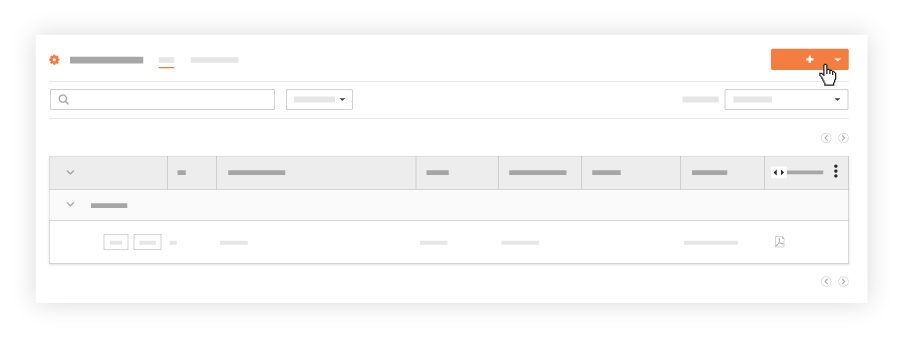
Select inspection.
Sélectionnez un par défaut modèle d'inspection dans votre liste de modèles du menu déroulant. Remarque : Des modèles doivent être ajoutés à votre projet. Voir Ajouter des modèles d’inspection au niveau entreprise à votre projet.
Facultatif : Sous Aperçu des éléments d’inspection, passez en revue les éléments d’inspection et leurs options de réponse.
Cliquez sur Créer.