概述

Deployment Status & Regional Availability

Model Manager, Procore’s next-generation replacement for the Models tool, officially launches in General Availability across the UK and Ireland (UKI) on October 13, 2026, alongside a global Beta for all other regions. Procore Mobile App (iOS/Android) support is also live in Beta as Procore continues to transform 3D model workflows. Stay tuned for additional features in future releases.

For platform deployment status & regional availability Show/Hide

The Model Manager and the Models tool can be active on the same project at once. Administrators are not required to disable the Models tool.

Platform

Deployment Status/Region

Learn More

Web

  • General Availability: United Kingdom & Ireland (UKI) on October 13, 2026

  • Beta: All other regions

iOS

  • Beta: All regions

Android

  • Beta: All regions

Model Manager Beta: Access & Guidelines

  • Registration: Participating companies must sign the Procore Beta Agreement. Once signed, your Procore Administrator will coordinate with your Procore point of contact to enable Model Manager on specific projects. It is not available in Procore Explore.

  • Support & Feedback: Please report critical or breaking issues directly to Procore Customer Support. For general feedback, feature requests, and non-critical issues, contact your dedicated Beta program lead or Procore point of contact.

  • Beta Notice: This feature and its supporting documentation are in active development. Beta services are provided strictly "as is" for evaluation purposes, carry no standard warranties or liability, and are subject to change or discontinuation without notice. For full terms, please refer to the Procore Subscription Services Agreement.

Pre-Release Documentation

This article documents a planned feature that is not yet available. Release timing is not guaranteed, and functionality described here may change before launch.

Admins can import search sets from Autodesk® Navisworks® into the Model Manager tool using the Search Sets Manager. This feature allows you to either import a valid Navisworks® Search Sets File (XML) or to upload or a Navisworks® model (NWD). With Search Sets, your team can save, organize, and run rule-based element filters across your models in Procore.

  • Admin Users: Import search sets, create/manage folders, and organize the shared project library.

  • Standard & Read Only Users: View and run the search sets in the shared project library and apply bulk visibility actions, such as Hide, Isolate, and Zoom to Selection.

Things to Consider

  • Required User Permissions

  • Additional Information:

    • Procore adds new search sets with new unique identifiers (GUIDs).

    • Procore updates existing sets by overwriting the existing set's rules with the new version. This action is irreversible. The set keeps its original name and folder location unless you choose to overwrite them.

      • When you update an XML in Navisworks®, you must re-import it.

      • When you update an NWD file in Navisworks®, you must upload it to the document repository and then re-import it.

Prerequisites

  • For XML Upload: A valid Navisworks Search Sets file (XML).

  • For NWD Import: An uploaded NWD model file containing embedded selection/search sets processed in Procore.

Steps

Import an XML Search Set

  1. Navigate to the project's Model Manager tool.

  2. In the left toolbar, click This image shows the Search Groups icon in the Next-Gen Viewer of the Model Manager tool. Search Sets.

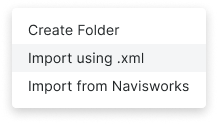
  3. In the Search Sets panel, click the plus (+) sign at the top and choose Import using XML.
    Shows the Import Using XML options in the Search Sets feature of the Next-Gen Viewer in the Model Manager tool.

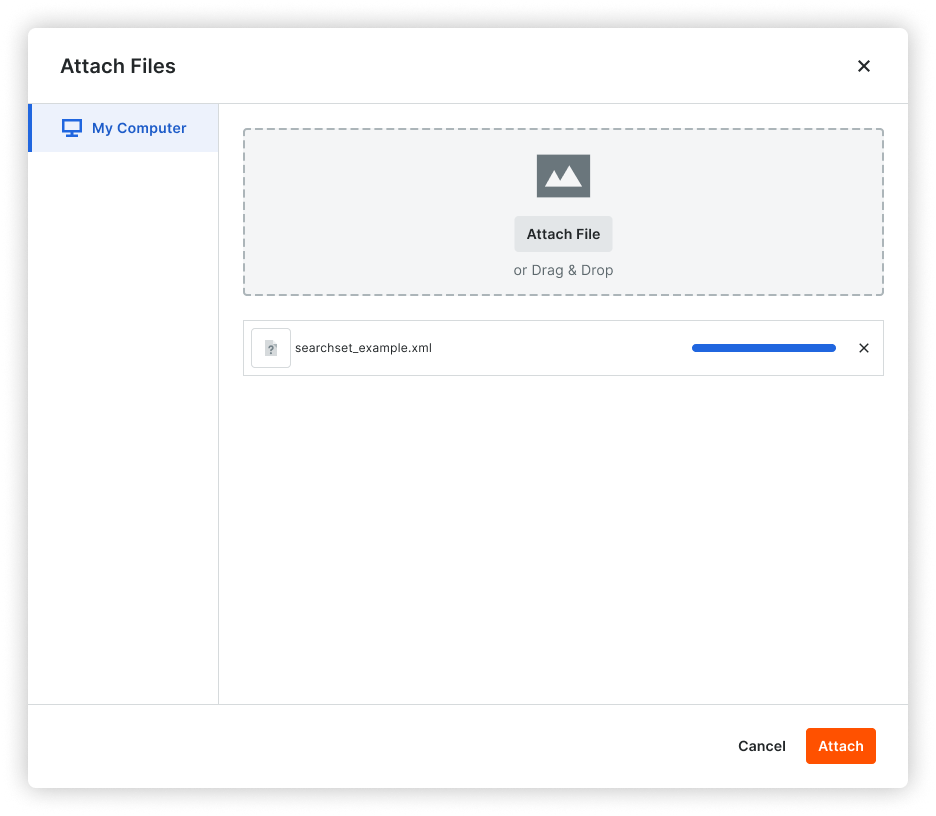
  4. In the Attach Files window, add the file:

    • Drag and drop the file into the Attach Files window

    • Click Attach File and browse to the XML file from your computer.

  5. Click Attach. A progress indicator shows you the progress.
    This image shows the Attach Files dialog box when uploading an XML search sets to the Search Sets feature of the Next Gen Viewer in the Model Manager tool.

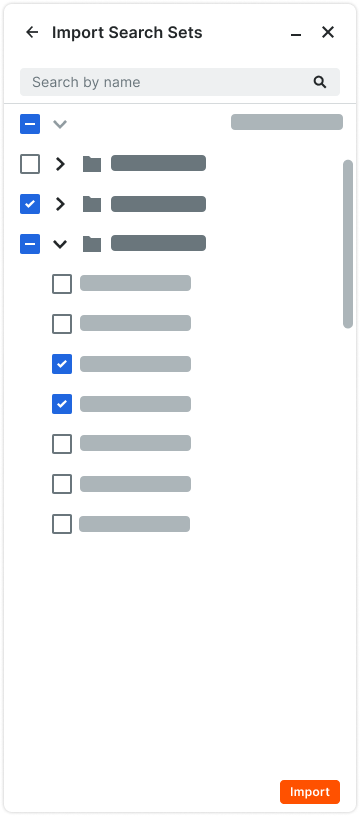
  6. In the Import Search Sets panel, all of the search sets from the XML file appear.

    Important

    When importing search sets, you must maintain the same folder structure as the source file. This helps to ensure a seamless experience for end users who run the imported sets.

  7. Mark the desired check boxes to select the sets to import.
    Project Model Manager - Search Sets - Import Search Sets - Select Import Sets

  8. Click the Import button.

    • Search conditions, folder hierarchies, and set names from your XML file are preserved in the library tree.

    • If any search sets share existing IDs with sets already in the library, a confirmation dialog will prompt you before updating matching definitions.

Import NWD

  1. Navigate to the project's Model Manager tool.

  2. In the left toolbar, click This image shows the Search Groups icon in the Next-Gen Viewer of the Model Manager tool. Search Sets.

  3. In the Search Sets panel, click Import and choose Import from Navisworks.

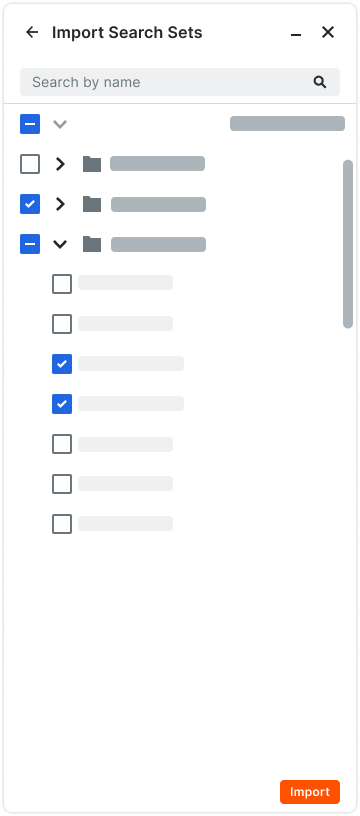
  4. In the Import Search Sets window, search for the Navisworks® (NWD) file that contains the search set information. The system maintains the same folder structure from the NWD file.

  5. Mark the check boxes for the searches to import.
    This image shows the Import Search Sets panel in the Next Gen Viewer of the Model Manager tool.

  6. Click the Import button.

  7. In the Import Search Sets panel, create a new folder for the XML file. You must create one (1) folder per NWD search set file and it must have the same name as the file.

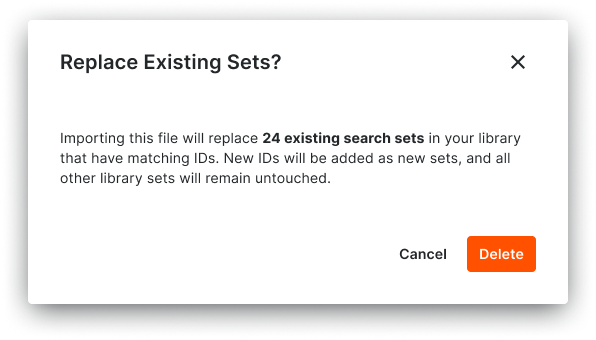
  8. If you have previously imported search sets, a message appears for you to confirm that you want to replace the existing sets?
    This image shows the dialog box that appears when importing search sets from a Navisworks® NWD file in the Next Gen Viewer of the Model Manager tool.

  9. Click Delete to proceed with the action.


Windows is a registered trademark of Microsoft Corporation in the United States and other countries. Google Chrome, Android, and Google Play are trademarks of Google LLC. iPhone, iPad, and App Store are trademarks or service marks of Apple Inc., registered in the U.S. and other countries and regions. iOS is a trademark or registered trademark of Cisco in the U.S. and other countries and is used under license by Apple Inc. Autodesk, AutoCAD, Civil 3D, Navisworks, and Revit are registered trademarks or trademarks of Autodesk, Inc., and/or its subsidiaries and/or affiliates in the USA and other countries. SpaceMouse is a registered trademark of 3Dconnexion. All other trademarks are the property of their respective owners.