Ajouter des débours de paiements
Accédez à l’outil Paiements au niveau entreprise.
Cliquez sur l’icône
 Paramètres de paiement. La page Paramètres de paiement s’ouvre. La page Comptes de financement est active par défaut.
Cliquez sur l’onglet Traitement des paiements . Il s’agit de l’onglet actif par défaut.
Cliquez sur le lien Autorisations de paiement .
Faites défiler jusqu’à Débours de paiements.
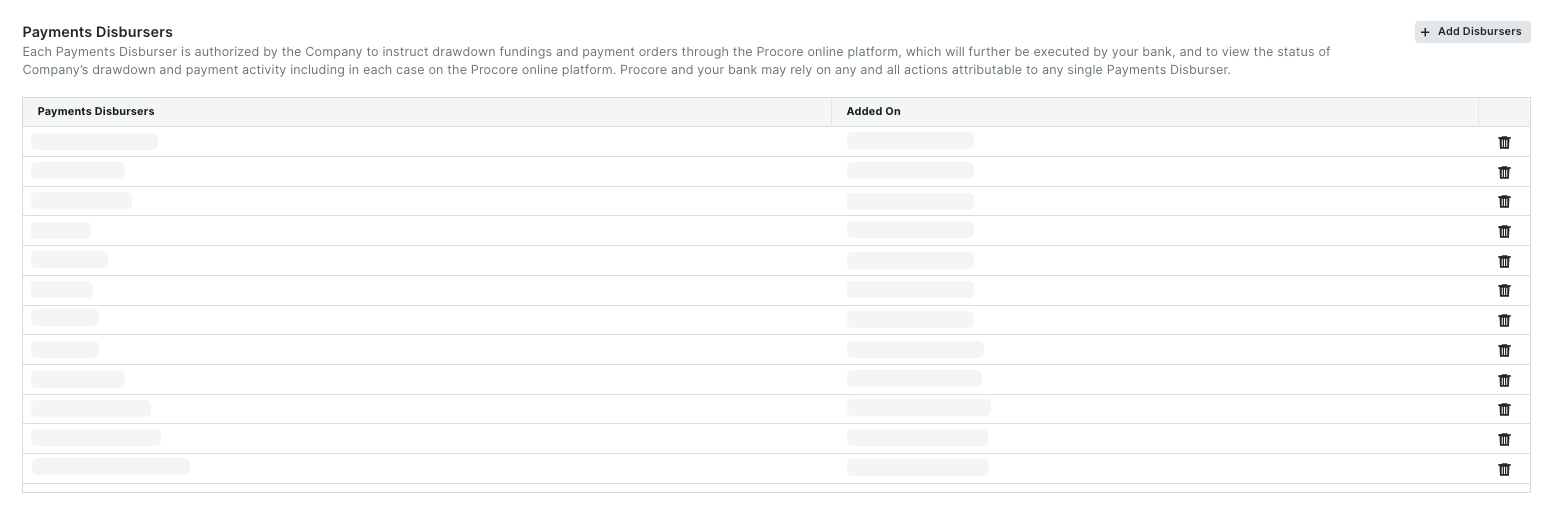
Cliquez sur le bouton Ajouter des débourseurs . La fenêtre Ajouter des débours s’ouvre.
Dans la fenêtre Ajouter des déboursés, ajoutez un (1) ou plusieurs employés de votre entreprise comme suit :
PointeQuels utilisateurs sont disponibles dans la liste Rechercher des personnes ? Tout compte utilisateur Procore marqué comme employé de votre entreprise dans l’outil Annuaire au niveau entreprise. Les déboursés doivent être des employés de votre entreprise. Voir Comment ajouter une personne en tant qu’employé de mon entreprise ?

Commencez à saisir le nom de l’utilisateur à ajouter dans la liste Rechercher des personnes .
Sélectionnez le(s) nom(s) d’utilisateur correspondant(s) dans la liste déroulante.
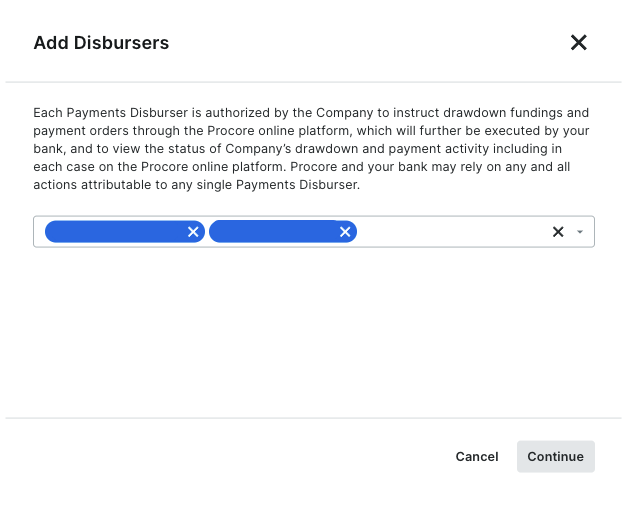

Cliquez sur Continuer.
Révisez les noms dans la liste des débourseurs de paiements .

Cliquez sur Ajouter des déboursés. Une bannière VERTE indique que l’action a réussi. Procore enregistre également l’action « Utilisateur ajouté en tant que débourseur » dans l’historique des modifications.