Gérer les lignes et les colonnes
Gérer les filtres
Gérer les paramètres du tableau
Configurer les colonnes
Gérer les colonnes
Ajuster la largeur de la colonne
Trier les colonnes
Regrouper des colonnes
Options de regroupement de colonnes
Options de regroupement supplémentaires
Menu de débordement
Regrouper par projet
Épingler la colonne
Dimensionner automatiquement cette colonne
Dimensionner automatiquement toutes les colonnes
Réinitialiser les colonnes
Gérer les filtres
Pour savoir comment utiliser les filtres, voir Rechercher et appliquer des filtres dans l’onglet Factures de sous-traitants.
Gérer les paramètres du tableau
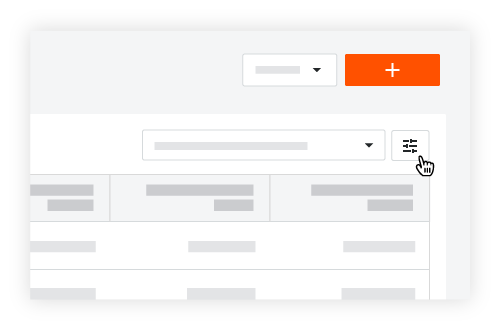
Vous pouvez afficher/masquer des colonnes à l’aide des options Paramètres du tableau de l’outil Paiements. Tout d’abord, cliquez sur l’icône Paramètres  du tableau en haut à droite du tableau de données. Le volet Paramètres du tableau s’affiche sur le côté droit de la page Web. Pour fermer le volet, cliquez sur le « x » dans le coin supérieur droit.
Configurer les colonnes
Pour choisir les colonnes à afficher et à masquer, cliquez sur l’icône Paramètres du tableau en haut à droite du tableau. Le volet Paramètres du tableau s’affiche sur le côté droit de la page Web. Sous la zone Configurer les colonnes , déplacez la bascule vers la droite pour activer l’affichage des colonnes. Le paramètre par défaut de Procore est d’afficher toutes les colonnes disponibles. Pour en savoir plus sur les colonnes disponibles dans chaque onglet, consultez À propos de l’outil Paiements de l’entreprise.
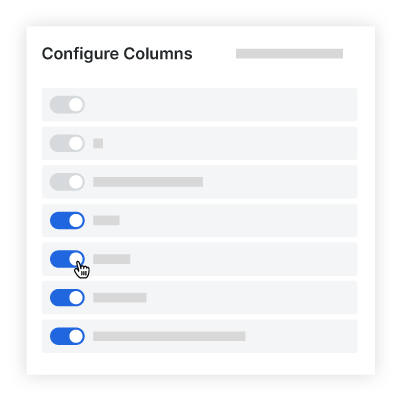
Les autres options de la zone Paramètres du tableau incluent :
Pour masquer une colonne spécifique, déplacez la bascule vers la gauche.
Pour afficher une colonne spécifique, déplacez la bascule vers la droite.
Pour afficher toutes les colonnes disponibles, cliquez sur le lien Afficher tout .
Pour fermer le panneau, cliquez sur l’icône de fermeture (x).
Gérer les colonnes
Ajuster la largeur de la colonne
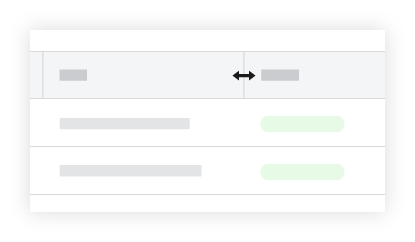
Pour ajuster la largeur d’une seule colonne, placez votre curseur sur la bordure droite d’un en-tête de colonne jusqu’à ce que l’icône de poignée  de redimensionnement apparaisse. Faites ensuite glisser la poignée vers la gauche ou la droite pour définir la largeur de colonne souhaitée. Si vous appuyez sur la touche MAJ tout en maintenant la poignée de redimensionnement enfoncée, un contour bleu apparaît sur la colonne active pour vous aider à voir l’ajustement de votre colonne.
Trier les colonnes
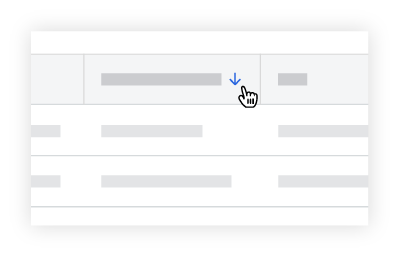
Pour trier les données du tableau selon une colonne spécifique, cliquez sur n’importe quel en-tête de colonne pour faire apparaître une flèche BLEUE afin d’ajuster l’ordre de tri du tableau des contrats.
Icône | Ordre de tri | Informations complémentaires |
|---|---|---|
| Ascendant | Pour réinitialiser vos colonnes, passez votre curseur sur le côté droit d’un en-tête de colonne jusqu’à ce que l’ellipse |
| Descendant |


Regrouper des colonnes
Certaines colonnes vous permettent de regrouper les données de votre table. Les colonnes pouvant être regroupées contiennent une option de regroupement dans le menu Débordement.
Options de regroupement de colonnes
Les options de la liste déroulante Sélectionner une colonne à regrouper vous permettent d’appliquer ces options de regroupement à votre tableau.
Nom de la colonne | Option de regroupement de colonnes | Détails |
|---|---|---|
Statut de la facture | Regroupe les factures selon les statuts disponibles | Pour en savoir plus sur les statuts disponibles, consultez « Quels sont les statuts par défaut des factures Procore ? » |
Compagnie | Regroupe les factures par entreprise | Cette option correspond à l’option « Entreprise sous-traitante » définie sur les engagements associés aux factures de votre entreprise. |
Projet | Regroupe les factures par projet | Cette option correspond au champ « Nom » sous « Informations sur le projet » dans l’onglet Général des paramètres du projet dans l’outil Admin de chaque projet. Voir Changer le nom d’un projet Procore. |
Période de facturation | Regroupe les factures par période de facturation | Cette option correspond aux périodes de facturation des projets Procore de votre entreprise. Les périodes de facturation sont créées dans l’outil Facturation au niveau projet. Voir Gérer les périodes de facturation. |
Contrat | Regroupe les factures par contrat d’engagement | Cette option correspond aux bons de commande et aux contrats de sous-traitance créés dans l’outil Engagements au niveau Projet. |
Options de regroupement supplémentaires
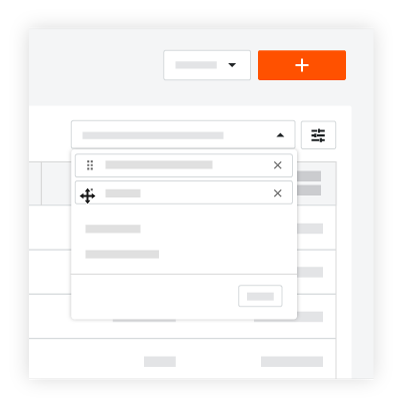
Après avoir appliqué vos options de regroupement, un menu déroulant apparaît au-dessus du tableau. Ce menu vous permet d’ajouter, de supprimer, d’organiser et de réinitialiser les regroupements de votre table.
Pour modifier l’ordre des groupes de lignes, saisissez une étiquette de groupe par sa poignée de
 réorganisation et faites-la glisser dans la position souhaitée.
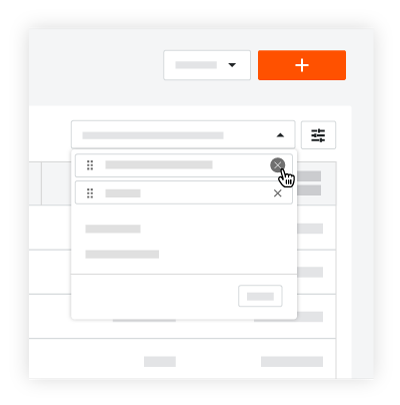
Pour supprimer une seule option, cliquez sur le « x » à côté de l’option à supprimer.
Pour appliquer une option de regroupement disponible, cliquez sur une option surlignée en GRIS.
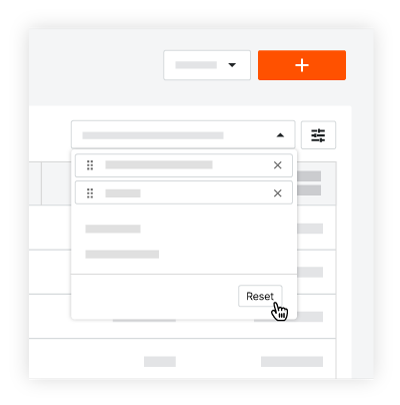
Pour restaurer les paramètres par défaut, cliquez sur Réinitialiser dans le menu déroulant.
Menu de débordement
Pour ouvrir un menu déroulant avec des options de colonne supplémentaires, cliquez sur les points de suspension  verticaux pour afficher un menu de débordement avec les options détaillées ci-dessous.
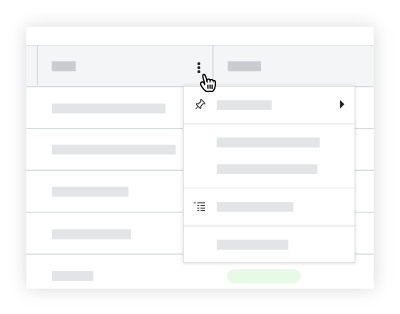
Le menu Débordement comprend les options suivantes :
Regrouper par projet
Épingler la colonne
Dimensionner automatiquement cette colonne
Dimensionner automatiquement toutes les colonnes
Trier par cette colonne
Réinitialiser les colonnes
Regrouper par projet
Pour conserver l’organisation des colonnes de données par projet Procore dans le tableau, sélectionnez l’option Regrouper par projet
Épingler la colonne
Pour éviter que les colonnes de données du tableau ne bougent lorsque vous faites défiler, vous pouvez les épingler à une colonne. Pour ce faire, placez votre curseur sur le côté droit d’une unité d’en-tête de colonne pour afficher les points de suspension verticaux . Ensuite, cliquez sur les points de suspension verticaux et choisissez Épingler la colonne. Choisissez ensuite l’une de ces options :
Pour épingler une colonne sur le côté gauche du tableau, choisissez Épingler à gauche.
Pour épingler une colonne sur le côté droit du tableau, choisissez Épingler à droite.
PointeProcore épingle les colonnes à gauche ou à droite de la page dans l’ordre dans lequel vous les avez épinglées.
Vous pouvez réorganiser vos colonnes épinglées en faisant glisser et en déposant une colonne à la position souhaitée.
Vous pouvez épingler des colonnes à gauche et à droite du tableau.
Pour supprimer toutes les épingles, choisissez Aucune épingle.
Dimensionner automatiquement cette colonne
Pour définir automatiquement la largeur d’une colonne en fonction de son contenu, cliquez sur les points de suspension verticaux et sélectionnez l’option Dimensionner automatiquement cette colonne dans le menu déroulant.
Dimensionner automatiquement toutes les colonnes
Pour définir automatiquement la largeur de toutes les colonnes du tableau afin qu’elles s’adaptent au contenu, cliquez sur les points de suspension verticaux et choisissez l’option Dimensionner automatiquement toutes les colonnes dans le menu déroulant.
Trier par cette colonne
Pour définir automatiquement l’ordre de tri de la colonne, cliquez sur les points de suspension verticaux et sélectionnez Trier par cette colonne. Choisissez ensuite l’une de ces options :
Pour trier le tableau en fonction de la colonne sélectionnée répertoriant les entrées dans l’ordre croissant, choisissez Trier les colonnes par ordre croissant.
Pour trier le tableau en fonction de la colonne sélectionnée et répertorier les entrées par ordre décroissant, choisissez Trier les colonnes par ordre décroissant.
Pour supprimer l’ordre de tri croissant/décroissant, choisissez Colonne non triée.
Réinitialiser les colonnes
Pour rétablir les paramètres par défaut de Procore pour les colonnes du tableau, placez le curseur sur le côté droit d’un en-tête de colonne jusqu’à ce que les points de suspension verticaux apparaissent. Cliquez ensuite sur les points de suspension verticaux et sélectionnez l’option Réinitialiser les colonnes dans le menu déroulant. Tous les paramètres par défaut de la colonne sont rétablis.