Apply Search & Filter Options

  • Search for Subcontractor Invoices

  • Apply Filters to the Data Table

Search for Subcontractor Invoices

  1. Navigate to the Company level Payments tool.

  2. Click the Subcontractor Invoices tab.

  3. Enter keywords in the Search icon-search.png field. Then press ENTER or press the TAB key to move the system's focus away from the Search field.

     Pointe

    Quelle est la portée de la recherche ? Procore recherche les colonnes de données suivantes : # de facture, nom du bénéficiaire, projet et numéro de contrat.

    payments-search.png

 Notes
  • Si des correspondances sont trouvées, Procore affiche les éléments correspondants.

  • Si aucune correspondance n’est trouvée, Procore affiche le message « Aucun élément ne correspond à votre recherche ».
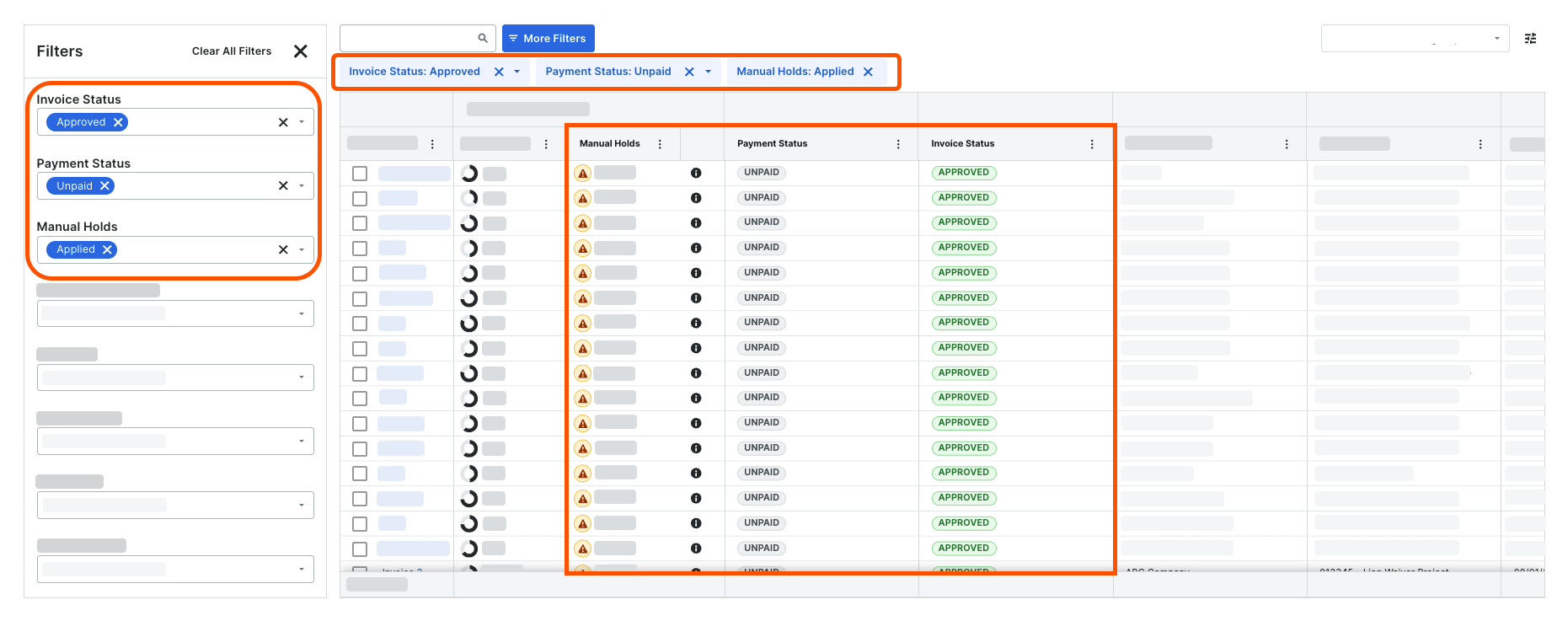
Apply Filters to the Data Table

  1. Navigate to the Company level Payments tool.

  2. Click the Subcontractor Invoices tab.

  3. Click Filters to open the Filter panel on the left side of the page.

     Notes
    subcontractor-invoice-filters1.png

  4. Choose one or multiple filters:

    • Invoice Status. Select one (1) or more statuses from the drop-down list. See What are the default statuses for Procore invoices?

    • Payment Status. Select one (1) or more statuses from the drop-down list. See

    • Manual Holds. Select the Applied or Not Applied hold status from the drop-down list.

    • Beneficiary Name. Select one (1) or more beneficiaries from the drop-down list. These selections correspond to the 'Contract Company' selections on the project contracts in your company's Procore account. See and Add a Company to the Project Directory.

    • Beneficiary Account Status. Select one (1) or more statuses from the drop-down list. These selections correspond to the onboarding statuses in Procore Pay. See

    • Project. Select one (1) or more projects from the drop-down list. These selections correspond to the active projects in your company's Procore account. See Create a New Project.

    • Billing Period. Select one (1) or more projects from the drop-down list. These selections correspond to the billing periods that have been created in the Project level Invoicing tool by your project's invoice administrators. See Create Automatic Billing Periods or Create Manual Billing Periods.

    • Payment Due Date. Select one (1) filter: Overdue, Today, Next 7 Days, or Custom to choose a custom date range.

    • Contract. Select one (1) or more contracts from the drop-down list. These selections correspond to the commitments created in the Project level Invoice tool on your company's Procore projects. See Create a Commitment.

    • Contract Type. Select one (1) or more contract types from the drop-down list. These are Procore's default contract types. Select Purchase Orders or Subcontracts.

  5. Press the TAB key or click an area outside the Filters panel to move the system focus. Procore refreshes the page and displays any content matching the filters you applied.

     Pointe

    Besoin d’effacer un filtre ? Pour effacer le tableau de tous les filtres, cliquez sur Effacer tous les filtres. Pour supprimer un seul filtre, cliquez sur l’icône de fermeture (x) dans la bulle de filtre BLEUE.

  6. Click the Close icon (x) icon in the Filters panel. The selected filters remain applied when you close the pane.