View Change History

  1. Navigate to the Company level Payments tool.

  2. Click the Payments Settings icon-settings-gear-android.png icon. This opens the Payments Settings page.

  3. Click the Payment Processing tab.

  4. Click the Change History link. This opens the Change History page.

    Seul un administrateur des paiements peut consulter l’historique des changements de l’outil Paiements. Le tableau de la page Historique des changements consigne les actions effectuées par les administrateurs des paiements et les débourseurs de paiements avec l’outil Paiements au niveau entreprise. Pour obtenir des directives détaillées, consultez Afficher l’historique des changements de l’outil Paiements.
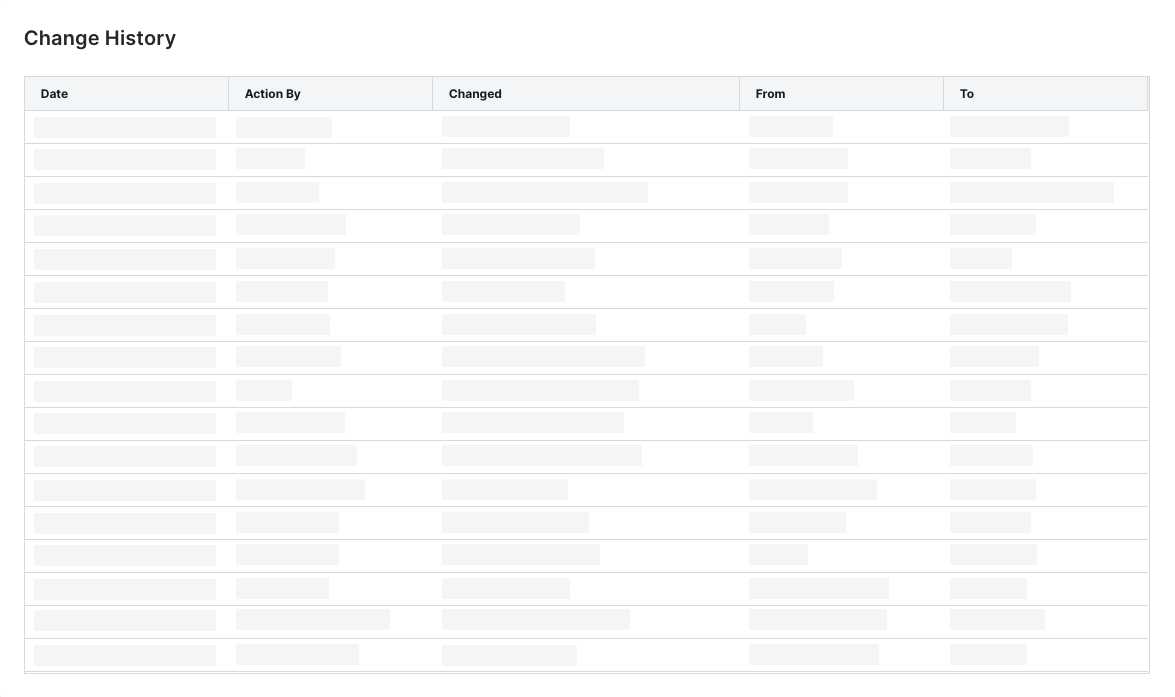
    view-change-history.png

    Click here to learn about the table.

    Page Historique des changements

    Le tableau ci-dessous décrit les colonnes par défaut de la page Historique des changements.

    Column

    Description

    Date

    Shows the date and timestamp of the action.

    Action By

    Shows the first and last name of the Procore user as their name appears in the Company Directory. Note: Only a member of Procore's Payments Operations Team can add Payments Admins to your account. This requires an authorized user at your company to complete and sign Procore's Payment Administrator Designation Form. Once added, this entry indicates the user was added by 'Procore Support'. For details, see Add or Remove Payments Admins as a Payor.

    Changed

    Provides a brief description of the action.

    From

    Shows the value that the action changed from. Note: If the action originated from a setting with a blank or null value, Procore shows the double dash symbol (--).

    To

    Shows the To value that the action changed to. Note: If the action resulted in a setting with a blank or null value, Procore shows the double dash symbol (--).