Afficher les conditions de paiement
Ouvrir le panneau Préparation au paiement
À propos de l’onglet Vue d’ensemble
À propos de l’onglet Réservations
Ouvrir le panneau Préparation au paiement
Accédez à l’outil Paiements au niveau entreprise. L’onglet Factures de sous-traitants est actif par défaut.
Dans le tableau Factures de sous-traitant, localisez la facture.
Dans le groupe Préparation au paiement, cliquez sur le lien Fraction unitaire sous Exigences.
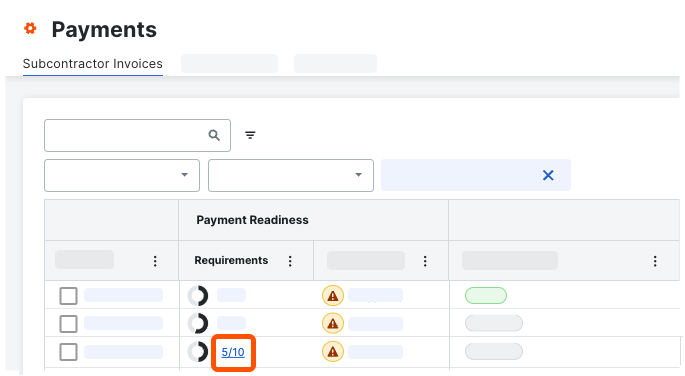 Le panneau Préparation du paiement s’ouvre sur le côté droit de la page.
À propos de l’onglet Vue d’ensemble
L’onglet Vue d’ensemble du panneau Préparation du paiement affiche les informations suivantes.
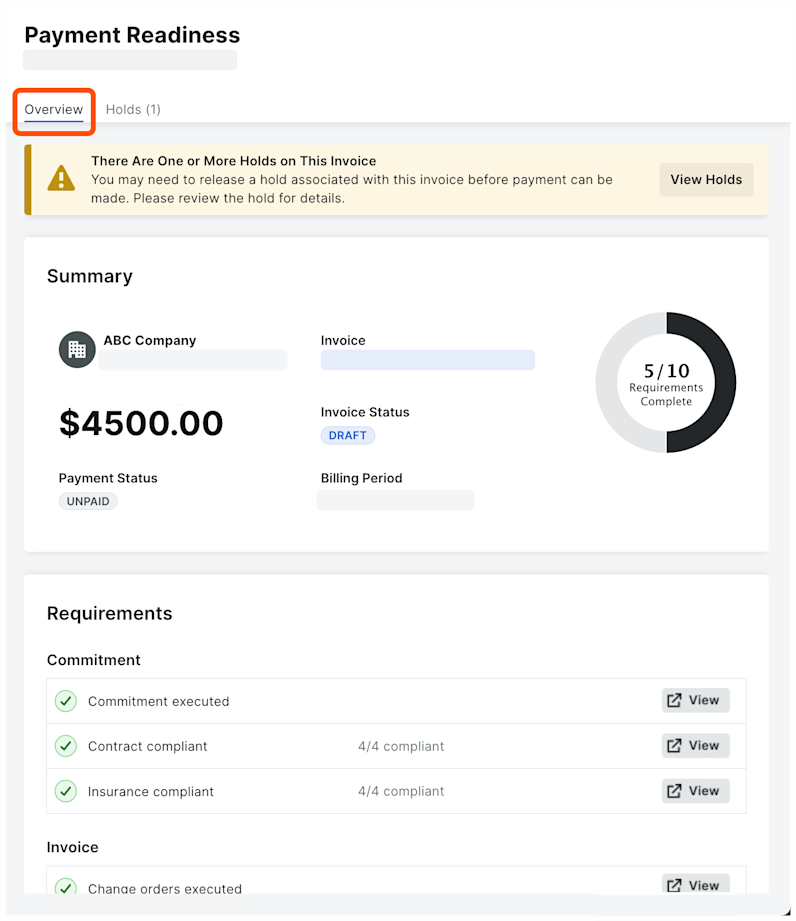
Le tableau ci-dessous décrit les éléments illustrés ci-dessus. Pour en savoir plus, voir Configurer les exigences de paiement en tant que payeur.
Article | Descriptif | Exemple (voir ci-dessus) |
|---|---|---|
Bannière d’information | Si des retenues sont appliquées à la facture, une bannière JAUNE apparaît en haut de l’onglet Vue d’ensemble au-dessus du résumé. Cliquez sur Afficher les suspensions pour accéder à l’onglet Réservations . | Cette facture comporte une ou plusieurs retenues |
Nom de l’entreprise | Indique le nom de « l’Entreprise sous-traitante » sur l’engagement. | Terrassement Jim |
Numéro de projet | Indique le nom du projet Procore associé à la facture. | Projet Démo |
Lien de facture | Cliquez sur l’hyperlien pour ouvrir la facture de sous-traitant avec l’outil Facturation dans une fenêtre de navigateur distincte. | ES-018 : Facture #001 |
Exigences remplies | Affiche un diagramme à secteurs et une fraction unitaire pour indiquer le nombre d’exigences de paiement remplies. Voir Gérer les exigences de paiement en tant que payeur. | 5/10 Exigences remplies Remarque : Le numérateur (5) indique que cinq exigences sont remplies. Le dénominateur (10) correspond au nombre total d’exigences. Pour en savoir plus, voir Afficher les détails de la facture ci-dessous. |
Total | Le montant total, y compris la retenue de garantie (le cas échéant), de la facture. | 4 5000,00 $ |
Statut de la facture | Affiche le statut actuel de la facture. Voir Quels sont les statuts par défaut des factures Procore ? | Réviser et renvoyer |
Statut du paiement | Affiche le paiement statut du facture : Payé ou Non payé. | Non rémunéré |
Période de facturation | Affiche la période de facturation de la facture. Voir Créer des périodes de facturation automatique ou Créer des périodes de facturation manuelle. | 12/01/21 - 12/31/21 |
Exigences | Affiche les exigences de suivi et le statut des factures de sous-traitant de votre entreprise. Cela aide votre équipe à déterminer si les factures sont prêtes à effectuer le paiement. Pour configurer les exigences de suivi, voir Configurer les exigences de paiement en tant que payeur. | |
Vue | Cliquez sur ce bouton pour effectuer des actions spécifiques aux exigences : Engagements
Facture
| |
Visible par les payeurs : afficher, demander ou gérer | Cliquez sur le bouton disponible pour effectuer des actions spécifiques aux exigences : Renonciations aux privilèges
| Envoyer une demande de déblocage de renonciations de privilèges inconditionnelles signées |
Visible par les bénéficiaires : afficher, déverrouiller ou gérer | Cliquez sur le bouton disponible pour effectuer des actions spécifiques aux exigences : Renonciations aux privilèges
|
À propos de l’onglet Réservations
L’onglet Réservations affiche les informations suivantes.
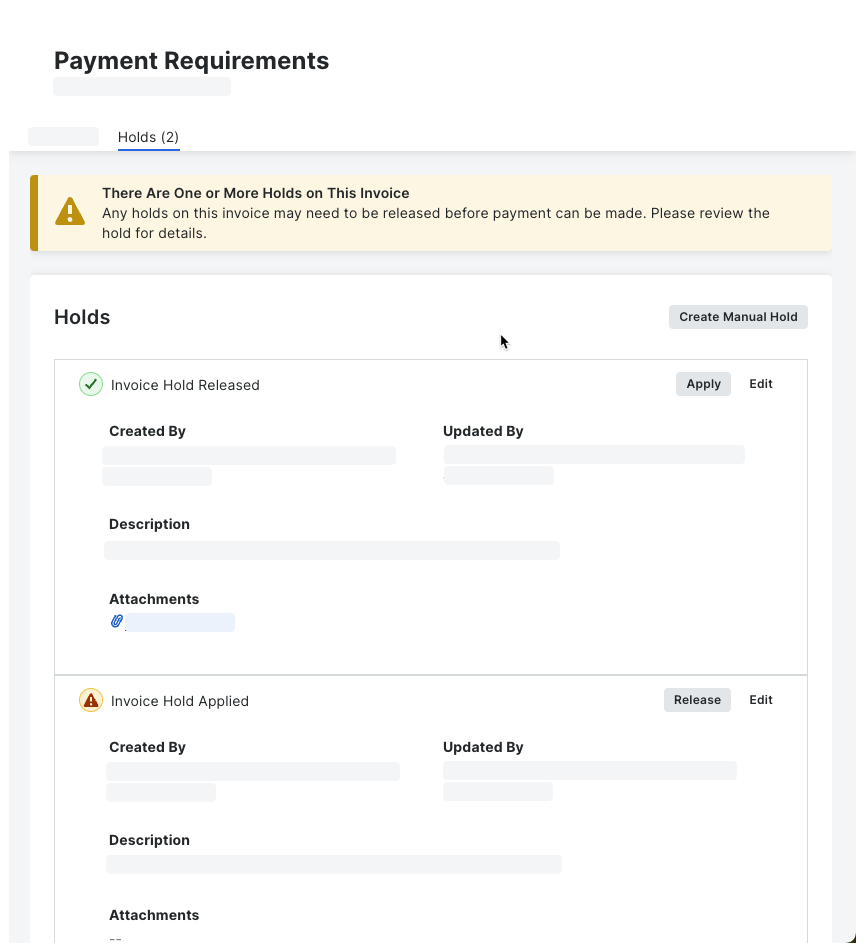
Le tableau ci-dessous décrit les fonctionnalités de l’onglet Réservations. Pour en savoir plus, voir Gérer les retenues de paiement en tant que payeur.
Étiquette | Élément | Descriptif |
|---|---|---|
Statut | Icône |
|
Créer une mise en attente | Bouton | Cliquez sur ce bouton pour créer une nouvelle réservation. |
Libération | Bouton | Cliquez sur ce bouton pour libérer une suspension existante. |
Éditer | Bouton | Cliquez sur ce bouton pour modifier une suspension existante. |
Créé par | Champ | Affiche le nom de l’utilisateur qui a créé la conservation. |
Dernière modification par | Champ | Affiche le nom de l’utilisateur qui a mis à jour la suspension pour la dernière fois. |
Descriptif | SMS | Affiche toutes les informations saisies par la personne qui a créé ou modifié la conservation. |
Pièces jointes | Lime | Affiche toutes les pièces jointes ajoutées à la réservation. Cliquez sur le lien du fichier pour télécharger une copie du ou des fichiers. |