Ajouter des comptes de financement
Accédez à l’outil Paiements au niveau entreprise.
Cliquez sur l’icône
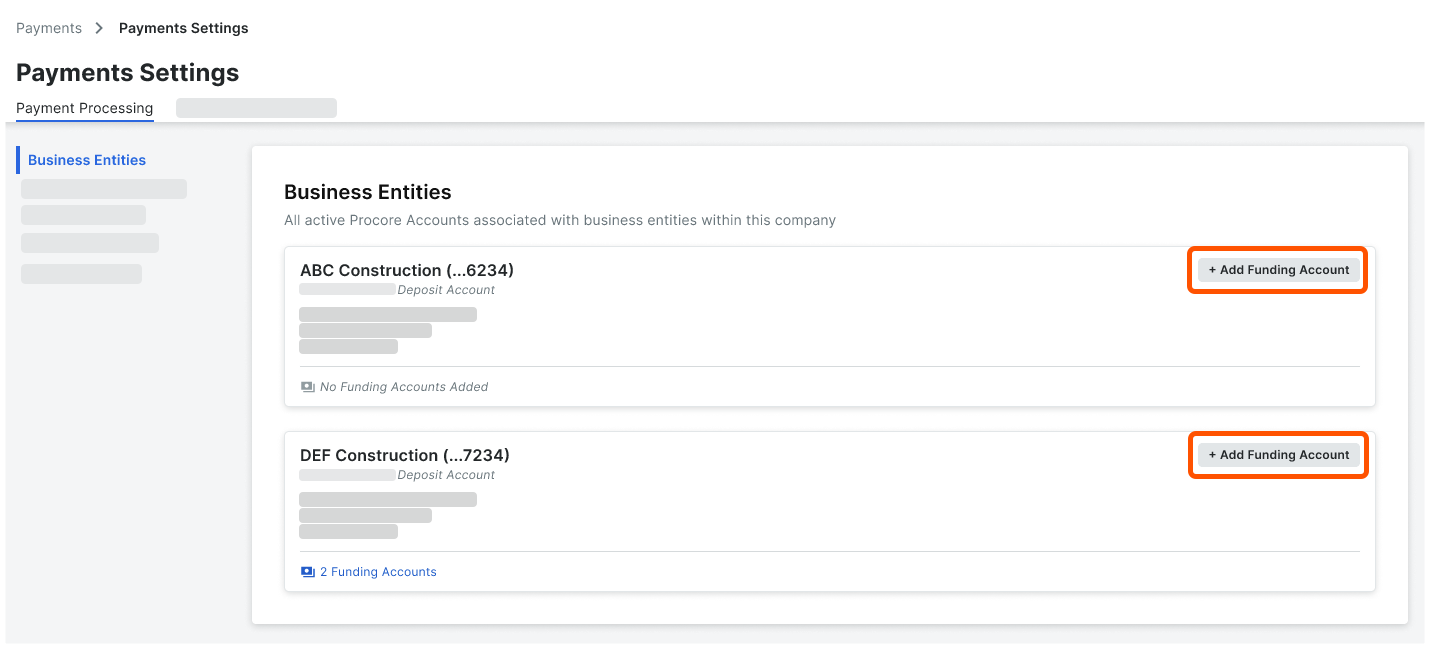
 Paramètres de paiement. La page Paramètres de paiement s’ouvre. La page « Entités commerciales » de l’onglet « Traitement des paiements » est active par par défaut et répertorie les entités commerciales qui paient les factures pour les Procore Pay solution de votre entreprise.
Accédez à l’entité commerciale souhaitée et cliquez sur Ajouter un compte de financement.
Dans le panneau Ajouter un compte de financement, procédez comme suit :
Surnom. Saisissez un surnom unique pour le compte. Les surnoms identifient rapidement le compte bancaire pour les débours tout en aidant à protéger la confidentialité de son numéro de compte.
Entité commerciale. Affiche le nom de l’entité commerciale actuelle.
Numéro de compte. Entrez le numéro de compte complet dans ce champ. Voir Où puis-je trouver mon acheminement et mon numéro de compte ?
Saisissez à nouveau le numéro de compte. Saisissez à nouveau le numéro de compte complet dans ce champ.
Numéro d’acheminement. Saisissez le numéro d’acheminement pour ce compte. Voir Où puis-je trouver mon acheminement et mon numéro de compte ?
Type de compte. Choisissez Chèque ou Épargne.
Identifiant bancaire. Saisissez un identifiant bancaire. Procore utilise l’identifiant bancaire comme préfixe pour le numéro de chèque d’un paiement. Vous pouvez modifier ce numéro à tout moment. Cependant, tout nouveau changement n’a d’impact que sur les nouveaux numéros de chèque.
ImportantPour les entreprises qui utilisent l’option
 Outil Intégrations ERP: l’identifiant de la banque doit correspondre à l’identifiant bancaire du compte de financement dans votre système ERP intégré.

Numéro de chèque. Saisissez un numéro de chèque pour le prochain paiement de facture. Cela fournit à chaque chèque un numéro d’identification unique pour ce compte. Voir Comment Procore assigne-t-il des numéros aux paiements de débours ? Il aide également les utilisateurs qui gèrent les décaissements à identifier les transactions.
Pour les entreprises qui utilisent l’option Outil Intégrations ERP :
Une fois que Procore Pay a traité le paiement d’une facture dans un décaissement, la combinaison « ID bancaire » et « Numéro de chèque » est exportée vers votre système ERP intégré.
Pour éviter d’éventuelles erreurs de synchronisation ERP, assurez-vous que le numéro de contrôle saisi est supérieur au dernier numéro de contrôle dans votre système ERP afin d’éviter les doublons dans votre système ERP intégré. Voir Comment les paiements effectués dans Procore Pay sont-ils synchronisés avec un système ERP intégré ?