Navigate the 3D Model with the 2D Minimap

Procore Model Manager - Beta Access & Feedback

The Model Manager (Beta) features and documentation are subject to change without notice. Please be aware that this content is restricted to beta participants and requires a direct link to access.

  • To learn about the beta program, see the Beta Participant Guide.

  • To access the beta and provide feedback Afficher/Masquer

    • How to Access: Participating companies must sign the Procore Beta Agreement. Once signed, your Procore Administrator coordinates with your Procore point of contact to enable Model Manager (Beta) on specific Procore projects.

    • How to Provide Feedback During Beta: Contact your dedicated Beta program lead.

    • How to report critical issues: Report breaking changes to Procore Customer Support. For general feedback or non-critical issues, contact your Beta program lead or Procore point of contact.


Currently, only Admin permissions are available. 'Read-Only' and 'Standard' permission levels are coming soon.

Navigate the 2D Minimap in the Next-Gen Viewer to maneuver through the 3D model using a familiar 2D layout. This provides helpful context for drawing-centric stakeholders and brings 3D intelligence to 2D views. Use the 2D Minimap to:

  • Pan the 3D view: Instantly move from the 2D location you select to that exact position in the 3D model.

  • Adjust the camera: Automatically align the camera angle with your new location.

  • Track your position: Use the blue arrow on the 2D Minimap to track your exact current camera location and the direction you are facing within the 3D model.

Things to Consider

Prerequisites

Steps

  1. Navigate to the Model Manager (Beta) tool.

  2. Open a model.

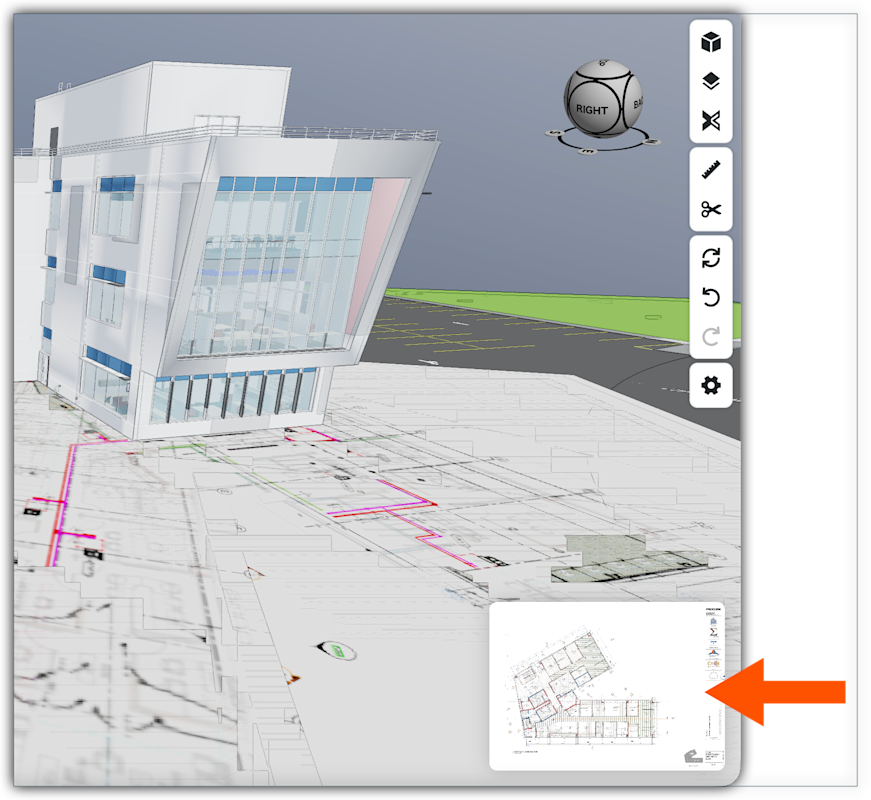
  3. Click the 2D Minimap in the lower right corner of the 3D model to open the Model Levels panel. This image shows a federated project model in the Next-Gen Viewer with a 2D sheet in the lower right corner.

    Tip

    Don't see a 2D Minimap? An Admin must first align 2D drawings to the 3D model. See Add 2D Overlay to the 3D Model.

  4. In the Model Levels panel, find the blue arrow, which represents your current camera position and direction you are facing.

  5. Select the desired 2D Sheet in the left panel:

    • Filter by Keyword. Start typing to filter the list for your entry. Click the desired 2D sheet in the list to display it in the viewing area.

    • Navigate. Expand the desired Level folder and click the desired sheet to display it in the 2D Sheet. A blue arrow represents your current camera position and the direction you are facing in the 3D model.

  6. Set the blue arrow marker in the desired location:

    1. Position/Reposition: Click anywhere on the drawing to place the blue marker in the location you want.

    2. Rotate: Rotate the marker to orient the camera in your desired direction.

  7. Choose from these options:

    • Zoom in 2D:

      • Click the plus (+) or minus (-) icon at the bottom or the page.

      • Change the value in the percentage indicator.

      • Scroll up or down using your mouse wheel.

    • If you have a touch device:

      • Pinch two fingers together to zoom out.

      • Spread two fingers apart to zoom in.

  8. Click the blue marker to pan to the set location in the 3D model.

Tip

How do you disable 2D sheets? Use one of the following methods:

  • To disable a single sheet, click the More (…) next to a sheet in the list and choose Do Not Use For 2D Navigation.

  • To disable multiple sheets, mark the checkboxes next to the desired sheets, click the Actions menu and choose Do Not Use for 2D Navigation.


Windows is a registered trademark of Microsoft Corporation in the United States and other countries. Google Chrome, Android, and Google Play are trademarks of Google LLC. iPhone, iPad, and App Store are trademarks or service marks of Apple Inc., registered in the U.S. and other countries and regions. iOS is a trademark or registered trademark of Cisco in the U.S. and other countries and is used under license by Apple Inc. Autodesk, AutoCAD, Civil 3D, Navisworks, and Revit are registered trademarks or trademarks of Autodesk, Inc., and/or its subsidiaries and/or affiliates in the USA and other countries. All other trademarks are the property of their respective owners.