About Subcontractor Invoices

Vous utilisez la terminologie du maître d’ouvrage ou de l’entrepreneur spécialisé ?

Procore peut être configuré pour utiliser une terminologie spécifique aux entreprises générales, aux maîtres d’ouvrage ou aux entreprises spécialisées. Découvrez comment appliquer les options du dictionnaire.
  • To learn the differences: Show/Hide

    • This table shows the differences in tool names (bold) and terms across the point-of-view dictionaries for Project Financials.

      Entrepreneurs généraux
      Anglais (États-Unis) - Par défaut

      Propriétaire
      Anglais (Terminologie du propriétaire V2)

      Entrepreneurs spécialisés
      Anglais (terminologie des entrepreneurs spécialisés)

      Facturation

      Facturation

      Facturations proportionnelles

      Propriétaire

      Financement

      Propriétaire

      Maître d’ouvrage/Client

      Maître d’ouvrage/Client

      CG/client

      Ordre de changement au contrat principal

      Ordre de changement de financement

      Ordre de changement du contrat client

      Contrats principaux

      Financement

      Contrats clients

      Revenu

      Financement

      Revenu

      Sous-traiter

      Contrat

      Sous-traiter

      Sous-traitant

      Entrepreneur

      Sous-traitant

      Ventilation des coûts du sous-traitant (VDCS)

      Ventilation des coûts de l’entrepreneur (VDCST)

      Ventilation des coûts du sous-traitant (VDCS)

      About These Dictionaries
      • Default Setting: The 'General Contractor' dictionary is enabled by default for all accounts.

      • Availability: These alternate dictionaries in italics are available in US English only.

      How to Switch Your Dictionary

      To change your company's terminology to the Owner or Specialty Contractor dictionary, contact your company's . They will work with your Procore Point of Contact to make the change.

Background

In Procore, a subcontractor invoice originates in the Project Commitments tool. Before you can create an invoice, your project team must create a commitment for the project, establish a billing period, and decide which internal users and/or external collaborators will be granted permission to submit new invoices.

 Tip

A Subcontractor Invoice is a request for payment submitted by a business or individual who has entered into a binding agreement with another contracting party. In Procore, a subcontractor invoice is an equivalent term for a payable invoice.

Prerequisites

Workflow

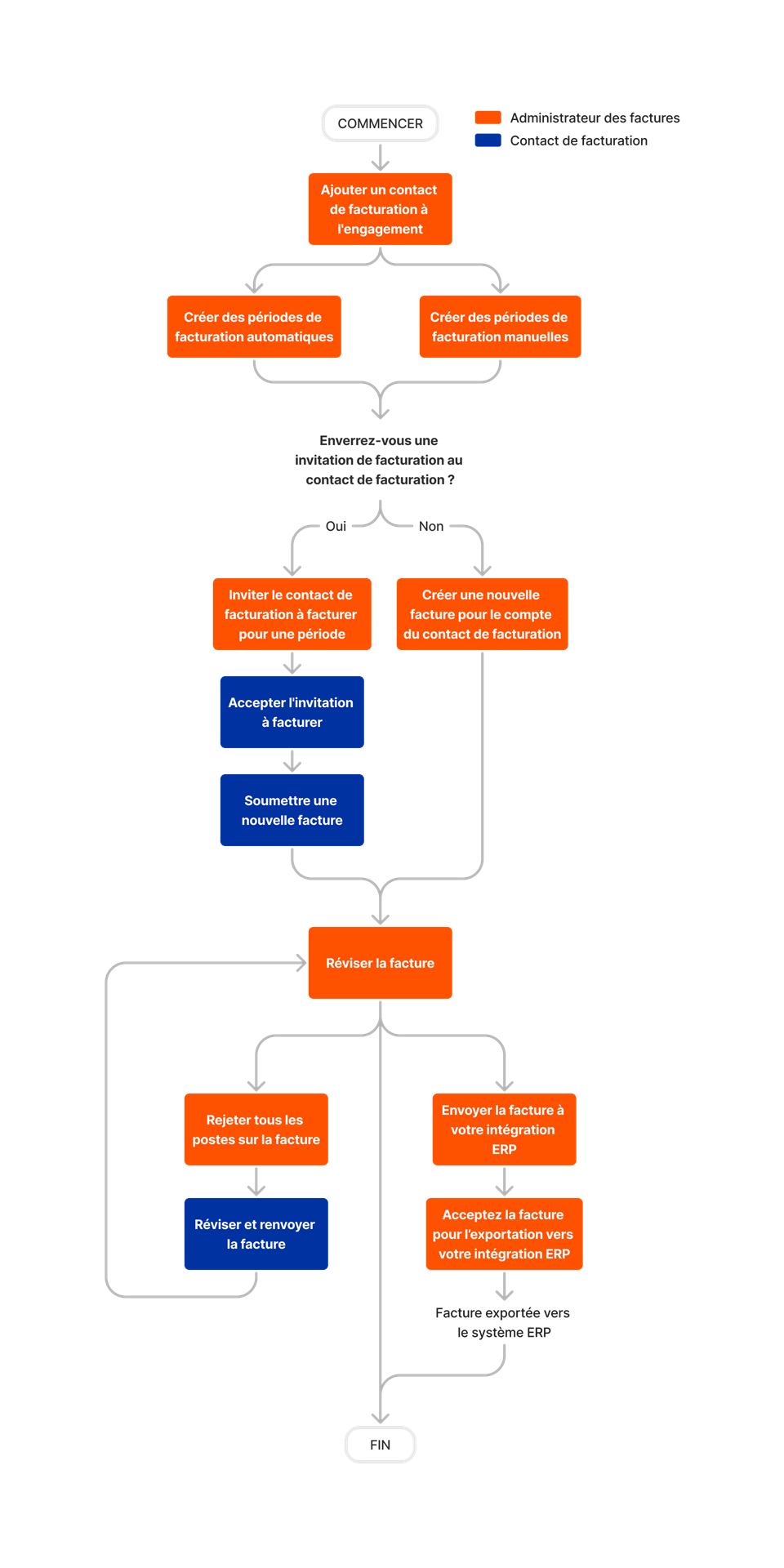
This diagram summarizes subcontractor invoice creation.

diagram_invoicing_subcontractor-invoices.png

Steps

  • Create Your Subcontractor Invoices in Procore

  • Optional: Export Your Subcontractor Invoices to an Integrated ERP System

Create Your Subcontractor Invoices in Procore

The steps for creating subcontractor invoices in Procore include:

Step

Description

Learn More

Decide who will have permission to submit an invoice

You have these choices:
1. Grant invoice submission rights to downstream collaborators. In Procore, these users are called invoice contacts. 2. Gather paper or digital invoices from collaborators and grant invoice submission rights to your team. In Procore, these users are your invoice administrators.

Considerations

Optional. Decide if you want to collect signatures with DocuSign®

There are two (2) ways to collect signatures on commitments and invoices:

DocuSign®

Configure the Invoice Management tools

Configure the invoicing settings in the Commitments and Invoicing tools. See Configure Settings: Commitments and Configure Settings: Invoicing.

Commitments and Invoicing

Establish a billing period

Create a billing period and place it in the Open status. A billing period defines the start, end, and due date for submitting an invoice.

Manage Billing Periods

Create a commitment

Subcontractor invoices originate from commitments. You can create multiple commitments for your collaborators in a Procore project. A commitment must be in the 'Approved' status before you can create an invoice.

Create a Commitment

Optional: Grant invoice submission rights to downstream collaborators

Optional: An invoice administrator can grant invoice submission rights to downstream collaborators.

Add Invoice Contacts to a Purchase Order or Subcontract

Configure the 'Advanced Settings' tab on the commitment

For best results, configure the advanced settings before you add line items to the SOV and before you create invoices for the commitment.

Edit the Advanced Settings Tab on a Commitment

Create invoices and submit them before the Open billing period's 'Due Date'

Learn the options for creating invoices with the Commitments tool. Only invoice administrators or invoice contacts on a commitment can create subcontractor invoices.

Create a Subcontractor Invoice

Review submitted invoices

Once submitted, an invoice administrator can review each line item on the invoice's Schedule of Values to approve or reject it.

Review a Subcontractor Invoice as an Invoice Administrator

Revise and resubmit invoices

If an invoice administrator rejects one (1) or more invoice line items, users can make fixes and corrections until all the line items on the invoice's Schedule of Values are Approved.

Revise & Resubmit a Subcontractor Invoice as an Invoice Contact

Optional. Complete the signature process in DocuSign®

Once Approved, you can optionally complete the signature process in DocuSign®.

Complete Subcontractor Invoices with DocuSign®

Optional: Sync invoices with an integrated ERP system

You'll need to determine if your ERP connector supports subcontractor invoices.

See Also

Loading related articles...