Tutorials
Procore Model Manager - Beta Access & Feedback
The Model Manager (Beta) features and documentation are subject to change without notice.
To learn about the beta program, see the Beta Participant Guide.
The Model Manager (Beta) features and documentation are subject to change without notice.
To learn about the beta program, see the Beta Participant Guide.
With the Model Manager (Beta) tool, tool Admins can set up a federated scene for the first time. You are prompted to choose a document repository in Procore for your source files. Your options are either the Document Management or Documents tool.
Required User Permissions Currently, only Admin permissions are available. Procore will add more permission levels later.
The Model Manager tool must be enabled at both the Company and Project levels. See Enable Model Manager on a Procore Project.
Upload your discipline files to your project's chosen document repository. See Upload Discipline Files to Procore.
Follow these steps to create a new project model.
Navigate to the project's Model Manager tool.
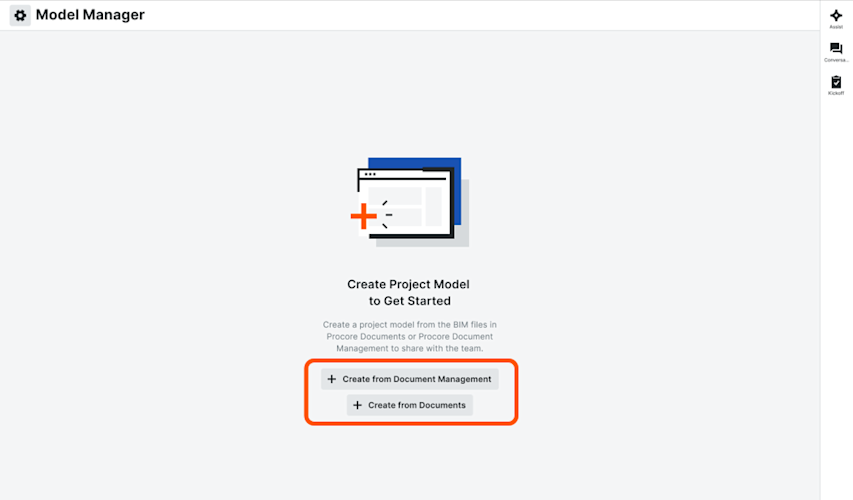
Depending on your project configuration, choose one option to select your team's document repository:
Single Repository: If your project has one (1) repository (Document Management or Documents), simply click Create Project Model.
Multiple Repositories: If your project has all repositories, click Create from Document Management or Create from Documents.
Single Repository | Multiple Repositories |
|---|---|
|
|