Add Viewpoints to Project Views
Procore Model Manager - Beta Access & Feedback
The Model Manager (Beta) features and documentation are subject to change without notice.
To learn about the beta program, see the Beta Participant Guide.
The Model Manager (Beta) features and documentation are subject to change without notice.
To learn about the beta program, see the Beta Participant Guide.
In the Next-Gen Viewer, project views allow tool Admins to organize and save specific perspectives of a 3D model, making it easier for your team to navigate to critical areas quickly. By managing viewpoints within these views, you ensure that collaborators always have access to the most relevant visual data without needing to manually recreate complex camera angles or section cuts.
What's the difference between a viewpoint and a project view? In Procore, a viewpoint acts as a spatial bookmark for a specific camera angle. While you can create these in Autodesk® and import them with your file uploads, a project view offers more control. It combines the viewpoint (where to look) with specific data filters and layer settings (what to see), ensuring field teams always have the visual clarity they need.
Required User Permissions Currently, only Admin permissions are available. Procore will add more permission levels later.
Use these steps to create new viewpoints and add existing viewpoints to project views.
Navigate to the Model Manager (Beta) tool.
In the Project Views card, click Add. 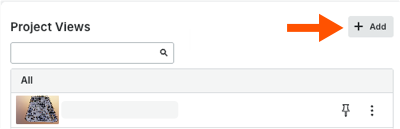
In the Add Viewpoints to Project Views window, you have these options:
Create a new viewpoint. Click the Create Viewpoint to open the federated project model in the document viewer with the Viewpoints window active.
Add an existing viewpoint. Mark one or more checkboxes for the viewpoints to add and click Add. A green success banner notifies you when successfully added to the Project Views card.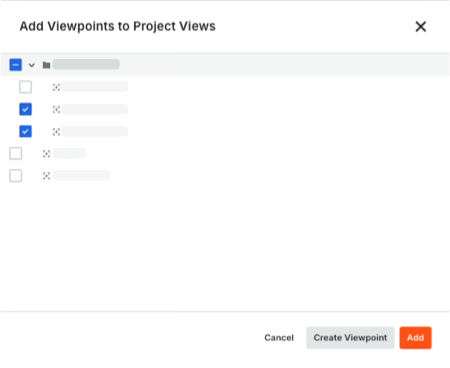
Additional options for managing viewpoints:
Search Viewpoints. Start typing the name of a existing viewpoint in the Search Viewpoints box. If an existing project view exists, the Project View pill appears by the viewpoint in the list.
Show/Hide Viewpoints. Click the Minus (-) icon to hide the viewpoints in the list. Click it again to show the viewpoints in the list.
Create Viewpoint. Click the Plus (+) icon and choose Create Viewpoint.
Create Folder. Click the Plus (+) icon and choose Create Folder. 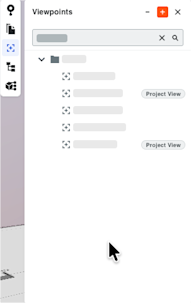
More (⋮). Click the More (⋮) and choose an option:
Update. Update an existing viewpoint.
Rename. Type a new name for the viewpoint.
Move to Folder. Move the selected viewpoint to the folder you want.
Add to Project Views/Remove from Project Views. Add the selected viewpoint to a project view or remove an existing project view from the list.
Delete. Permanently remove the selected project view. 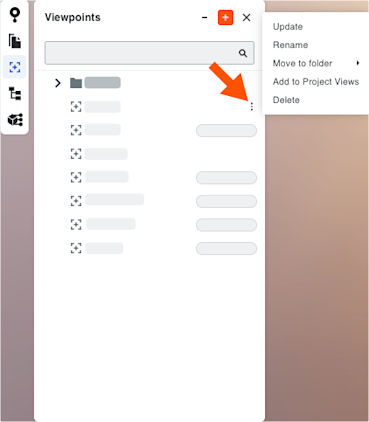
When finished, click Close. Procore saves your change automatically in the Project Views card.